Inter-Club Linking
If your school has more than one booster club — say, a football booster club and a band booster club — Inter-Club Linking lets you connect with them. Linking doesn't merge any data between clubs; it's a lightweight cross-reference other parts of the app can use to surface sibling-club information.
Where to find it: Club Operations card → Inter-Club Linking button
Who can use this: Only your Club Admin account.
Note: This button only appears once your club has an Associated School set in Club Profile. Without a school set, it does nothing.
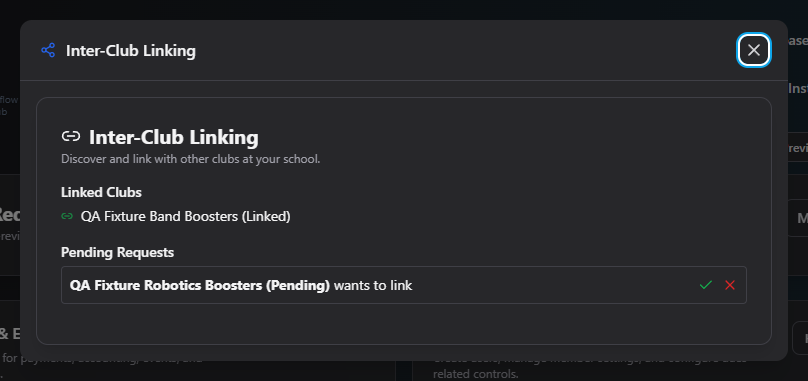
What you can do here
See your linked clubs
The Linked Clubs section lists every club you're currently connected to.
Send a link request
Under Other Clubs at Your School, any club at the same school that you're not already linked with (and don't already have a pending request with) shows a Request Link button. Click it to send a link request — it then appears under Outgoing Requests as pending until the other club responds.
Accept or decline an incoming request
Requests other clubs have sent you appear under Pending Requests with Accept (green check) and Decline (red X) actions.
- Accept links both clubs immediately — it now appears in each club's Linked Clubs list.
- Decline removes the request with no further action needed.
Common questions
I don't see this button at all. Set an Associated School on Club Profile first — Inter-Club Linking only appears for clubs that have one.
I don't see any other clubs to link with. Either no other clubs at your school exist in the system yet, or you're already linked or have a pending request with every one that does.
Can I cancel an outgoing request I sent by mistake? Not from this screen — outgoing requests only show as pending here with no cancel action. Contact your platform administrator if you need one removed.
Related
- Club Profile — set your Associated School here first