Announcements
Announcements posts club-wide updates to your members' dashboard — with an optional attached flyer or document — and lets you moderate a Q&A feed where members can ask questions and get public answers.
Where to find it: Finance & Events card → Announcements button
Who can use this: Club Admins, and board members granted the Post Announcements permission.
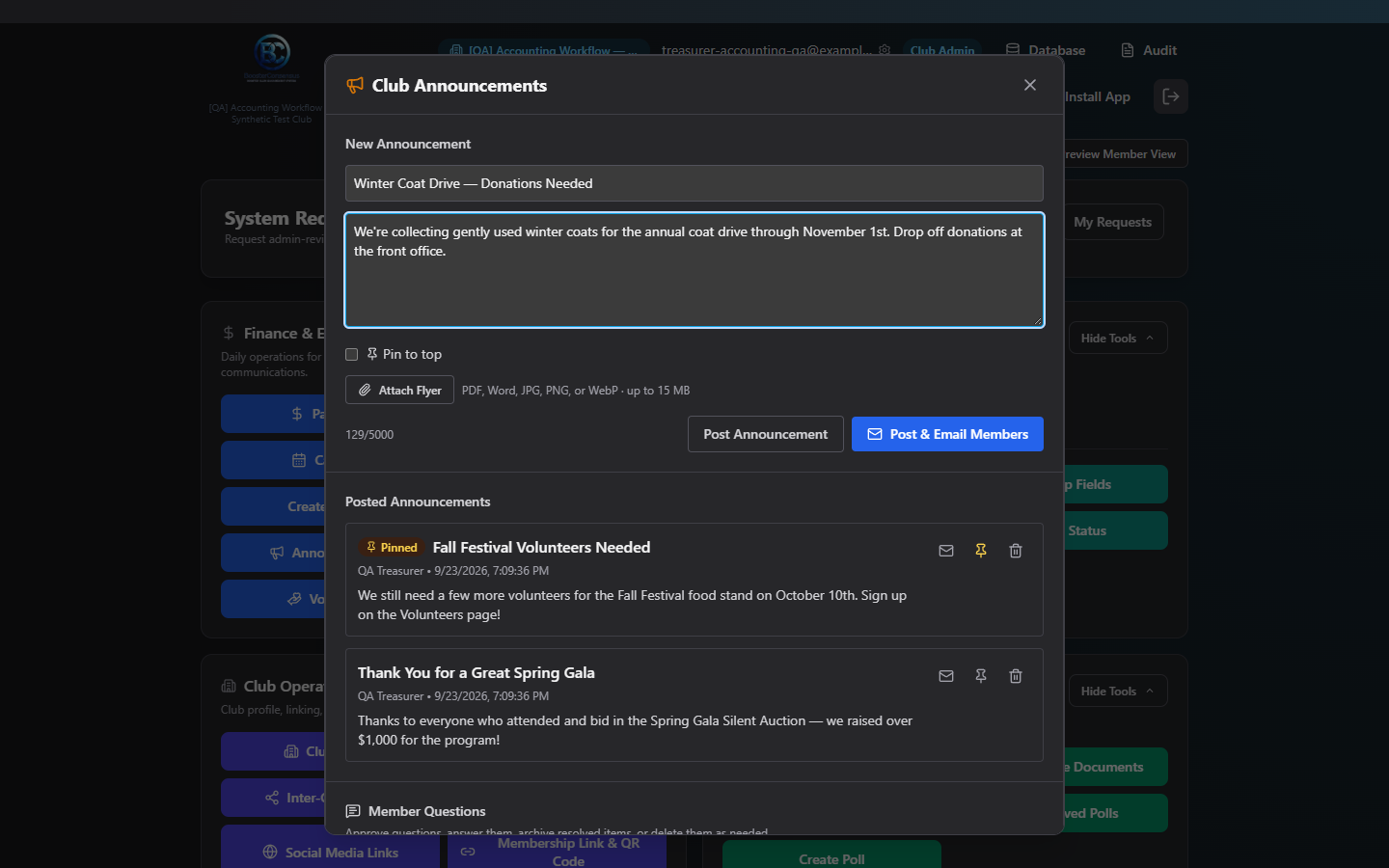
What you can do here
- Post an announcement
- Attach a flyer or document
- Pin an announcement to the top
- Email an announcement to a targeted audience
- Delete an announcement
- Moderate the member Q&A feed
Post an announcement
- Fill in Title (required) and Body (required, up to 5,000 characters — a live counter shows how much room you have).
- Check Pin to top if you want it to stay at the top of the feed.
- Optionally attach a flyer.
- Click Post Announcement.
It appears immediately at the top of "Posted Announcements" and on members' dashboard feed.
Note: There's no text-editing button after posting — the only thing you can change afterward is the Pin toggle. If you need to fix a typo, delete the announcement and post a corrected one.
Attach a flyer or document
Click Attach Flyer, then choose a PDF, Word document (.doc/.docx), or JPG/PNG/WebP image — up to 15 MB. Once uploaded, it shows as a filename chip with an × to remove it before posting. On an existing announcement, this button reads Replace Flyer.
Pin an announcement
Click the pin icon on any posted announcement to toggle it pinned. A pinned announcement shows a "Pinned" badge and takes priority visually in the list — use it for time-sensitive or must-see information.
Email an announcement
There are two ways to send an announcement as an email, both of which hand off to the Distribution Email tool so you can choose exactly who receives it:
- Post & Email Members — posts the announcement (visible on the dashboard immediately) and then opens Distribution Email pre-filled with its title and body.
- Mail icon on an already-posted announcement — opens Distribution Email pre-filled with that announcement's existing text, without re-posting it.
Either way, you pick the actual recipients (by club, school, role, or custom filters) and click Send from the Distribution Email tool — posting an announcement never emails anyone automatically by itself.
Delete an announcement
Click the trash icon on any posted announcement, then confirm — this cannot be undone, and it also removes any attached flyer file.
Moderate the member Q&A feed
Members can submit questions from their own dashboard, which land here as Pending Review. Each question card shows the question and asker, plus:
- Approve — publishes the question publicly (moves it to Open Questions).
- Answer — type a reply and click Save Answer; this publishes both the question and your answer immediately and moves it to Answered Questions.
- Archive — removes it from the public feed without deleting it; confirm required.
- Restore — brings an archived question back (to Answered if it already had an answer, otherwise Open).
- Delete — permanently removes the question; confirm required.
Questions are grouped into four sections in this order: Pending Review, Open Questions, Answered Questions, Archived Questions.
Field reference
| Field | Required | Notes |
|---|---|---|
| Title | Yes | Up to 200 characters |
| Body | Yes | Up to 5,000 characters |
| Pinned | No | Toggle after posting too |
| Flyer/document | No | PDF, Word, JPG, PNG, or WebP, up to 15 MB |
| Answer (Q&A) | Required to save | Up to 5,000 characters |
Common questions
Can I edit an announcement's title or body after posting? Not from this screen — only the Pin toggle can be changed after the fact. Delete and repost if you need to correct the text.
Does posting an announcement automatically email members? No. Posting only puts it on the dashboard feed. Use Post & Email Members (or the mail icon on an existing post) to open Distribution Email and choose recipients for an email copy.
Can members see Pending or Archived questions? No — members only ever see questions in Open or Answered status.
Troubleshooting
| If you see... | It means... | Do this |
|---|---|---|
| "Select a club workspace before opening announcements." | No club is currently selected | Choose a club, then reopen Announcements |
| "You do not have permission to post announcements." banner | You can view but not post/manage | Ask a Club Admin to grant the Post Announcements permission |
| "Unsupported file type. Please upload a PDF, Word document, JPG, PNG, or WebP image." | The flyer file type isn't supported | Convert or choose a different file |
| "File must be under 15 MB." | The flyer is too large | Compress it or choose a smaller file |
| "Answer is required." | You clicked Save Answer with an empty textarea | Type a response first |
Related
- Distribution Email — where announcement emails actually get sent from, with full recipient targeting