Auctions
Auctions is your silent-auction fundraising tool. You create an auction, add items with starting bids, open it for bidding, and members (plus guests with no account — handy for a gala or live event) bid in real time. When you close the auction, winners are determined automatically and a payment fee is generated for each one.
Where to find it: Finance & Events card → Auctions button
Who can use this: Club Admins, and board members granted the Manage Auctions permission. One action — permanently deleting a closed auction — is reserved for platform administrators; everyone else manages closed auctions with Reopen and Archive instead (see Delete vs. Archive vs. Reopen below).
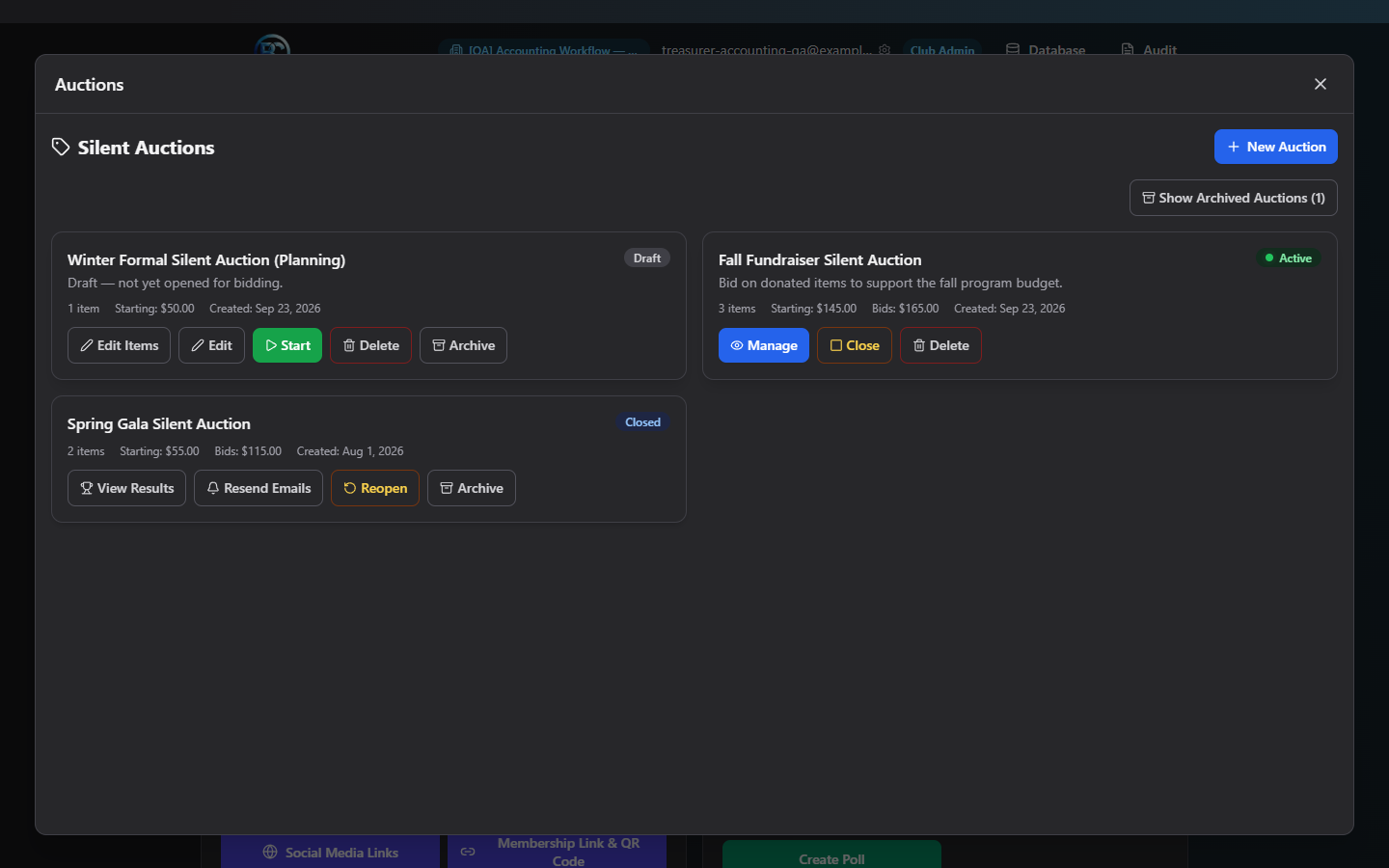
What you can do here
- Create an auction
- Add, edit, and remove items
- Open bidding to members and guests
- Close bidding and finalize winners
- Share the bidding link / QR code
- Handle failed winner-notification emails
- Reopen a closed auction
- Archive and restore an auction
There is no "Buy It Now" option — every item is an ascending-bid silent auction item; bidders can only outbid the current high bid, never buy instantly.
Create an auction
- Click New Auction (top right of the list).
- Fill in:
- Title (required)
- Description (optional)
- Club — defaults to your club
- Revenue Account — which accounting revenue account auction proceeds post to; leave as Auto-map by payment type if you're not sure.
- Click Create Auction.
The auction is created in Draft status — nothing is visible to members or bidders yet. You must add items and then start it before anyone can bid.
Note: Title is the only required field. If you leave it blank, the form shows "Title is required" and won't save.
Add, edit, and remove items
From a Draft or Active auction, open it (Edit Items or Manage) and click Add Item:
| Field | Required | Notes |
|---|---|---|
| Title | Yes | Up to 200 characters |
| Item Image | No | Take a photo or browse to upload — PNG, JPEG, or WebP only, 5 MB max |
| Description | No | Free text |
| Starting Bid ($) | No | Leave blank for $0 |
| Bid Increment ($) | No | The smallest amount a new bid must beat the current one by; leave blank for $1.00 |
Click Add Item to save it. To change an item later, click its pencil icon; to remove one, click its trash icon.
Note: Once an auction is Active and an item has received at least one bid, that item locks — the edit and delete icons are replaced with "Has bids — locked." You can still add brand-new items to an active auction; you just can't change one that's already being bid on.
Open bidding
Click Start (from the list) or Start Auction (from the auction's detail view). You'll be asked to confirm: "Start this auction? Members will be able to bid once it's active." Once confirmed, the auction moves to Active and immediately becomes visible to members on their dashboard and to anyone with the bidding link.
Note: You can't start an auction with zero items — you'll see "Add at least one item before starting the auction."
What members and guests see once bidding is open
- Logged-in members get a "Silent Auctions" card on their dashboard automatically while your auction is active. Each item shows the current bid, bid count, the minimum amount they'd need to bid next, and a "🏆 You're winning!" badge if they're currently the high bidder. Bids update live for everyone the moment they're placed.
- Guests (people with no account — reached only via your shared link/QR code) first enter a name plus email or phone to register, then see and bid on the same items the same way. They're shown to you with a "Guest" badge wherever their bids appear.
Close bidding and finalize winners
When you're ready to end the auction, click Close (list) or Close Auction (detail view — only available while the auction is Active). Confirm the warning: "Closing this auction will finalize all bids and generate payment fees for winners. This cannot be undone."
On close:
- The auction moves to Closed.
- The current high bidder on each item becomes that item's winner.
- A payment fee is automatically generated for every winner — you do not need to create or send these charges manually.
- Winners are emailed automatically.
Open View Results on a closed auction to see, per item: the winning bid, winner name (with a Guest badge if applicable), bid count, and a payment-status badge (Paid / Pending / Cancelled) showing whether that winner has paid their fee yet. Summary tiles at the top show Total Items, Winners, and Total Revenue.
Note: Auctions does not itself process the winner's card — it generates the payment fee and sends the winner a link. See the Payments manual for how club members pay outstanding fees.
Share the bidding link / QR code
From an auction's detail view (once it's left Draft), you'll see a Public Bidding Link panel:
- Show QR / Hide QR — toggles a scannable QR code for the bidding page.
- Copy link — copies the public bidding URL to your clipboard (button briefly shows "Copied!").
- Download QR — saves the QR code as a PNG you can print or add to signage.
This is the link/code to share for guest (no-login) bidding — print it on table cards, post it at check-in, or text it out before the event.
Handle failed winner-notification emails
If a winner email fails to send (bad address, delivery issue, etc.), it appears in the Failed Notifications Inbox on the auction's detail view, showing the recipient, whether it was a member or guest winner email, when it was created, how many times it's been retried, and the error. Click Retry on a row to resend just that one, or Refresh to reload the list. You can also click Resend Winner Emails at the top of the detail view to resend to every winner at once.
Reopen a closed auction
If something needs correcting after closing (wrong winner, item needs re-bidding), click Reopen Auction on a closed auction. Confirm: "Reopen this auction? Pending winner fees will be voided so bidding can resume safely." This returns the auction to Active and cancels any payment fees that were generated but not yet paid, so bidding can safely continue and close again cleanly.
Archive and restore an auction
Archive hides a finished auction from your main list without deleting its history. Available on Draft and Closed auctions (an Active auction must be closed first — you'll see "Close the auction before archiving it.").
- Click Archive.
- You'll be asked for optional remarks (e.g. "Spring Gala 2026 — completed, all items sold").
- Confirm. The auction moves to Archived and disappears from the default list view (toggle Show Archived Auctions to see it again).
Click Restore on an archived auction to bring it back into the active list.
Delete vs. Archive vs. Reopen
- Draft or Active auctions can be permanently deleted by a Club Admin or a board member with the Manage Auctions permission — you'll get a "This cannot be undone" confirmation first. Use this only for auctions created by mistake.
- Closed auctions cannot be deleted by a Club Admin or delegated board member — only a platform administrator can. If a closed auction needs to go away, Archive it instead; if it needs correcting, Reopen it.
Field reference
Auction
| Field | Required | Notes |
|---|---|---|
| Title | Yes | Max 200 characters |
| Description | No | Free text |
| Club | No | Defaults to your club |
| Revenue Account | No | Which accounting revenue account proceeds post to; default auto-maps by payment type |
Item
| Field | Required | Notes |
|---|---|---|
| Title | Yes | Max 200 characters |
| Item Image | No | PNG/JPEG/WebP, 5 MB max |
| Description | No | Free text |
| Starting Bid | No | Defaults to $0 |
| Bid Increment | No | Defaults to $1.00 |
Common questions
Can bidders buy an item outright instead of bidding? No — every item is bid-only; there's no "Buy It Now" option.
Do I have to manually charge the winners? No. Closing the auction automatically generates a payment fee for each winning bidder and emails them; you only get involved if an email fails to send (see Handle failed winner-notification emails) or a winner needs a manual reminder.
Can I still edit an item after bidding starts? Only if it has zero bids so far. Once an item gets its first bid while the auction is active, it locks to protect bidders from the terms changing mid-bid.
I closed the auction by mistake — can I undo it? Click Reopen Auction. It returns the auction to Active and voids any unpaid winner fees that were generated, so bidding can resume cleanly.
Troubleshooting
| If you see... | It means... | Do this |
|---|---|---|
| "Title is required" | You tried to create an auction with no title | Enter a title and save again |
| "Add at least one item before starting the auction." | You clicked Start on an auction with zero items | Add at least one item, then start |
| "Close the auction before archiving it." | You tried to archive an Active auction | Click Close first, then Archive |
| "Has bids — locked" instead of edit/delete icons | The item already received a bid while the auction is active | You can't change it; add a new item instead if needed |
| Delete button missing on a closed auction | Only platform administrators can delete closed auctions | Use Archive to remove it from your list, or Reopen to fix it |
| A winner's email is stuck / never arrived | The send failed | Open Failed Notifications Inbox on that auction and click Retry, or use Resend Winner Emails |