Payments — Item Catalog
Where to find it: Finance & Events card → Payments button → Item Catalog tab
The Item Catalog is your club's "menu" — every billable or sellable thing you offer, before it's charged to any specific member. Once an item exists here, you assign it to members as a fee.
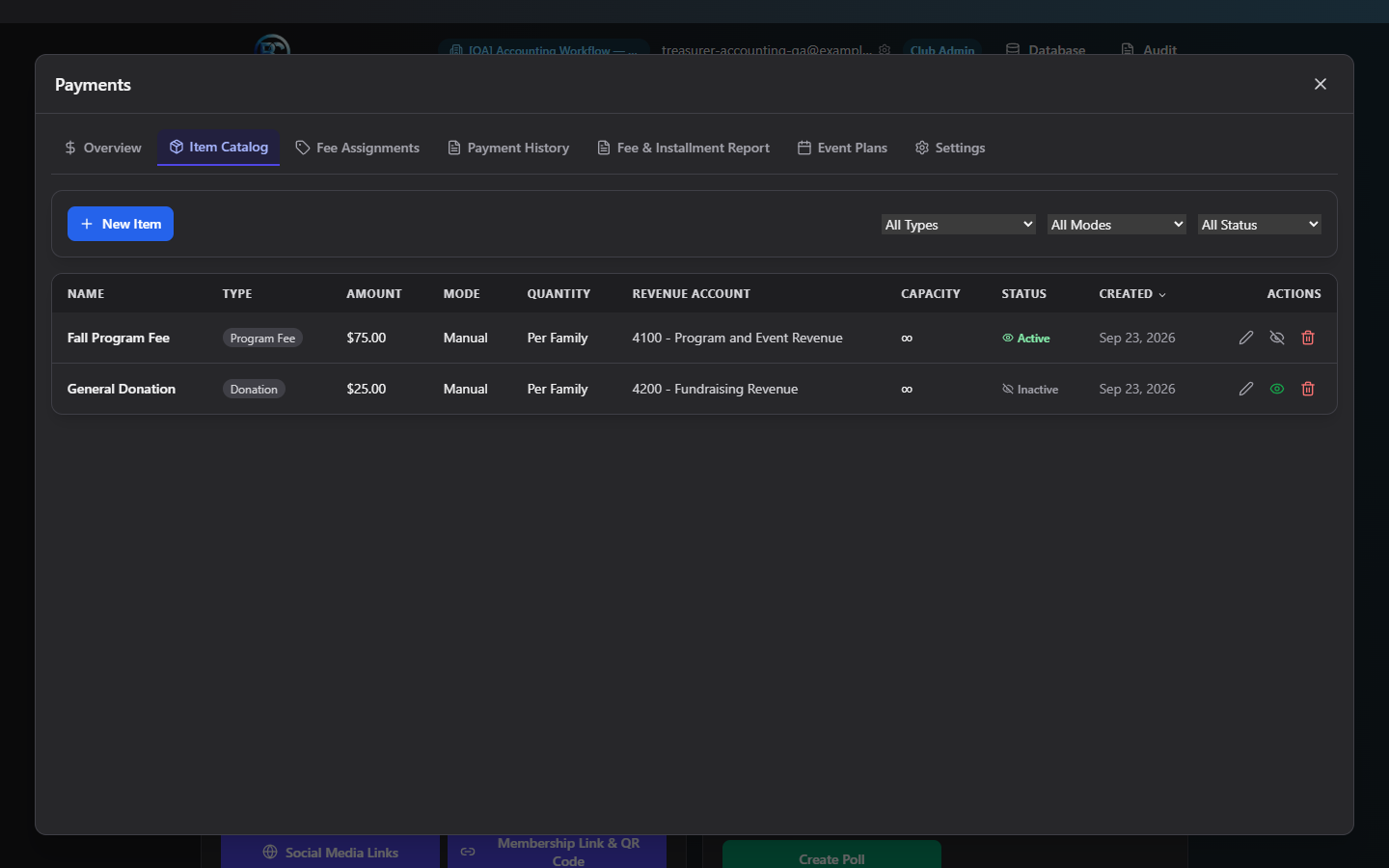
What you can do here
Create an item
- Click New Item.
- Fill in Name (required) and pick a Type: Program Fee, Trip Payment, Event Fee, Donation, or Merchandise.
- Set an Amount (optional — defaults to $0). For Donations, this becomes a suggested minimum, and you can additionally check Allow custom amount to let the payer enter more.
- Choose Assignment Mode (Required or Optional) and Assignment Quantity (Per Family or Per Student — per-student items multiply the amount by the number of students on the family record when assigned).
- Optionally set: Category (free text), which installment counts to offer (1–4 payments — this only sets what's available; exact due dates are chosen when you assign the fee), auto-assign to new active members, whether to email members when assigned (on by default), reminder days before the due date, a Revenue Account, item options (variant choices, e.g. sizes), a max capacity, and an availability date window.
- Click Create Item.
Filter and sort the catalog
Use the Type, Mode, and Status dropdowns above the table to narrow the list (defaults to showing Active items only). Click a column header (Name, Amount, Created) to sort.
Activate or deactivate an item
Click the eye icon on any row to instantly toggle it Active/Inactive — no confirmation needed. An inactive item disappears from Fee Assignments' "Select Item" dropdown but keeps its full history.
Delete an item
Click the trash icon, then confirm. What actually happens depends on history:
- If no fees reference the item, it's permanently deleted.
- If fees do reference it (someone was ever assigned this fee), it's deactivated instead — the confirmation dialog tells you this up front.
Field reference
| Field | Required | Notes |
|---|---|---|
| Name | Yes | Up to 200 characters |
| Description | No | Free text |
| Type | Yes | Program Fee / Trip Payment / Event Fee / Donation / Merchandise |
| Amount | No, defaults $0 | Suggested minimum for Donations |
| Allow custom amount | Donation type only | Lets payer enter more than the suggested amount |
| Assignment Mode | Yes, default Required | Required or Optional |
| Assignment Quantity | Yes, default Per Family | Per Family or Per Student |
| Category | No | Free text, e.g. "Spring 2026" |
| Installment choices | No | Which of 1/2/3/4 payments to offer |
| Auto-assign to active members | No | New active members get this fee automatically going forward |
| Email members when assigned | No, default on | |
| Reminder days before due date | No | Comma list, 1–90 days |
| Revenue Account | No | Defaults to auto-mapping by payment type |
| Item Options | No | Variant choice groups (e.g. Size: S/M/L/XL) |
| Max Capacity | No | Blank = unlimited |
| Available From / Until | No | Date window |
Common questions
What's the difference between "Delete" and "Deactivate"? If an item has never been assigned to anyone, Delete removes it entirely. If it has history, Delete quietly becomes Deactivate instead — your past records are always preserved.
Does changing installment choices affect existing fees? No — installment choices only control what's offered the next time you assign this item as a fee. Already-assigned fees keep whatever schedule they were given.
Troubleshooting
| If you see... | It means... | Do this |
|---|---|---|
| Inline red error in the item form | The amount is invalid | Enter a valid, non-negative dollar amount |
| Item disappeared from Fee Assignments' picker | It was deactivated | Reactivate it here via the eye icon if you need to assign it again |
Related
- Fee Assignments — assign a catalog item to members
- Event Plans — for multi-installment trips, which use a separate setup flow from catalog items