Payments — Event Enrollments
Where to find it: Finance & Events card → Payments button → Event Plans tab → click View Enrollments on a specific plan
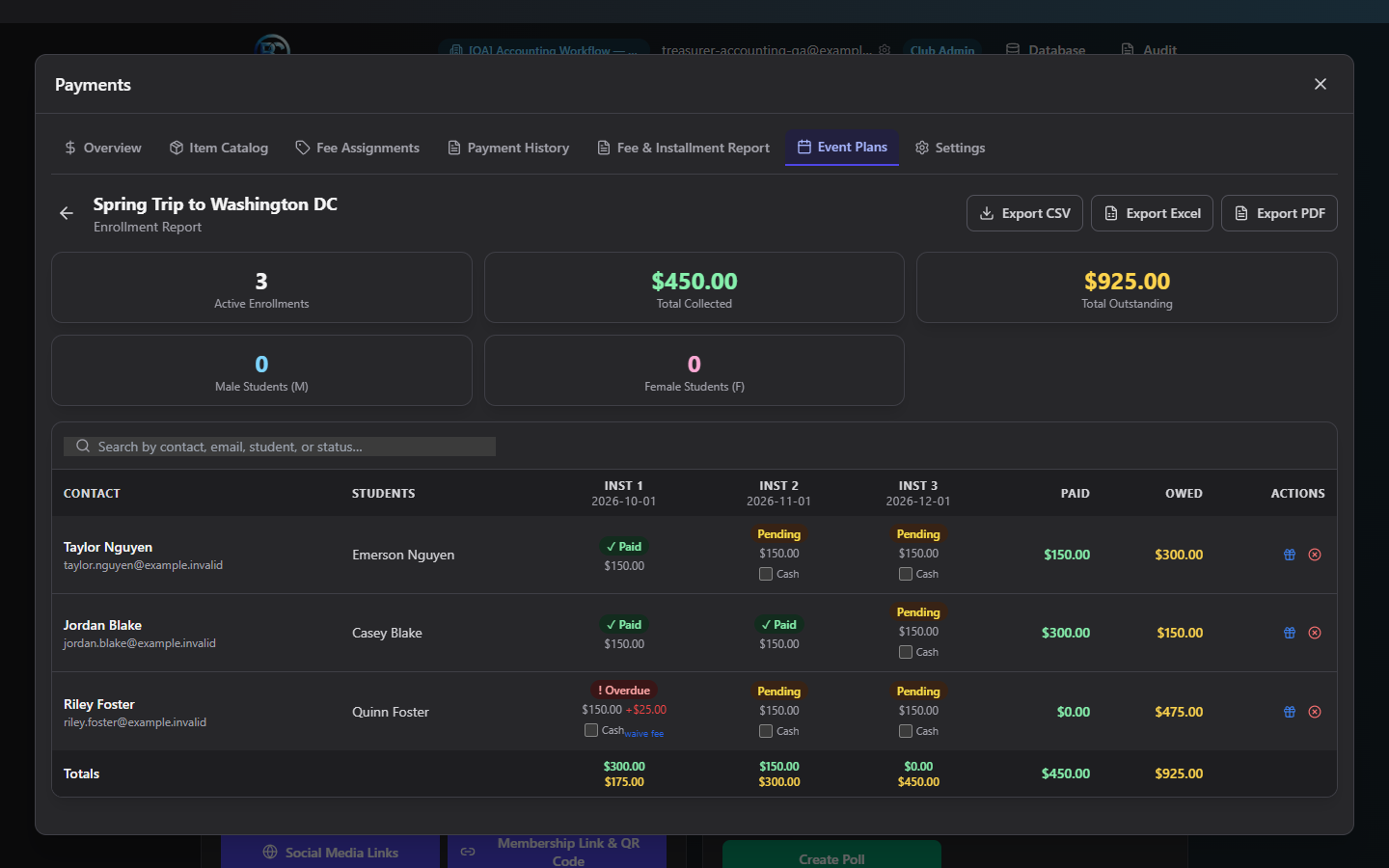
This is the roster for one Event Plan — every enrolled family, who they brought, and exactly where each of them stands on every installment.
What you can do here
Read the enrollment grid
Each row is one family's enrollment: contact name/email, their students, then one column per installment showing a status pill — Paid, Pending, Overdue, Waived, or Cancelled — with the dollar amount, and any unwaived late fee shown in red. Paid/Owed totals run down the right side, and a sticky footer row totals everything across all enrollments.
Five summary tiles sit above the grid: Active Enrollments, Total Collected, Total Outstanding, and (only meaningful if the plan collects student gender) Male/Female student counts.
Apply a discount
Click the gift icon on a family's row:
- Enter the discount dollar amount (must be greater than $0).
- Optionally enter a reason.
The discount reduces what's owed across that family's remaining unpaid installments — it doesn't retroactively refund anything already paid. It shows as "Discount: $X" under their name going forward.
Waive a late fee
If an installment shows an active late fee, a waive fee link appears next to it. Click it, confirm, and the late fee is removed from that one installment.
Cancel an enrollment
Click the X-circle icon on a family's row, then confirm. This voids any remaining unpaid installments and frees up a capacity slot on the plan.
Note: Cancelling does not issue a refund for anything already paid — if a refund is owed, process it manually from Payment History.
Export the report
Export CSV, Export Excel, or Export PDF — each includes contact info, students, gender totals (if collected), per-installment paid/owed detail, discounts, and status, for every enrollment (not just what's visible on screen).
Field reference
| Action | Required input |
|---|---|
| Apply Discount | Amount (> $0), optional reason |
| Waive Late Fee | None — just confirm |
| Cancel Enrollment | None — just confirm |
Common questions
If I cancel an enrollment, do I need to do anything else? If the family already paid something, yes — go to Payment History and issue a refund manually; cancelling the enrollment only stops future installments and frees the capacity slot.
Does a discount apply evenly across all remaining installments? It's applied proportionally across whatever installments are still unpaid at the time you apply it — already-paid installments are untouched.
Note: A per-installment "record cash payment" checkbox may appear next to unpaid installments in this grid. If it doesn't complete successfully when clicked, use Fee Assignments → Record a manual/offline payment instead, which is the confirmed working path for recording an offline payment.
Troubleshooting
| If you see... | It means... | Do this |
|---|---|---|
| "Please enter a valid discount amount" | The discount field was $0, blank, or not a number | Enter a positive dollar amount |
| Roster fails to load with an error card | A fetch error occurred | Click Retry on the error card |
| "No enrollments yet" | No one has signed up through the plan's link yet | Share the signup link from Event Plans |
Related
- Event Plans — configure the plan itself
- Payment History — issue a refund for a cancelled enrollment