Payments — Fee Assignments
Where to find it: Finance & Events card → Payments button → Fee Assignments tab (has three sub-views: Outstanding, Assign Fees, All Fees)
This is where a catalog item becomes a bill for a specific member — and where you track, remind, waive, cancel, or manually record payment against it.
What you can do here
- Assign a fee to members
- Track and manage outstanding fees
- Send reminder emails
- Waive or cancel a fee
- Record a manual/offline payment
- Share a direct payment link
- Review the full fee history
Assign a fee to members
Switch to the Assign Fees sub-view:
- Pick a Select Item (required — from your active catalog).
- The Amount pre-fills from the item but can be overridden for this assignment.
- Set Due Date #1. If the item offers multiple installments, additional due-date fields appear (#2, #3, #4) — leave later ones blank to fall back to a default monthly schedule.
- Either check individual members in the Select Members list (searchable), or click Assign to All Active Members.
- Click Assign Fee to N Member(s).
You'll see a toast summarizing how many fees were created and how many were skipped (already assigned, already paid, or exempt).
Note: If any selected member already paid this fee before, you'll get a warning confirmation: reassigning creates a new fee they could end up paying twice. Only confirm this if you specifically intend to re-bill them.
Track and manage outstanding fees
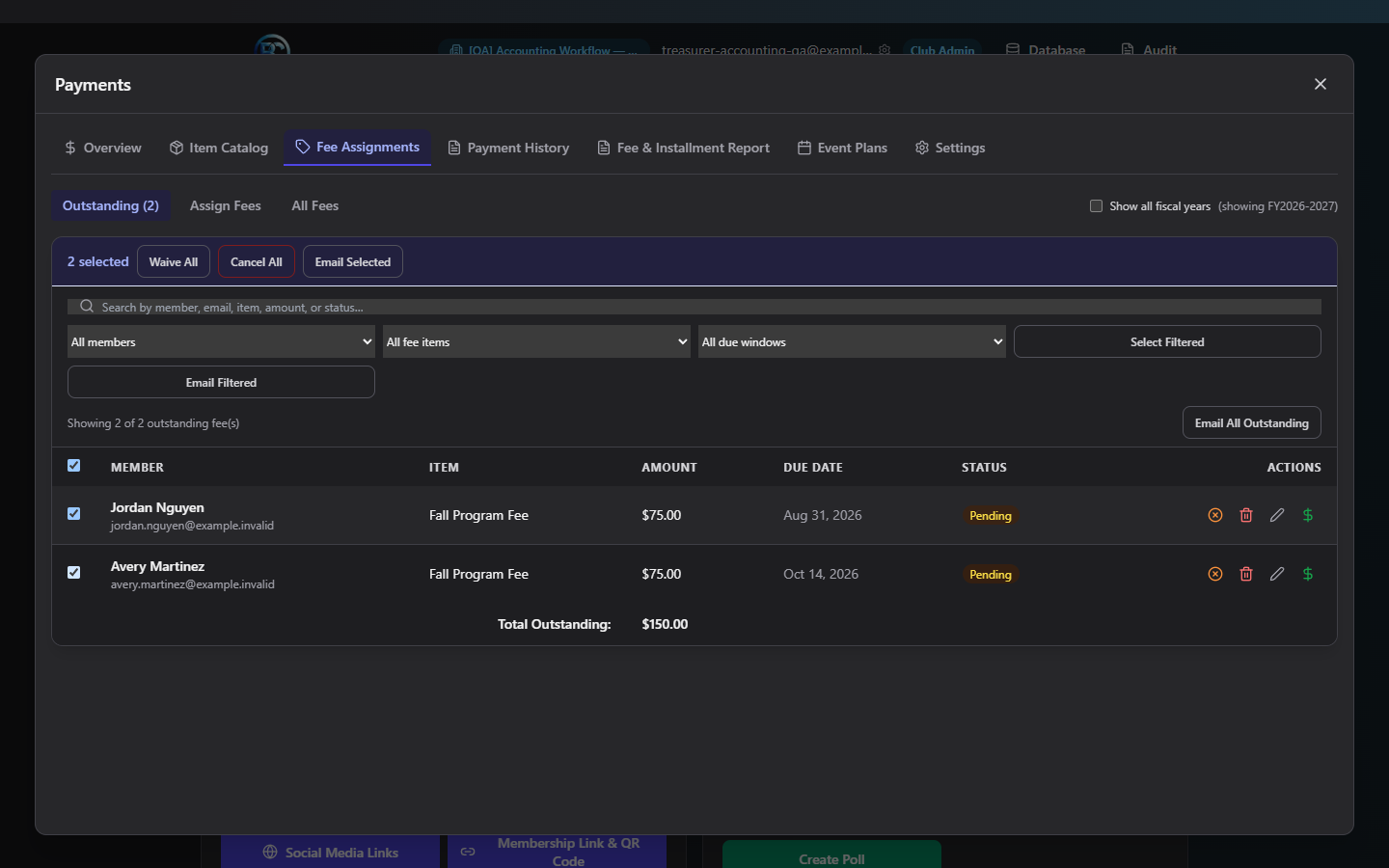
The Outstanding sub-view lists every fee still owed (pending or on an installment plan). Use the search box and filters (Member, Item, Due window — overdue / due in 7 days / has a due date / no due date) to narrow the list.
- Check rows individually, or Select Filtered to check everything currently visible.
- With rows selected, a bulk action bar appears: Waive All, Cancel All (both confirm first — "Are you sure you want to {waive/cancel} N selected fee(s)? This cannot be undone."), and Email Selected.
Send reminder emails
From Outstanding, click Email Filtered (sends to whatever the current filters show) or Email All Outstanding. Reminders are sent in the background in batches; the result toast reports how many were sent, skipped (no email on file, or not actually pending), or failed.
Waive or cancel a fee
Per row, click the orange X-circle to Waive or the red trash icon to Cancel — both apply immediately with no confirmation dialog on a single row (the bulk versions above do confirm). There's no undo, so double-check before clicking.
You can also click the pencil icon to edit a fee's dollar amount inline.
Record a manual/offline payment
Click the $ icon on any outstanding fee to open the payment form:
| Field | Required | Notes |
|---|---|---|
| Member | Yes | Pre-filled if opened from a specific fee |
| Link to Fee | No | Auto-fills Amount/Description if picked |
| Amount | Yes | Minimum $0.01 |
| Payment Method | Yes, default Cash | Cash / Check / Money Order / Other |
| Check Number | Only if Method = Check | Optional even then |
| Description | No | Auto-filled if linked to a fee |
| Revenue Account | No | Defaults to auto-mapping |
| Date | Defaults today | Can be backdated |
Click Record Payment. If linked to a fee, that fee is marked paid in the same step and the member's dashboard/status updates immediately, exactly as if they'd paid online.
Share a direct payment link
If your club has payment links enabled, a link icon appears on outstanding fee rows — click it to copy a direct payment URL for that specific member and fee, handy for texting or emailing someone a one-click way to pay.
Review the full fee history
The All Fees sub-view is a read-only, searchable record of every fee ever created — including paid, waived, and cancelled ones — with Member, Item, Amount, Due Date, and Status columns. Use "Show all fiscal years" (on Outstanding and All Fees) if you need to see fees from before the current fiscal year.
Common questions
What happens if I waive vs. cancel a fee? Both remove it from Outstanding without payment. Waive is typically used for "forgiven" fees (e.g. a scholarship); Cancel is for fees that shouldn't have existed. Functionally both just change status — use whichever your club's record-keeping convention prefers.
Can I un-waive or un-cancel a fee? There's no direct undo button — reassign the item to that member again if the fee still needs to be billed.
Why does the app warn me before reassigning a fee? It's protecting against accidentally double-billing someone who already paid — the confirmation only appears when at least one selected member has already paid that exact item.
Troubleshooting
| If you see... | It means... | Do this |
|---|---|---|
| Red toast, nothing happens on Assign Fee | No item or no members were selected | Pick an item and at least one member |
| Amount field rejects your entry | The value isn't a valid non-negative number | Enter a plain dollar amount, e.g. 25.00 |
| "N created, Y skipped (already assigned, paid, or exempt)" | Some selected members were skipped intentionally | Expected — check the fee's history if you're unsure why a specific member was skipped |
Related
- Item Catalog — create the item before you can assign it here
- Payment History — see every transaction, including manual payments recorded here