Store
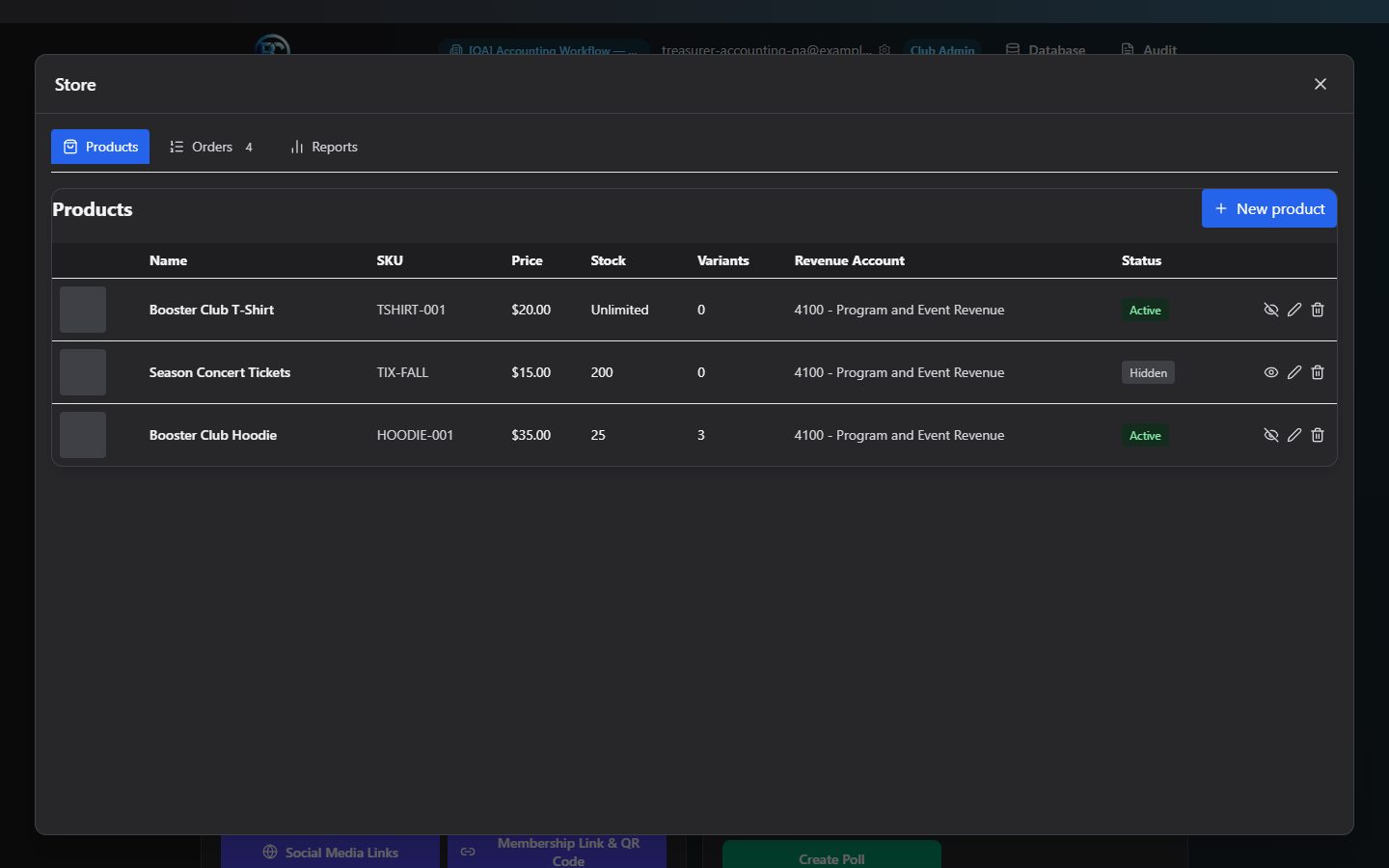
Store is your club's ongoing merchandise shop. You list products (spirit wear, gear, concessions preorders — anything with a fixed price, optionally in sizes/colors), members and guests shop it and check out, and you fulfill and track orders here.
Where to find it: Finance & Events card → Store button, then choose the Products, Orders, or Reports tab.
Who can use this: Club Admins, and board members granted the Manage Store permission. Every action described below is available equally to both — there's no platform-admin-only functionality in Store.
What you can do here
- Create and edit products
- Set up variants and options (sizes, colors, add-ons)
- Publish or hide a product
- View and fulfill orders
- Cancel or refund an order
- Run and export sales reports
Products tab
Create and edit a product
- Click New product.
- Fill in the fields (full list in Field reference below) — only Name and Price are required.
- Click Save. The button shows the live price you're about to save (e.g. "Save — $19.99") so you can double-check it before confirming.
To edit later, click the pencil icon on that product's row.
Variants vs. option groups
Store gives you two different tools for choices on a product — pick whichever fits:
- Variants — use these when the choice affects price or stock, like size or
color. Click Add variant and fill in a short Key (auto-suggested
v1,v2…), a Label shoppers see (e.g. "Small / Red"), a Δ Price (an amount added to or subtracted from the base price for that variant), Stock (leave blank for unlimited), and an optional SKU. Once you add any variant, the product's flat inventory field disappears — stock is now tracked per variant instead. On the storefront, a sold-out variant appears disabled with "— out of stock." - Option groups — use these for choices that don't affect price or stock, like a monogram color or a "no nuts" preference. Click Add group, give it a Label and a comma-separated list of Choices, and mark it Required if a shopper must pick one before adding to cart.
Publish or hide a product
There's no separate "publish" step — a product is visible to members and the public storefront the moment it's saved with Active checked (the default for new products). To take a product off the storefront without deleting it, click its Eye/EyeOff icon in the Products table (or uncheck Active in the edit form) — it instantly disappears from the storefront and shows a "Hidden" badge in your list. Check Featured to promote a product into the storefront's Featured section at the top.
Delete a product
Click the trash icon on a product's row. If the product has never been ordered, it's deleted outright. If existing orders reference it, it's deactivated instead of deleted so past order history stays intact — the confirmation dialog tells you this before you commit.
Orders tab
Use the status filter at the top to narrow the list (each status shows its own live count). Click any row to open its details.
Order detail
You'll see the customer's contact info, any students tagged to the order, a shipping address if one was collected, and the full line-item breakdown (product, chosen options, quantity, price, total). A note field lets you attach a comment to whatever status change you make next — it's saved permanently in that order's status history.
Move an order through its lifecycle
Buttons appear based on the order's current status:
| From status | Button | Moves to |
|---|---|---|
| Awaiting payment | Mark paid | Paid |
| Paid | Mark fulfilled | Fulfilled |
| Fulfilled | Mark shipped | Shipped |
| Fulfilled or Shipped | Mark completed | Completed |
If the product needs shipping, fill in Tracking Number and Carrier before clicking Mark shipped — the app lets you proceed without one, but shows a reminder that a tracking number is recommended.
Cancel vs. refund
These are two different actions and it matters which one you use:
- Cancel — available while an order is Awaiting Payment or Paid. Confirms with "Inventory will be restocked. This cannot be undone." Use this for orders that shouldn't go forward at all; stock is always returned automatically.
- Refund — available once an order is Paid, Fulfilled, Shipped, or Completed. This only updates the order's status here — it does not move any money. The confirmation dialog says so explicitly: you still need to process the actual refund yourself in your Stripe or Square dashboard. Use this to keep your order records accurate after you've refunded the customer through your payment provider.
Both actions let you enter an optional reason, which is saved to the order's audit history.
Reports tab
Overview tiles
At the top: total Revenue, count of Paid orders (with a link to view them), Average order value, and counts of Products and refunded orders.
Status breakdown
Click any status tile (Paid, Shipped, etc.) to drill into just the orders in that status, shown in a table below. Click Clear drilldown to return to the full view.
Sales summary by item
The main reporting tool — a filterable, exportable table of sales grouped by product.
- Filters: search by item name, date range, include/exclude specific products, toggle which order statuses to include (Paid, Fulfilled, Shipped, Completed, and Refunded are on by default), and choose which columns to show (Item, SKU, Category, Qty Purchased, Qty Refunded, Gross Sales, Refunded Sales, Net Sales, Orders, Payment Providers, Payment Statuses, and accounting posting status).
- Summary source: choose Live (orders + payments) for real-time numbers, or Materialized daily rollup for a precomputed daily snapshot (faster for long date ranges).
- Export CSV downloads the current filtered table.
- Save Snapshot lets you add a note and permanently save the current report — saved snapshots appear in Recent report snapshots below, useful for month-end records or comparing against a prior period later.
- Reset filters and fields clears everything back to defaults.
Note: If you see a banner saying the backend capped how many orders it scanned, narrow your date range or filters — the totals shown may be incomplete until you do.
Reconciliation exceptions
A table of mismatches the system found between orders and their payments (useful to review before closing your books for the month) — each row shows a severity, a code, and a description of what doesn't line up.
What members and the public see
Once a product is Active, it appears on the club's Storefront, grouped into Featured and category sections. Shoppers pick a variant and any required options, set a quantity, and add to cart. The cart drawer collects name and email (required), phone (optional), and a student selection if the product requires one — then Continue to payment sends them to checkout. After checkout, shoppers see their own recent orders with live status badges, and can resume payment on any order still awaiting payment.
Your admin actions show up for them immediately: hiding a product removes it from the storefront in real time, and updating an order's status (e.g. to Shipped) updates the badge the customer sees on their own order right away.
Field reference
Product
| Field | Required | Notes |
|---|---|---|
| Name | Yes | Max 200 characters |
| SKU | No | Free-text identifier |
| Description | No | Free text |
| Price | Yes | Must be $0 or more |
| Category | No | Groups items on the storefront (e.g. "apparel", "accessories") |
| Revenue Account | No | Which accounting revenue account sales post to; default auto-maps |
| Inventory | No, hidden if variants exist | Blank = unlimited stock |
| Max per order | No | Blank defaults to a 99-unit cap |
| Active | — | Publishes/unpublishes from the storefront |
| Featured | — | Promotes to the storefront's Featured section |
| Requires student | — | Forces the buyer to attach a student at checkout |
| Needs shipping | — | Enables shipping address and tracking fields on the order |
| Images | No | Any image file, 5 MB max each; multiple allowed |
Order statuses
Awaiting Payment → Paid → Fulfilled → Shipped → Completed, with Cancelled and Refunded as terminal states reachable from the statuses noted above.
Common questions
Does clicking Refund send the customer's money back? No. It only marks the order as refunded here for your records — you must issue the actual refund in Stripe or Square yourself first.
How do I take a product off the store without losing its order history? Toggle it to Hidden (the Eye/EyeOff icon) instead of deleting it. Deleting is only for products with no order history; the app will deactivate instead of delete if orders reference it.
What's the difference between a variant and an option group? Variants affect price and/or stock (size, color). Option groups are choices that don't change price or stock (a preference, a monogram letter, etc.).
A shopper says checkout failed — what do I check? Confirm the product still has stock in the selected variant, and that every required option and student field (if the product requires one) was filled in — the storefront blocks checkout until those are satisfied.
Troubleshooting
| If you see... | It means... | Do this |
|---|---|---|
| "Name is required" | You tried to save a product with a blank name | Enter a name |
| "Price must be a non-negative number" | Price field is blank, negative, or not a number | Enter a valid price of $0 or more |
| Delete confirmation mentions deactivation | This product has existing order history | Expected — it will be hidden, not erased |
| "Tracking number recommended for shipped status" | You clicked Mark shipped with no tracking number entered | Optional — you can proceed, or add a tracking number first |
| Order stuck on "Refunded" with the customer saying they got no money | Refund only updates status here | Process the actual refund in your Stripe/Square dashboard |
| Report totals look incomplete with a capped-scan banner | Your date range/filters returned more orders than the backend will scan at once | Narrow the date range or filters and re-run |