Volunteers
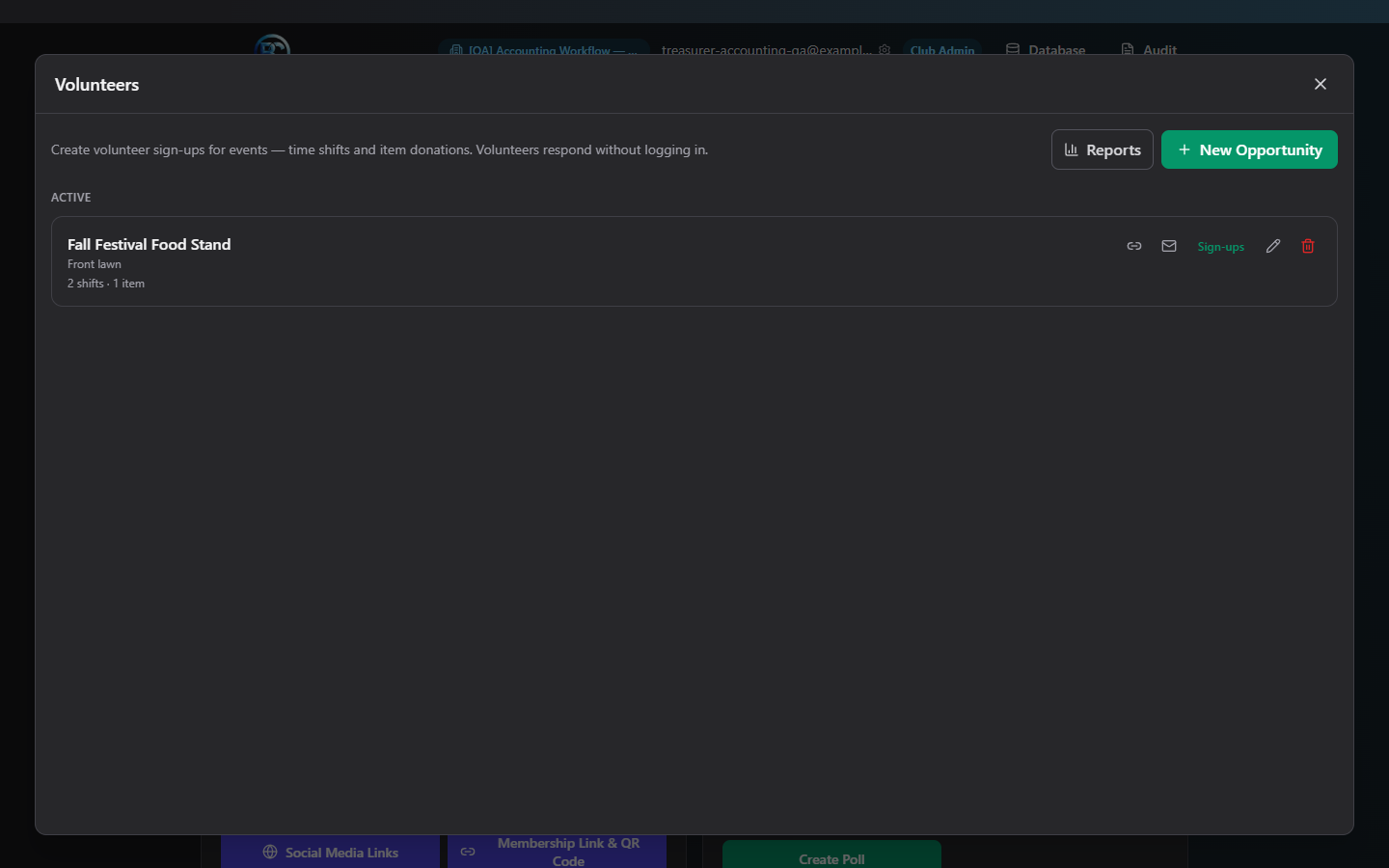
Volunteers lets you build sign-up opportunities for your club — time shifts (e.g. "3 grill cooks needed 6–8pm Saturday") and item donations (e.g. "Case of water × 20") — and share a single link or QR code that anyone can use to sign up without creating an account.
Where to find it: Finance & Events card → Volunteers button
Who can use this: This button is visible to two different permission levels, and what you see depends on which one you hold:
- Manage Volunteers — full control: create/edit opportunities, view and cancel sign-ups, and (if you also have Send Emails) email volunteers.
- View Volunteer Links only — a lighter permission for board members who just need to see and share the active sign-up links, with no editing ability.
What you can do here
- Create a volunteer opportunity
- Understand shift slots vs. item slots
- Share the sign-up link or QR code
- View and manage sign-ups
- Email volunteers
- Deactivate an opportunity
Create a volunteer opportunity
(Requires Manage Volunteers.)
- Click New Opportunity.
- Fill in Name (required), and optionally Description, Location, and Reminder days before (comma-separated, 1–30 days — defaults to 2 days before each shift).
- Click Add Shift and/or Add Item to build your slot list (at least one slot is required — see field reference below for each type).
- Click Create.
The opportunity is active immediately, and its public sign-up link is generated automatically — you don't create the link yourself, you just share it (see below).
Shift slots vs. item slots
- Shift slots are scheduled time blocks: a date, optional start/end time, a capacity ("Spots"), and an optional role label (e.g. "Grill cook"). Volunteers claim a quantity of spots against a specific date/time.
- Item slots are physical donations with no date/time — just a label (e.g. "Case of water") and a quantity needed. Volunteers claim a quantity of the item.
An opportunity can mix both types — the public sign-up page automatically groups them into separate "Volunteer Shifts" and "Item Donations" sections.
Note: There's no opportunity-wide capacity — every shift and every item has its own independent capacity/quantity.
Share the sign-up link
Click the link icon on any active opportunity's row to open the Share Link panel:
- A QR code you can show or download as a PNG (for a flyer or poster).
- Copy Link — copies the plain URL to your clipboard.
- Print — opens a printable page with the club/opportunity name, QR code, and link, ready to print.
Anyone with the link or QR code can sign up without logging in.
View and manage sign-ups
(Requires Manage Volunteers.) Click Sign-ups on an opportunity to see everyone who's claimed a slot — name, email, phone, and what they claimed. From here you can:
- Cancel an individual sign-up — confirm first; this frees the slot's capacity back up for others.
- Review the collapsible Cancelled sign-ups list at the bottom (read-only).
Email volunteers
(Requires Manage Volunteers and Send Emails.) From the Sign-ups view, click Email Volunteers to open Distribution Email pre-filled with every currently active volunteer's email address for that opportunity. You can also click the mail icon on an opportunity's row to email its sign-up link out (useful before volunteers have signed up yet) instead of emailing existing volunteers.
Note: Reminder emails before a shift are fully automatic — there's no "send reminder" button. The Reminder days before field you set when creating the opportunity controls how many days ahead volunteers are emailed; there's nothing further to do once it's set.
Deactivate an opportunity
(Requires Manage Volunteers.) Click the trash icon on an active opportunity, then confirm. This stops the sign-up link from working — existing sign-ups remain on record, but no one can claim new slots.
Note: There's currently no button to reactivate a deactivated opportunity from this screen. If you need it active again, create a new opportunity instead.
Field reference
Opportunity
| Field | Required | Notes |
|---|---|---|
| Name | Yes | Up to 200 characters |
| Description | No | Up to 2,000 characters |
| Location | No | Up to 300 characters |
| Reminder days before | No, default 2 days | Comma-separated list, 1–30 days; shift slots only |
Shift slot
| Field | Required |
|---|---|
| Date | Yes |
| Start / End time | No |
| Spots (capacity) | Yes |
| Role/label | No |
Item slot
| Field | Required |
|---|---|
| Item name/label | Yes |
| Quantity needed | Yes |
Up to 100 slots total per opportunity.
Common questions
Do volunteers need an account to sign up? No — the public link requires no login. They enter their name and email (phone optional) to sign up.
Can I set one overall capacity for the whole opportunity? No — capacity is always set per slot (per shift or per item), not on the opportunity as a whole.
How do volunteers cancel their own sign-up? The public sign-up page has a "View or cancel your sign-ups" link where a volunteer can look up and cancel using the email they signed up with — you don't have to do it for them, though you also can from the Sign-ups view.
Troubleshooting
| If you see... | It means... | Do this |
|---|---|---|
| "Select a club workspace before managing volunteers." | No club is currently selected | Choose a club, then reopen Volunteers |
| No New Opportunity / Reports / Edit buttons | You have View Volunteer Links only, not Manage Volunteers | Ask a Club Admin to grant the Manage Volunteers permission if you need full control |
| No Email Volunteers / Email link button | You have Manage Volunteers but not Send Emails | Ask a Club Admin to grant the Send Emails permission |
| "Opportunity name is required" / "Add at least one slot" | The form is missing a required piece | Fill in the name and add at least one shift or item slot |
| A shift shows "Filled" | That slot's capacity is fully claimed | Add another shift slot if more volunteers are still needed |
Related
- Distribution Email — where "Email link" and "Email Volunteers" actually send from
- Calendar — for scheduling the event itself, separate from staffing it