Signup Fields
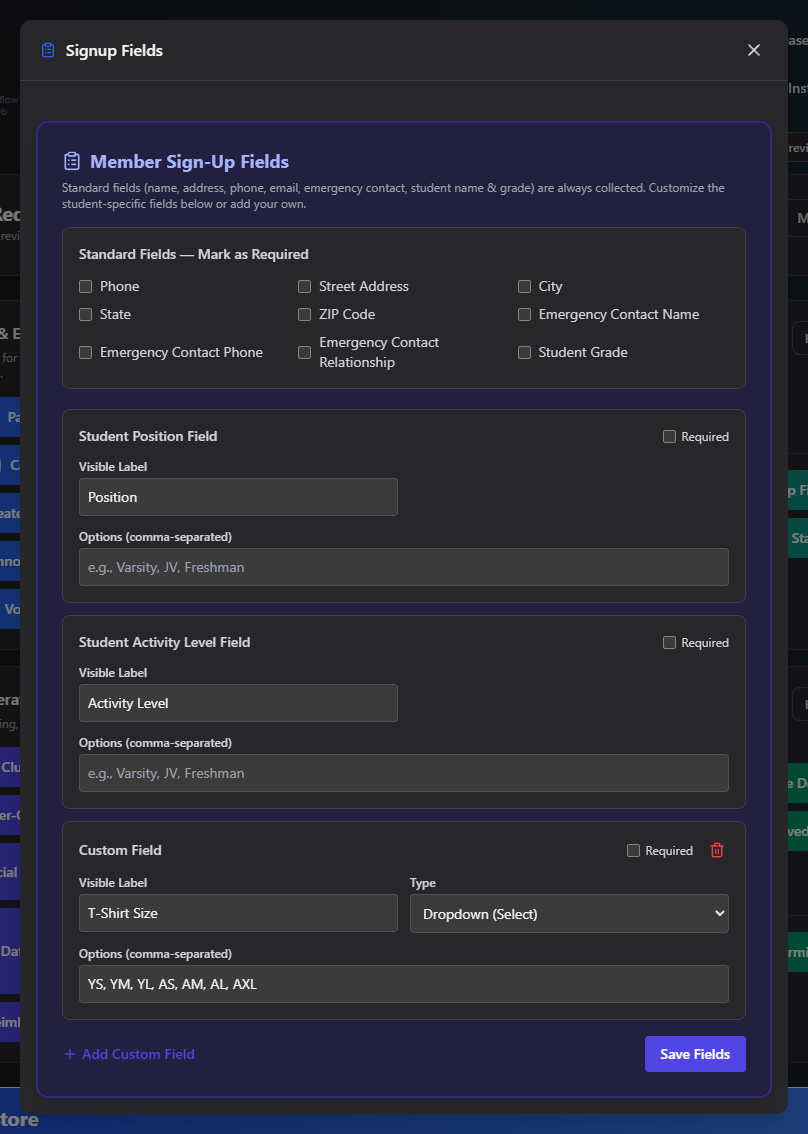
Signup Fields controls what families are asked to fill in when they join your club through your Membership Link — which standard fields are required, plus any custom fields specific to your club (like instrument or activity level).
Where to find it: Membership & User Setup card → Signup Fields button
Who can use this: Only your Club Admin account.
What you can do here
- Mark standard fields as required
- Edit the built-in Position and Activity Level fields
- Add a custom field
Mark standard fields as required
These fields are always collected on sign-up; the checkboxes here only control whether each one is required before a family can submit: Phone, Street Address, City, State, ZIP Code, Emergency Contact Name, Emergency Contact Phone, Emergency Contact Relationship, Student Grade.
Edit the built-in fields
Every club starts with two built-in student-level fields — Position (e.g. instrument, sport) and Activity Level (e.g. Varsity/JV, skill level). You can change their visible label, mark them required, and (for dropdown-style fields) edit their comma-separated options — but you can't delete them or change their type.
Add a custom field
- Click Add Custom Field.
- Enter a Visible Label (required).
- Optionally check Required.
- Choose a Type: Text, Dropdown, or Number. Dropdown fields need a comma-separated list of Options.
- Click Save Fields.
Click the Delete button on a custom field to remove it (built-in fields can't be deleted).
Field reference
| Field | Required? | Notes |
|---|---|---|
| Visible Label | Yes | Save is blocked if any field's label is blank |
| Required | No | Per-field checkbox |
| Type | Custom fields only | Text / Dropdown / Number |
| Options | Dropdown type only | Comma-separated |
Common questions
Why can't I delete Position or Activity Level? Those two are built into every club and can only be relabeled or reconfigured, not removed.
Related
- Membership Link & QR Code — the sign-up form these fields configure