Club Profile
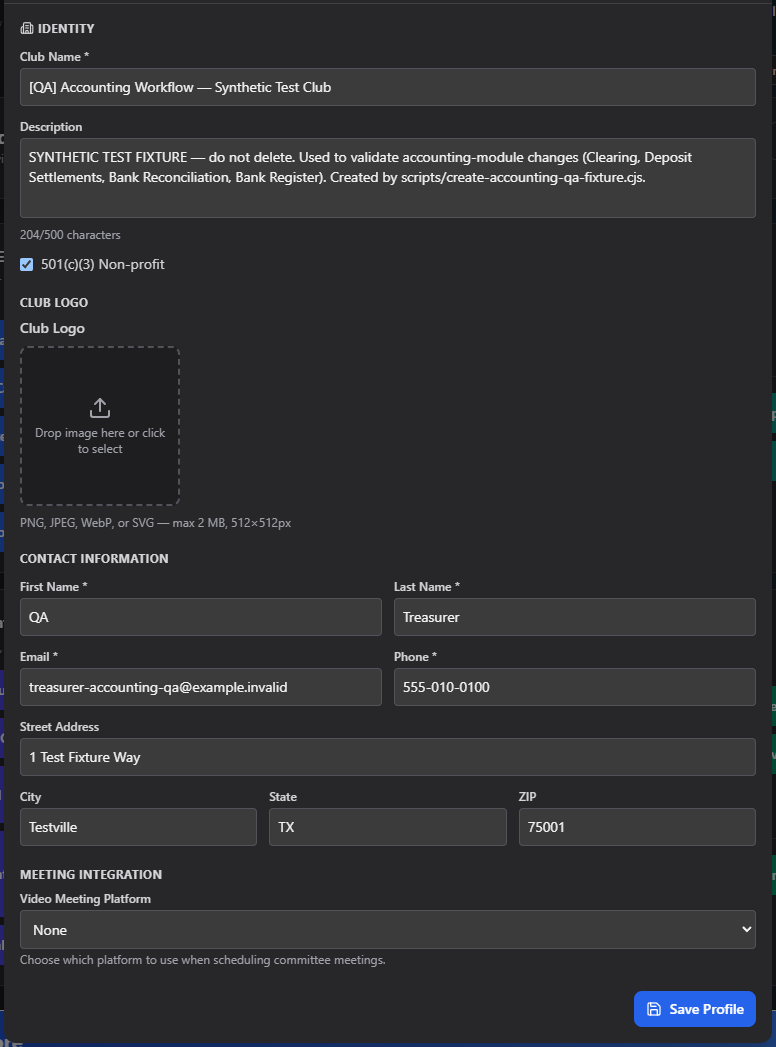
Club Profile is your club's core identity record — name, description, logo, contact details, 501(c)(3) status, which school it's associated with, and which video-meeting platform it uses for committee meetings.
Where to find it: Club Operations card → Club Profile button
Who can use this: Only your Club Admin account. There is no delegated permission that opens this screen for a board member.
What you can do here
- Update your club's identity
- Upload a logo
- Associate your club with a school
- Set your contact information
- Choose a video-meeting platform
Update your club's identity
- Edit Name (required, up to 100 characters) and Description (optional, up to 500 characters — a live counter shows how much room you have left).
- Check 501(c)(3) Non-profit if your club holds that status.
- Click Save Profile. You'll see a brief "Saved!" confirmation.
Upload a logo
Click the logo uploader and choose an image. It must be PNG, JPEG, WebP, or SVG, no larger than 2 MB, ideally around 512×512 pixels. Your logo appears on your club's sign-in page, member dashboard, and anywhere else your branding shows up.
Associate your school
If your organization has schools set up, a School Association dropdown appears. Choosing a school here is what unlocks Inter-Club Linking — that screen won't appear at all until your club has a school set.
Set your contact information
First Name, Last Name, Email, and Phone are all required — the save button is blocked until every one of these is filled in. Street Address, City, State (2-letter code, auto-capitalized), and ZIP are optional.
Choose a video-meeting platform
The Video Meeting Platform dropdown (None / Google / Microsoft) controls which service committee meetings are scheduled through when your club uses in-app meeting links.
Field reference
| Field | Required? | Notes |
|---|---|---|
| Name | Yes | ≤100 characters |
| Description | No | ≤500 characters |
| 501(c)(3) Non-profit | No | Checkbox |
| Logo | No | PNG/JPEG/WebP/SVG, ≤2 MB, ~512×512px |
| School Association | No | Only shown if your org has schools set up |
| First / Last Name | Yes | — |
| Yes | — | |
| Phone | Yes | — |
| Street Address / City / State / ZIP | No | State auto-capitalizes to 2 letters |
| Video Meeting Platform | No | None / Google / Microsoft |
Common questions
Why is the Save button not working? First/Last Name, Email, and Phone are all required — check that none of those four fields are empty.
I don't see a School Association field. That field only appears for organizations with schools configured. If your organization uses schools and you still don't see it, contact your platform administrator.
Related
- Inter-Club Linking — requires a School Association set here first
- Social Media Links — the other half of your club's public presence