Data Export
Data Export gives you a quick CSV or PDF download of core club records — useful for school submissions, tax filings, or just keeping an offline copy.
Where to find it: Club Operations card → Data Export button
Who can use this: Club Admins, and board members granted the View Reports permission.
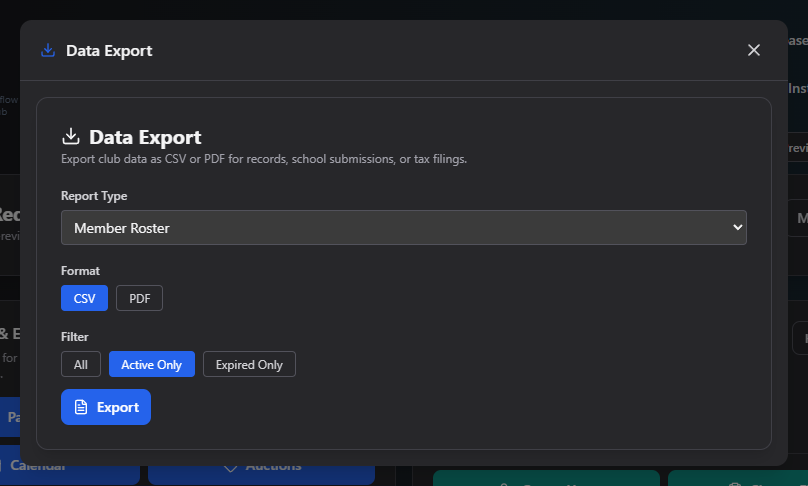
What you can do here
- Choose a Report Type:
- Member Roster — CSV or PDF
- Dues Report — CSV or PDF
- Board Directory — PDF only
- Staff/Advisor Directory — CSV or PDF
- Pick a Format from whichever buttons are available for that report type — the format selector automatically switches if your current choice isn't valid for the newly selected type.
- For Member Roster, choose a Filter: All, Active Only, or Expired Only.
- For Dues Report, set a Start Date and End Date.
- Click Export. The file downloads immediately.
Field reference
| Field | Applies to | Notes |
|---|---|---|
| Report Type | All | Member Roster, Dues Report, Board Directory, Staff/Advisor Directory |
| Format | All | Available formats depend on Report Type |
| Filter | Member Roster only | All / Active Only / Expired Only |
| Start Date / End Date | Dues Report only | — |
Common questions
Why is PDF the only format option for Board Directory? Board Directory only supports PDF — there's no CSV option for that report type.
Related
- Create Report — for richer, more customizable reports beyond these four quick exports