Create Report
Create Report is a self-serve report builder. Pick a category and a specific report, optionally filter and sort it, choose which columns to include, then preview it and download as PDF or Excel — or email it straight to a targeted audience. Nothing here changes your data; every report is a read-only export.
Where to find it: Finance & Events card → Create Report button
Who can use this: Club Admins, and board members granted the Create Report permission (Presidents, Treasurers, and Secretaries get it by default).
Note: Detailed money reports (Payment Ledger, Outstanding Fees, Dues Summary, Revenue, Payment Plans, Fee Assignments, Item/Installment reports) live in Accounting, not here — this tool focuses on membership, governance, calendar, auctions, and the general "Payments by Students" roster. See Accounting for the financial report suite.
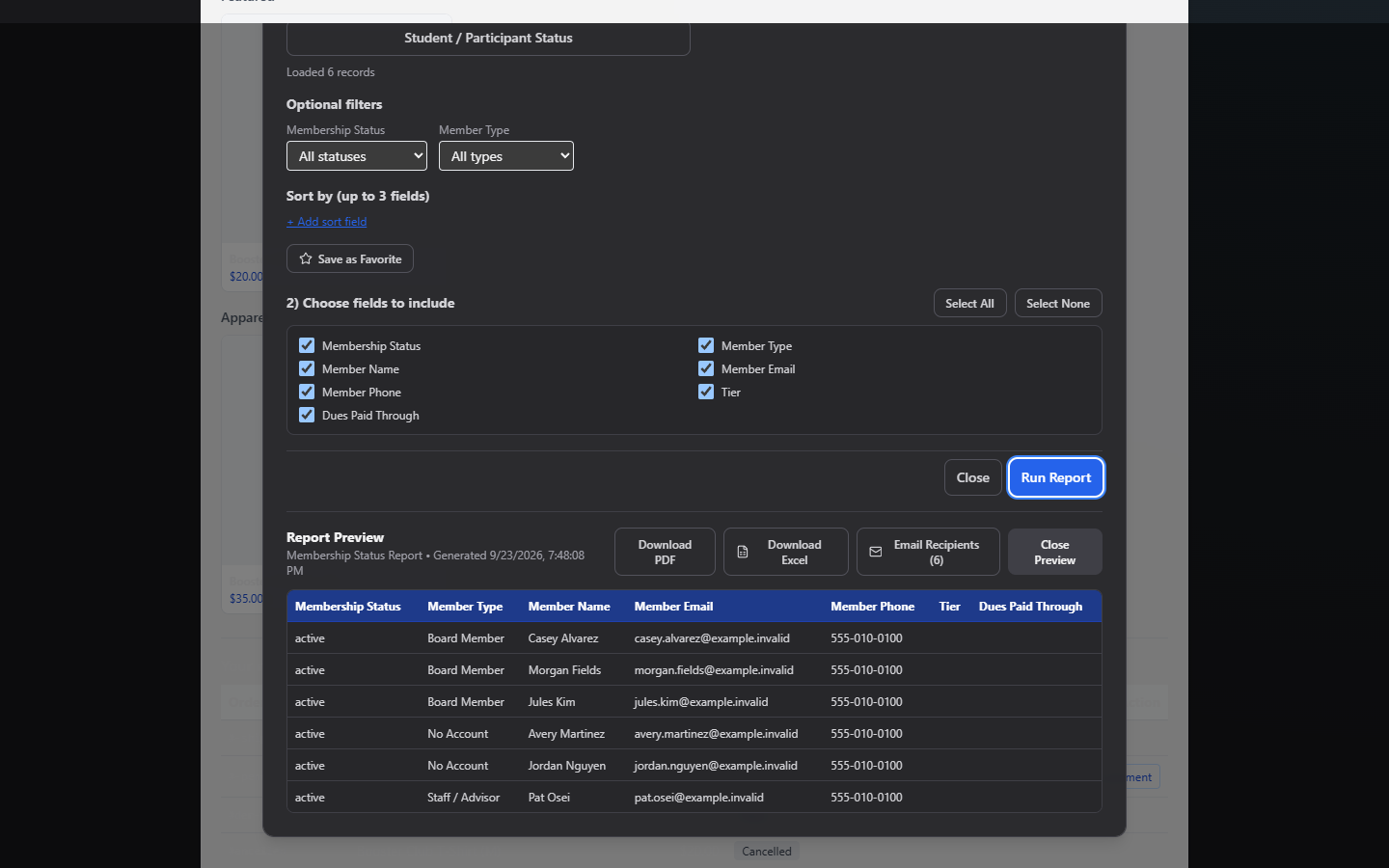
What you can do here
- Run a report
- Filter, sort, and choose columns
- Download as PDF or Excel
- Email a report to a targeted audience
- Save and reuse a report as a Favorite
Run a report
- Click a category — Clubs, Payments, Membership, Committees, Polls, Calendar, Auctions, Year-End, or Volunteers (Volunteers only appears if you also have the Manage Volunteers permission).
- Click a specific report within that category (see the full list below). The data loads immediately — you'll see "Loaded N records."
- Apply any filters that report offers (optional).
- Review the auto-selected columns under 2) Choose fields to include — every report starts with a sensible default set already checked; use Select All / Select None to adjust.
- Click Run Report to build the preview.
Available reports by category
| Category | Reports | Filters |
|---|---|---|
| Clubs | Club (My Club), Schools Served (My Club) | None |
| Schools | Schools, Schools by Club, Schools by State, Schools with Members | State, or Site/Org dropdowns depending on report |
| Payments | Payments by Students | Fee Items / Event Plans to include, Group filter (Grade/Position/Activity Level/custom field) |
| Membership | My Club Contact List, Membership Status Breakdown, Expiring/Expired Members, Board Roster, Student/Participant Status | Membership Status, Member Type, expiring-within window, Grade/Position/Activity Level, "Include archived members" |
| Committees | Meeting History, Agenda Item Status, Document Approvals, Committee Roster | Committee dropdown |
| Polls | Poll Results Summary, Voter Participation | Date range, or a specific Poll |
| Calendar | Event Summary, Event Volume, Recurring Series Audit | Run By (Day/Week/Month/Year) + a date anchor |
| Auctions | Auction Results, Member Bidding History | None |
| Year-End | Year-End Activity Summary, Governance Compliance Checklist | None |
| Volunteers | Volunteer Signups, Volunteer Recognition | None |
Filter, sort, and choose columns
- Filters are specific to the report you picked (see the table above) — set them before or after loading the report; the preview updates once you click Run Report.
- Sort by (up to 3 fields) — add up to 3 "sort rules," each a field plus Ascending or Descending, applied in order (Primary, then next, then next).
- Fields — the checkbox grid under "2) Choose fields to include" controls exactly which columns appear in your preview and export. Use Select All / Select None to start from either extreme.
Download a report
Once you've clicked Run Report, the preview shows the first 250 rows (a note tells you to download for the complete set if there are more). Two export buttons appear:
- Download PDF — a formatted, page-numbered PDF with a title/subtitle header. Wide reports automatically switch to landscape.
- Download Excel — a styled
.xlsxwith a frozen header row, autofilter, and auto-sized columns.
The Student/Participant Status report also includes Summary Totals (counts by grade, position, activity level, and shirt size if applicable) on both the on-screen preview and the exports.
Email a report
If your report includes at least one email address (member, contact, or winner email) and you also have the Send Emails permission, an Email Recipients (N) button appears next to the export buttons.
- Click Email Recipients.
- Choose who to send to: Report Recipients (everyone with a valid email in the report), Board Members, Staff/Advisors, or Board & Staff. Each option shows its own recipient count and is disabled if that count is zero.
- Enter a Subject (required, max 200 characters) and Message (required, max 5,000 characters).
- Optionally check Attach report as PDF to include the current report as an attachment.
- Click Send, then confirm — you'll see how many batches it will send in (large lists are sent in batches of 100).
- A result banner confirms how many sent successfully, and flags any that failed.
Note: Presidents get the Send Emails permission by default; Treasurers and Secretaries do not — ask your Club Admin to grant it under Governance & Permissions → Board Permissions if you need the Email button and don't see it.
Save a favorite
Once you've set up a report the way you like it (category, report type, filters, columns, sort), click Save as Favorite and give it a name. It appears at the top of the modal next time you open Create Report — click its name to instantly reload that exact configuration with fresh data, or click its trash icon to delete it. Favorites are personal to your own account, not shared with other board members.
Field reference
| Control | Required to run | Notes |
|---|---|---|
| Category | Yes | Determines the available reports |
| Report type | Yes | Loads the underlying data |
| Filters | No | Report-specific; see table above |
| Fields | At least 1 | Checkbox grid; Select All / Select None |
| Sort | No | Up to 3 fields, each Ascending/Descending |
Common questions
Why don't I see a "Financial" category?
Detailed money reports live under Accounting instead, since they need the
canManageAccounting permission. The one exception is Payments by Students, which
stays here since many board members without accounting access still need a payment
roster.
Why is the Email Recipients button missing? You need the Send Emails permission in addition to Create Report — ask your Club Admin to grant it if you're a Treasurer or Secretary who needs to email reports out.
My report only shows 250 rows — where's the rest? The on-screen preview is capped at 250 rows for performance. Click Download PDF or Download Excel — both exports always include the complete filtered result set.
Troubleshooting
| If you see... | It means... | Do this |
|---|---|---|
| "Please choose a report first." | You clicked Run Report before picking a specific report type | Pick a report from the grid, then Run Report again |
| "Please select at least one field." | Every column checkbox is unchecked | Check at least one field, or click Select All |
| Red error banner where data should load | The report failed to load | Note the error text and try again; contact support if it persists |
| Send button stays disabled | Subject or message is empty, or over the character limit | Trim the text or fill in the missing field |
| "(N failed)" after sending | Some recipient emails bounced or were invalid | Check those recipients' email addresses on their member records |
Related
- Distribution Email — for composing and sending an email that isn't built from a report
- Accounting - for the financial report suite (Payment Ledger, Revenue, Outstanding Fees, etc.)
- IRS Form 990-EZ for Booster Clubs: A Plain-English Filing Guide — where these figures go at filing time