Submit a Reimbursement Request
Use this form any time you've spent money on behalf of the club and need to be paid back, have an unpaid vendor invoice the club should pay directly, or just want to record an expense the club already paid for.
Where to find it: Club Operations card → Reimbursements button — this form is at the top of the screen for everyone, whether or not you can review other people's requests.
Who can use this: Any board member.
What you can do here
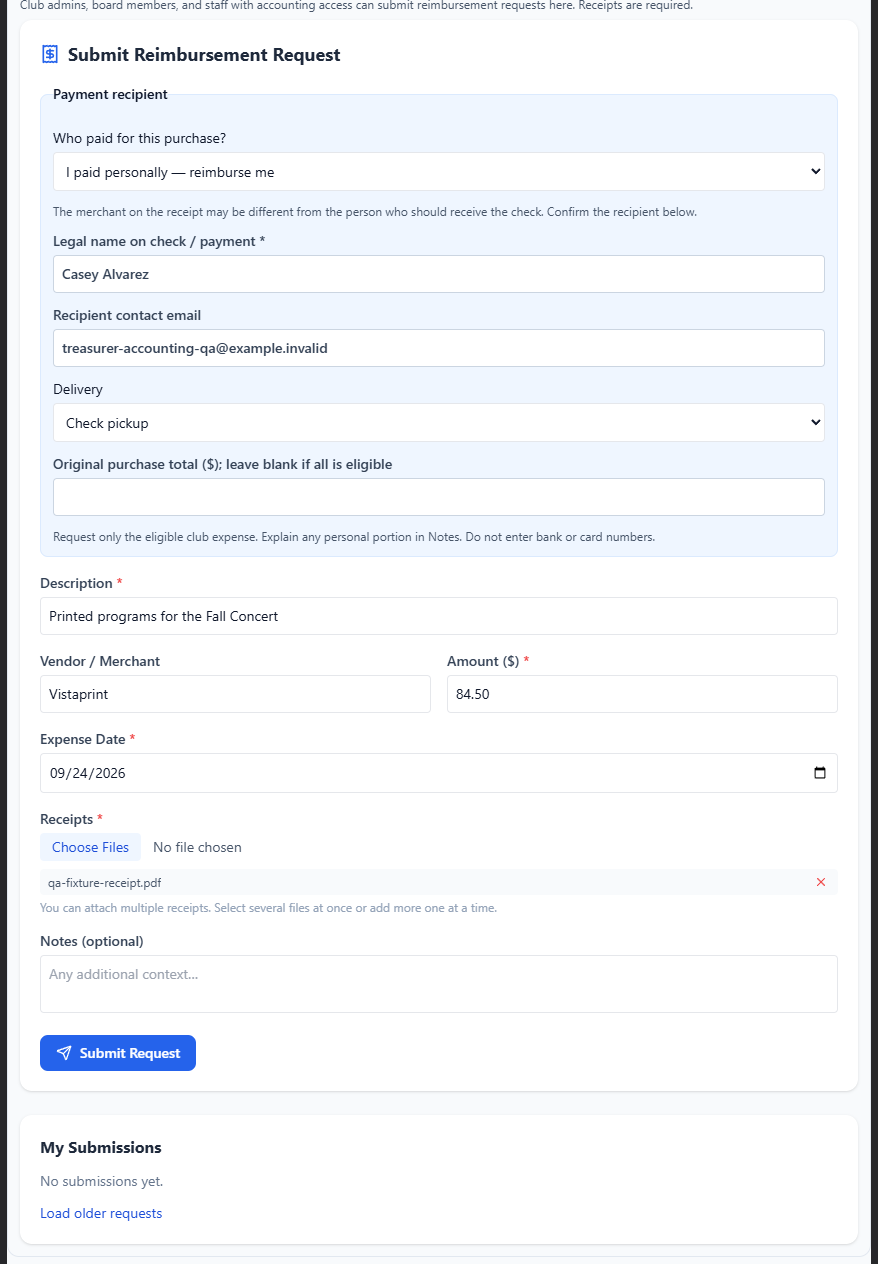
Submit a new request
Who paid for this purchase? — choose:
- I paid personally — reimburse me
- Unpaid invoice — pay the vendor
- The club already paid — record the expense
Changing this auto-fills a matching default for Delivery.
Legal name on check / payment (required) — this may be different from the name on the receipt; confirm exactly who should be paid.
Recipient contact email (optional).
Delivery — options depend on your answer above: Check pickup, Mail check, or Electronic payment arranged with treasurer (or just Already paid by club if you chose that option).
- If you choose Mail, a Full mailing address field appears and is required.
- If you chose Unpaid invoice, Invoice number and Invoice due date both become required.
Original purchase total (optional) — leave this blank if the entire receipt is reimbursable. Fill it in if you're only asking for part of a larger purchase, and explain the split in Notes.
Description (required, up to 200 characters).
Vendor / Merchant (optional).
Amount (required, $0.01–$10,000).
Expense Date (required) — cannot be in the future.
Receipts (required for a new request) — attach one or more files (PDF, JPG, PNG, or WebP). You can remove a file before submitting by clicking its ×.
Notes (optional, up to 500 characters).
Click Submit Request.
Note: If a receipt fails to upload, your request is left editable with a warning instead of being submitted incomplete — fix the upload and submit again.
Track your submissions
The My Submissions list below the form shows every request you've made, with a status:
| Status | Meaning |
|---|---|
| Draft | Saved but not yet submitted for review |
| Pending Review | Submitted, waiting on a Manage Accounting holder |
| Information needed | A reviewer asked for more detail — edit and resubmit |
| Approved — Pending Payment | Approved; waiting for payment to be recorded |
| Payment recorded | Paid and posted to the books |
| Rejected | Declined by a reviewer |
| Cancellation awaiting decision | You asked to cancel after review started; a President or Treasurer must decide |
| Cancelled | Withdrawn |
Edit, submit, cancel, or delete a request
Depending on its current status, a request shows some of these actions:
- Edit request — reopens it in the form above to change any field.
- Submit for review — available from Draft, Information needed, Rejected, or Cancelled.
- Cancel request — if review hasn't started yet, this cancels immediately. If a reviewer has already started working on it, it instead goes to Cancellation awaiting decision, and a board President or Treasurer must approve the cancellation.
- Delete request — same immediate-vs-pending-decision logic as Cancel. A request that's already been paid (Payment recorded) can't be deleted at all — ask your treasurer to correct it in the books instead.
You can also add or remove receipts on any request that's still editable, using the receipts widget on that request's row.
Field reference
| Field | Required? | Notes |
|---|---|---|
| Who paid for this purchase? | Yes | Reimburse me / Unpaid invoice / Club already paid |
| Legal name on check / payment | Yes | May differ from the receipt's merchant name |
| Recipient contact email | No | — |
| Delivery | Yes | Options depend on the choice above |
| Full mailing address | Only if Delivery = Mail | ≤600 characters |
| Invoice number / due date | Only if Unpaid invoice | Both required |
| Original purchase total | No | Leave blank if the whole receipt is reimbursable |
| Description | Yes | ≤200 characters |
| Vendor / Merchant | No | ≤120 characters |
| Amount | Yes | $0.01–$10,000 |
| Expense Date | Yes | Cannot be in the future |
| Receipts | Yes for a new request | PDF, JPG, PNG, or WebP |
| Notes | No | ≤500 characters |
Common questions
I only want reimbursed for part of what's on my receipt — how do I do that? Fill in Original purchase total with the full receipt amount, but put only the reimbursable portion in Amount, and explain the split in Notes.
Can I cancel after my request has already been approved? Yes, but since review has already started, cancelling routes it to a board President or Treasurer for a decision rather than cancelling it immediately.
Related
- Review and Approve — what happens to your request next