Calendar
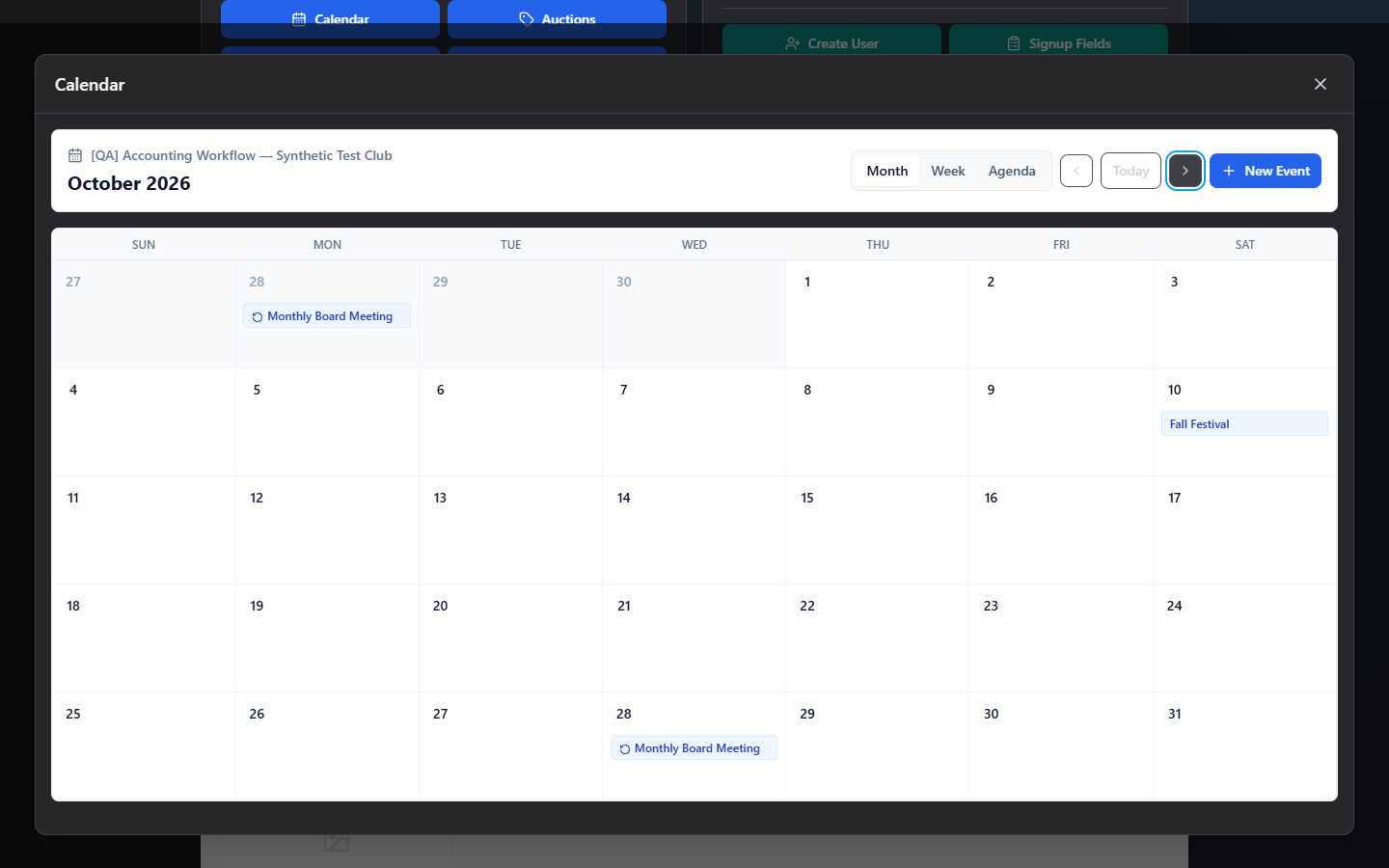
Calendar is your club's shared events calendar — practices, board meetings, fundraisers, deadlines — anything you want members and parents to see on their own dashboard. What you publish here shows up read-only on the member-facing "Club Calendar" card automatically.
Where to find it: Finance & Events card → Calendar button
Who can use this: Club Admins, and board members granted the Manage Calendar permission (Presidents, Treasurers, and Secretaries get this by default). Everyone with access sees the identical full editing view — there's no separate read-only admin mode.
Note: There is no Google Calendar or Microsoft 365 sync, and no member RSVP feature. This is a self-contained calendar for your club.
What you can do here
- Browse Month, Week, or Agenda view
- Create an event
- Make an event repeat
- Edit a single occurrence vs. the whole series
- Attach a flyer or document
- Delete an event or cancel one occurrence
- Control what members see (Published)
Browse the calendar
Use the Month / Week / Agenda tabs at the top to switch views:
- Month — a standard grid; each day shows up to 3 events with a "+N more" label if there are more. Today is highlighted.
- Week — 7 day-cards side by side, each listing that day's events with times.
- Agenda — a flat scrollable list of upcoming events, showing a "Repeats" pill on recurring events and a "Draft" pill on anything not yet published.
In Month and Week view, use ‹ Previous, Today, and Next › to move around.
Create an event
Click + New Event, or click any empty day on the calendar (which pre-fills that date). Fill in:
| Field | Required | Notes |
|---|---|---|
| Title | Yes | Up to 120 characters |
| Starts / Ends | Yes | Date and time |
| Location | No | Up to 160 characters |
| All day | No | Checkbox |
| Published | No (on by default) | Uncheck to save as a draft members won't see yet |
| Description | No | Up to 1000 characters |
Click Save. You'll see "Calendar event created."
Note: The app does not check that the end time is after the start time — double check your times before saving.
Make an event repeat
When creating or editing the entire series (see below), a Repeats section lets you set:
- Repeats: Does not repeat / Daily / Weekly / Monthly
- Every: how often — e.g. "Weekly, Every: 2" means every other week
- Until: an optional date the recurrence stops
- Days of week (Weekly only): pick which weekdays it repeats on
Edit a single occurrence vs. the whole series
When you click on an occurrence of a recurring event, you're first asked to choose a scope:
- This occurrence — changes apply only to that one date (e.g. moving just one meeting because of a holiday). Recurrence settings and the flyer/document are locked when editing at this scope — those can only be changed at the series level.
- Entire series — changes apply to every future occurrence, including recurrence rules and any attached flyer.
For a non-recurring, one-off event, there's no scope choice — you just edit it directly.
Attach a flyer or document
Available when editing the entire series (or any one-off event). Click Attach Flyer, and choose a PDF, Word document, or JPG/PNG/WebP image — up to 15 MB. Once attached, it shows as a filename pill you can remove with its × before saving. Click Replace Flyer to swap it for a different file later.
Delete an event or cancel one occurrence
Open the event and click Delete, then confirm:
- If you're editing This occurrence of a recurring event, confirming shows "Cancel only this occurrence of the repeating event?" — the rest of the series is untouched.
- If you're editing the Entire series (or a one-off event), confirming shows "Delete this calendar event? It will no longer appear on dashboards." — this removes it (or the whole series) permanently.
Control what members see (Published)
The Published checkbox (series-level only) is what actually makes an event visible on member/parent dashboards. Uncheck it to keep an event as a draft while you're still finalizing details — it will still show up here in your own admin view with a "Draft" pill, but members won't see it until you check Published and save.
Field reference
| Field | Required | Notes |
|---|---|---|
| Title | Yes | ≤120 characters |
| Starts / Ends | Yes | Date + time |
| Location | No | ≤160 characters |
| All day | No | — |
| Published | No, default on | Controls member visibility; series-level only |
| Description | No | ≤1000 characters |
| Flyer/Document | No | PDF, Word, JPG, PNG, or WebP, ≤15 MB; series-level only |
| Repeats | No | None, Daily, Weekly, Monthly |
| Every | No | Interval, 1–30 |
| Until | No | End date for recurrence |
| Days of week | Only if Weekly | Multi-select |
Common questions
How do I move just one meeting in a recurring series without affecting the rest? Click that occurrence, choose This occurrence when prompted, change the date/time, and save — only that date is affected.
Why can't I change the flyer while editing one occurrence? Attachments and recurrence rules live at the series level by design, so they stay consistent across every date. Edit the Entire series to change them.
I unpublished an event by mistake — will deleting it also remove it for members? An unpublished (draft) event was never visible to members in the first place — nothing changes for them either way. Check Published again and save to make it visible.
Troubleshooting
| If you see... | It means... | Do this |
|---|---|---|
| "Select a club workspace before opening the calendar." | No club is currently selected | Choose a club, then open Calendar again |
| "Unsupported file type…" on a flyer upload | The file isn't PDF/Word/JPG/PNG/WebP | Convert or choose a different file |
| "File must be under 15 MB." | The flyer/document is too large | Compress it or choose a smaller file |
| Recurrence/attachment fields are grayed out | You're editing a single occurrence | Switch scope to Entire series to change them |
| Red error banner inside the calendar | The calendar failed to load | Refresh; if it persists, note the exact error text and contact support |
Related
- Create Report — Calendar category includes Event Summary, Event Volume, and Recurring Series Audit reports for this same data