Payments — Settings
Where to find it: Finance & Events card → Payments button → Settings tab
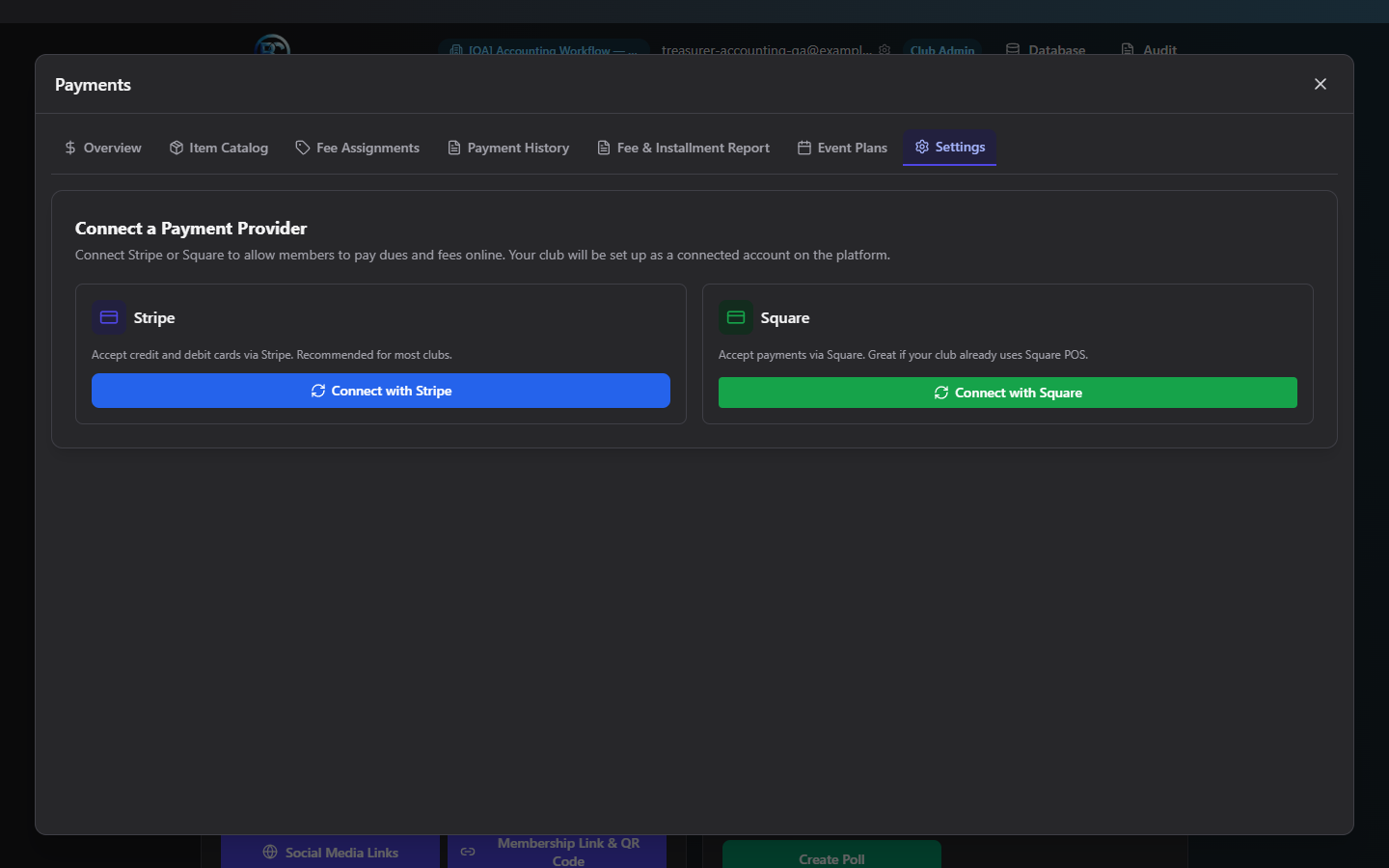
Settings is where you connect your club's payment processor. Almost everything else in Payments, Store, and Auctions depends on a provider being connected here first.
What you can do here
- Connect a payment provider
- Check connection health
- Set your store revenue account
- Disconnect a provider
- Upgrade a legacy connection
Connect a payment provider
If nothing is connected yet, you'll see two cards, Stripe and Square.
- Click Connect with Stripe or Connect with Square.
- You're redirected to that provider's own sign-in/authorize page — sign in with (or create) your club's own account there and approve the connection.
- You're redirected back to BoosterConsensus, with a toast confirming the connection is "being verified." The screen switches to the Connected view.
No API keys are ever typed into BoosterConsensus — this uses your provider's own secure login (OAuth).
Check connection health
Once connected, you'll see:
- Account Details — account name and email (Stripe), or account name and payment location (Square, which is selected automatically — there's no manual location picker).
- For Stripe: Charges enabled / Payouts enabled status badges pulled live from your Stripe account.
- For Square: a health indicator — "Square is fully automatic" (green, everything healthy), "Automatic verification will retry" (temporary, resolves on its own), or "Square needs to be reconnected" (amber, with a Reconnect Square button — click it to re-run the same connect flow without disconnecting first).
Set your store revenue account
Use the Store Revenue Account dropdown to choose which accounting revenue account your Store and general checkouts post to by default, then click Save Mapping. Leave it on Auto-map to let the system pick automatically by payment type.
Disconnect a provider
Click Disconnect {Stripe/Square}, then confirm — the dialog warns that members will not be able to make online payments until a new provider is connected. This deauthorizes BoosterConsensus from your provider account entirely; reconnecting later requires going through Connect again.
Upgrade a legacy connection
If your club has an older, manually-entered-API-key connection instead of the newer OAuth flow, you'll see an amber notice with an Upgrade to Stripe/Square OAuth button — click it to move to the secure OAuth connection without losing any history.
Field reference
| Field | Notes |
|---|---|
| Store Revenue Account | Auto-map by payment type, or a specific revenue account |
Common questions
Do I need to pick a Square location manually? No — Square's payment location is selected automatically during connection and ongoing health checks. There's nothing to configure there.
What happens to existing payments if I disconnect? Past payment history is untouched — disconnecting only stops new online payments until you reconnect (or connect a different provider).
Troubleshooting
| If you see... | It means... | Do this |
|---|---|---|
| "Connection failed: {reason}" | The OAuth authorization was denied or failed | Try Connect again; make sure you're approving with the correct provider account |
| "Square needs to be reconnected" | Square's health check flagged an issue | Click Reconnect Square — no need to disconnect first |
| Payment Provider tile on Overview says "Not configured" | Nothing is connected yet | Connect Stripe or Square here |