Board Permissions
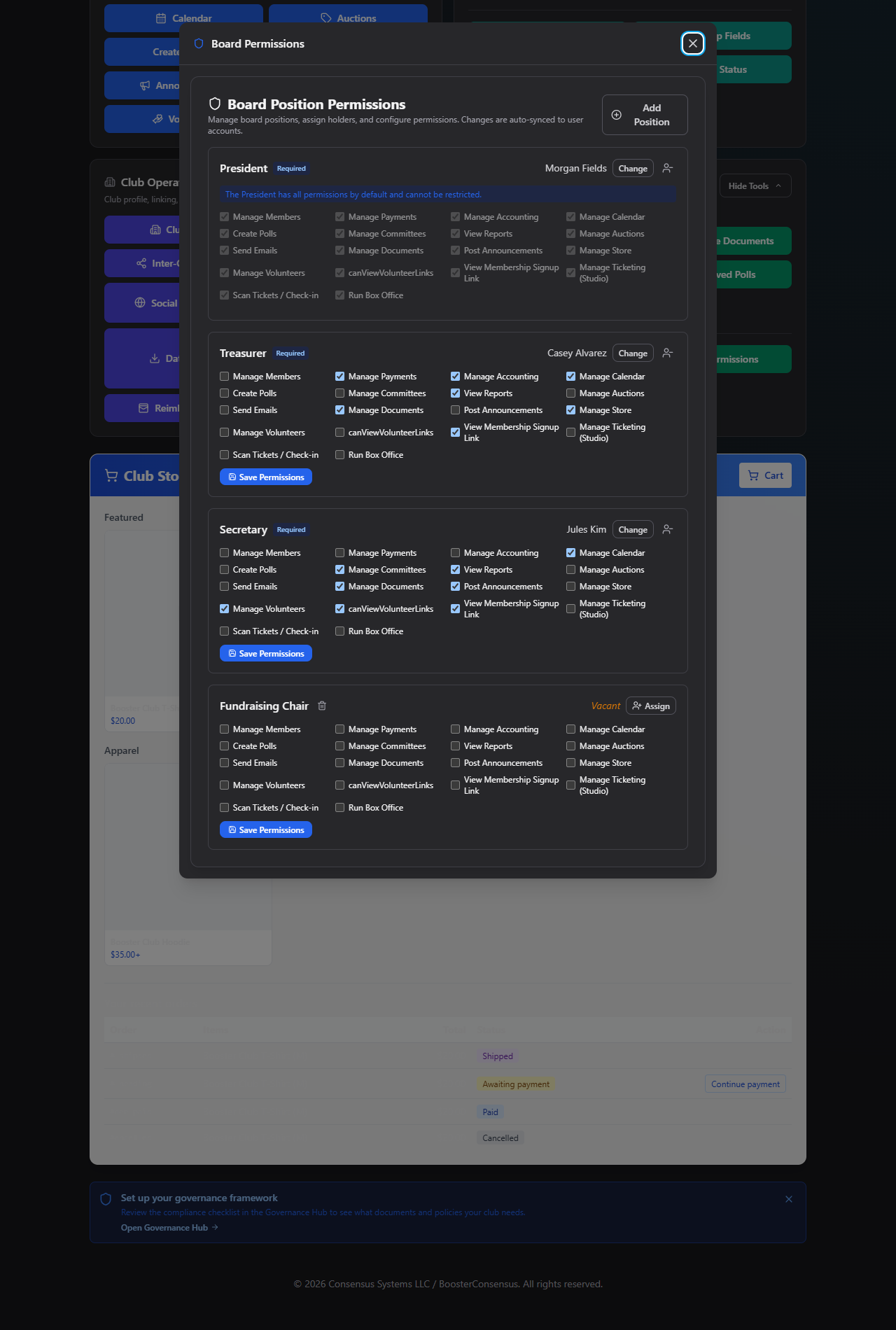
Board Permissions is where you assign named board seats — President, Treasurer, Secretary, and any custom positions your club uses — and decide exactly which admin features each seat can use.
Where to find it: Governance & Permissions card → Board Permissions button
Who can use this: Only your Club Admin account. This screen doesn't appear for board members even if they've been delegated permissions — assigning and revoking board seats is a Club Admin-only action.
What you can do here
- Add a board position
- Assign or change who holds a position
- Vacate a position
- Set what a position can do
- Delete a custom position
Note: President, Treasurer, and Secretary are required positions that can't be deleted. Every change here auto-syncs to that person's actual account — there's nothing further to save or publish.
Add a board position
- Click + Add Position.
- Enter a New Position Name (up to 50 characters — e.g. "Vice President" or "Fundraising Chair").
- Click Add.
Assign or change who holds a position
- Click Assign (if vacant) or Change (if filled) next to a position.
- Pick a Current Member from the dropdown — this auto-fills their name, email, and phone — or type the details in by hand.
- Click Save Assignment.
Note: The email you enter must match an existing user account, or you'll see "No user account matches that email. Create or invite the user first, then assign this board role." If you change who holds a position, the previous holder's permissions for this position are revoked automatically before the new holder's are applied.
Vacate a position
Click the Vacate icon next to a filled position and confirm: "Remove {name} from the {role} position? Their board permissions will be revoked." The position becomes vacant and that person immediately loses the permissions tied to it.
Set what a position can do
Each position shows a grid of permission checkboxes. Check or uncheck whatever you want that seat to have, then click Save Permissions. You'll see a green "Saved & synced" confirmation.
Note: The President position always has every permission enabled and locked — it can't be restricted, so there's no Save Permissions button for it.
Available permissions: Manage Members, Manage Payments, Manage Accounting, Manage
Calendar, Create Polls, Manage Committees, View Reports, Manage Auctions, Send Emails,
Manage Documents, Post Announcements, Manage Store, Manage Volunteers, View Membership
Signup Link, Manage Ticketing (Studio), Scan Tickets / Check-in, Run Box Office, and one
labeled canViewVolunteerLinks — this lets someone view and share active volunteer
sign-up links.
Treasurer and Secretary come with sensible defaults the first time you view them:
| Position | Default permissions |
|---|---|
| Treasurer | Manage Payments, Manage Accounting, Manage Calendar, View Reports, Manage Documents, Manage Store, View Membership Signup Link |
| Secretary | Manage Calendar, Manage Committees, View Reports, Manage Documents, Post Announcements, Manage Volunteers, canViewVolunteerLinks, View Membership Signup Link |
| Any custom position | None checked, until you set some |
Delete a custom position
Click the trash icon next to any position other than President, Treasurer, or Secretary. If it's currently filled, the holder's permissions for that seat are revoked first.
Field reference
| Field | Required? | Notes |
|---|---|---|
| New Position Name | Yes | ≤50 characters |
| Assignment: First/Last Name, Email, Phone | Email required | Email must match an existing user account |
| Permission checkboxes | No | Everything unchecked by default on a new custom position |
Common questions
I'm a board member with several permissions delegated to me — why can't I see this screen? Board Permissions is only available to your Club Admin account, regardless of what's delegated to you. Ask your Club Admin to make changes here.
Why can't I uncheck any of the President's permissions? By design, the President always has full access — this can't be restricted through this screen.
Troubleshooting
| If you see... | It means... | Do this |
|---|---|---|
| "No user account matches that email. Create or invite the user first, then assign this board role." | The email you entered has no matching account | Have that person create/claim an account first |
| "This board position is filled, but no user account matches the assigned email." | The assignment's email no longer matches a real account | Update the assignment's email, then save permissions again |
| "Cannot delete a required board position (President, Treasurer, Secretary)." | You tried to delete one of the three required seats | These positions can only be reassigned or vacated, never deleted |
Related
- Staff Permissions — the same permission set, for staff and advisor roster members instead of named board seats
- Committee Settings — authorized closers, which is a separate, committee-specific permission