Create User
Create User lets you add someone's account yourself, instead of waiting for them to sign up through your Membership Link. Creating a user this way automatically adds them to your Members list too.
Where to find it: Membership & User Setup card → Create User button
Who can use this: Only your Club Admin account.
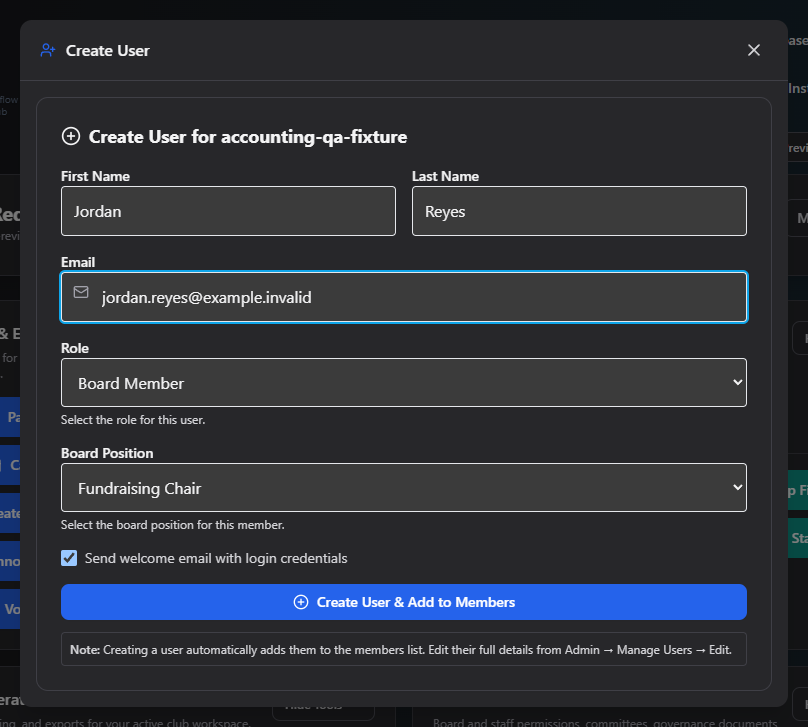
What you can do here
- Enter First Name, Last Name, and Email (all required).
- Choose a Role:
- User (non-paid)
- Member (paid)
- Staff / Advisor
- Board Member — choosing this reveals a Board Position dropdown, pulled from your club's current board positions
- Club Admin
- Leave Send welcome email checked to email them their account setup link, or uncheck it to skip the email.
- Click Create.
Note: Creating any role other than Club Admin automatically creates a matching member record too, so the person shows up in Manage Users right away.
Field reference
| Field | Required? | Notes |
|---|---|---|
| First Name / Last Name | Yes | — |
| Yes | — | |
| Role | Yes | User / Member / Staff-Advisor / Board Member / Club Admin |
| Board Position | Only if Role = Board Member | Pulled from your club's current board positions |
| Send welcome email | No, default on | Uncheck to skip emailing an account-setup link |
Common questions
What's the difference between this and the Membership Link? This form is for accounts you set up yourself — you type in the name, email, and role directly. The Membership Link is a self-service link families use to register themselves.
Do I need to separately add this person as a member? No — creating a user (any role except Club Admin) automatically creates their member record at the same time.
Related
- Manage Users — where the person shows up after creation
- Membership Link & QR Code — the self-service alternative to this form