Record a Reimbursement Payment
Once a reimbursement is Approved — Pending Payment, this is where you log that it's actually been paid (by check, ACH, cash, card, or another method) and post it to your club's books.
Where to find it: Club Operations card → Reimbursements → Needs Action tab → an Approved request → Enter Payment Details
Who can use this: Club Admins and board members granted Manage Accounting.
Note: This step only records a payment you've already made outside the app — it doesn't send money anywhere itself. Pay the requester first (by whatever method you chose), then come back here to log it.
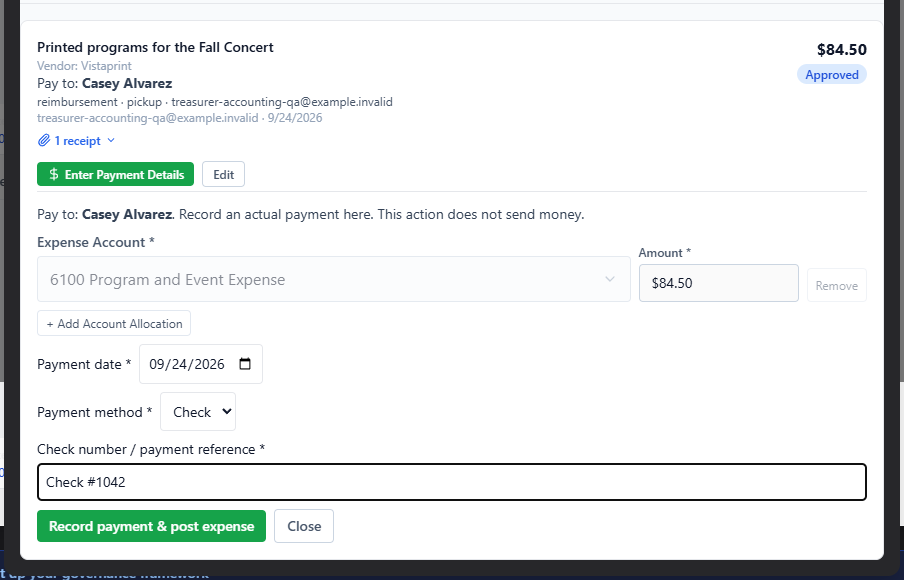
What you can do here
- Open the approved request and click Enter Payment Details.
- Review the allocations — these were locked in when the request was approved and can't be changed here.
- Choose the Paying Bank Account — if your club only has one bank account on file, it's selected automatically.
- Enter the Payment date (cannot be in the future).
- Choose a Payment method: Check, ACH, Cash, Card, or Other.
- Enter a Check number / payment reference.
- Click to submit. The request moves to Payment recorded, and a journal entry is posted to your books automatically.
Field reference
| Field | Required? | Notes |
|---|---|---|
| Paying Bank Account | Yes | Auto-selected if you only have one |
| Payment date | Yes | Cannot be in the future |
| Payment method | Yes | Check / ACH / Cash / Card / Other |
| Check number / payment reference | Yes | — |
Common questions
Does this actually send the payment to the requester? No — pay them first, by whatever method you're recording here, then log it on this screen afterward.
Can I change how the request was allocated at this step? No — allocations to expense accounts are locked in when the request is approved. If the allocation was wrong, you'll need to correct it in the books directly.
Related
- Review and Approve — the approval step that locks in the allocation
- Accounting — where the resulting journal entry lives