Accounting — Budgets
Where to find it: Finance & Events card → Accounting button → Budgets tab
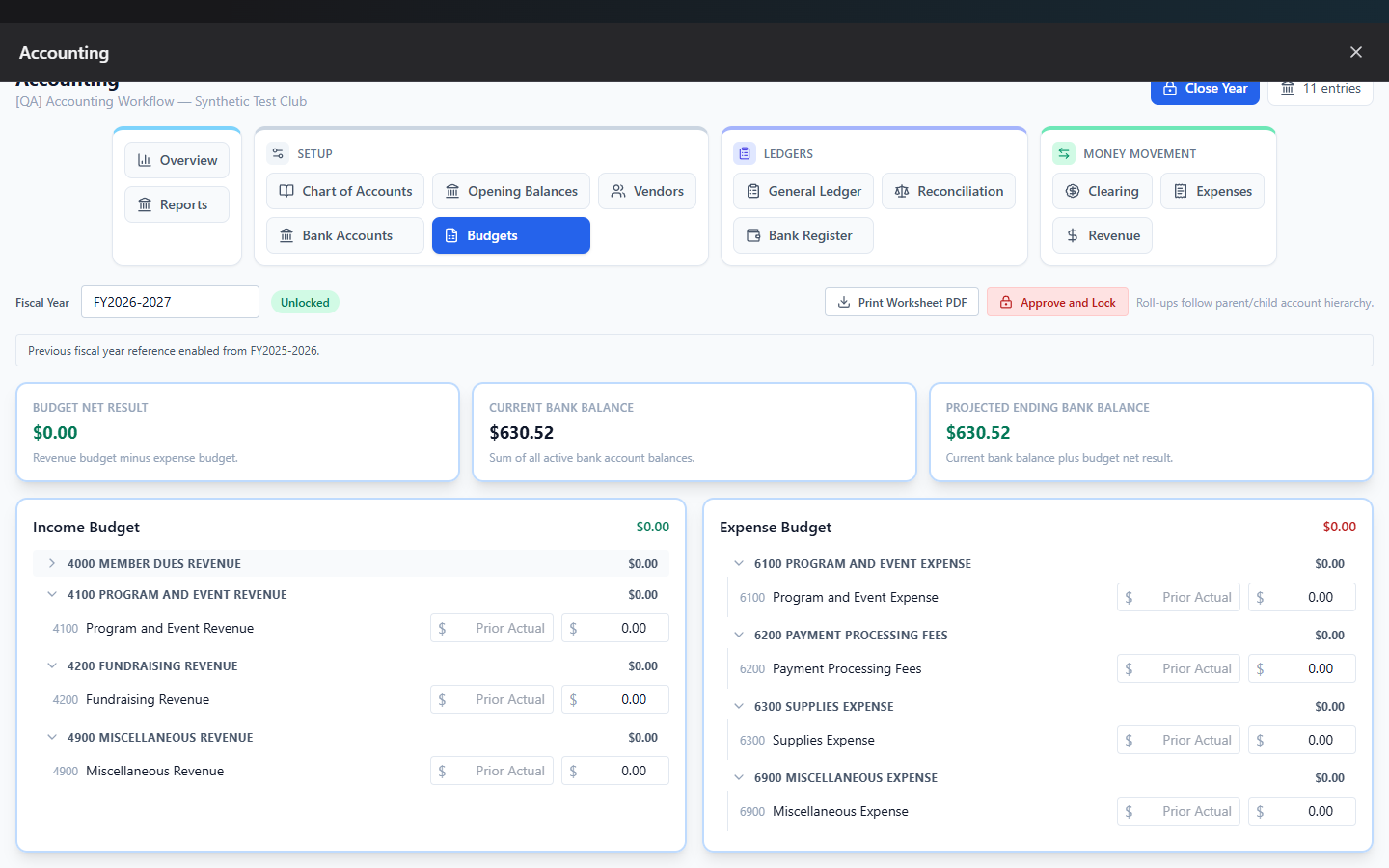
Set a dollar target per revenue/expense account for a fiscal year, see last year's budget and actuals side by side for reference, and — for authorized roles — lock the budget once the board approves it so it can't be casually changed.
What you can do here
Build a budget
- Set the Fiscal Year field (e.g.
FY2025-2026). - Walk through the Income Budget and Expense Budget sections — each is a collapsible list of accounts. Every leaf account shows last year's budget and actual figures for reference.
- Click into an account's budget field, type your target, and click/tab away — it saves automatically and shows a brief "Saved ✓."
- If an account doesn't have an automatic prior-year actual on file yet (e.g. your club's first year in the system), an editable "Prior Actual" field lets you enter historical numbers manually — it saves independently.
Summary cards at the top show your Budget Net Result (income minus expense budget), Current Bank Balance, and Projected Ending Bank Balance — a quick cash-runway check.
Note: Only leaf (detail) accounts are directly editable — an account with children shows a read-only "Roll-up" total computed from its children.
Print a budget worksheet
Click Print Worksheet PDF any time for a board-meeting-ready PDF of the full income/expense budget hierarchy with prior-year figures alongside.
Lock or unlock the budget
Once your board approves a budget, an authorized user can lock it so it can't be casually edited afterward.
Who can lock or unlock the budget
This is more restricted than most of Accounting: you need to be a Club Admin, or a board member whose board role is specifically President or Treasurer — holding the delegated Manage Accounting permission alone is not enough. If you don't qualify, you can still view and edit budget numbers (while unlocked) and print the worksheet, but the lock/unlock buttons simply won't appear for you.
Lock a budget
Click Approve and Lock — it locks that fiscal year's budget immediately.
Unlock a locked budget
This requires two separate approvals from authorized people:
- An authorized user clicks Request Unlock and types a reason (at least 10 characters). The badge changes to "Unlock Pending (1/2)."
- A second authorized user clicks Approve Unlock (no reason needed for the second approval) to actually unlock it.
- Either person can click Cancel Unlock instead, to withdraw the request.
Once unlocked, budget cells become editable again.
Field reference
| Field | Required | Notes |
|---|---|---|
| Fiscal Year | Yes | Format FY2025 or FY2025-2026 |
| Budget amount (per account) | No | Cannot be negative |
| Unlock reason | Yes for the first approval | Minimum 10 characters |
Common questions
Why can't I see the lock/unlock buttons at all? You need to be a Club Admin, or hold the President or Treasurer board role specifically. Having the Manage Accounting delegated permission alone doesn't grant budget-lock access — this is intentional, as a board-level financial control.
What happens if I try to edit a budget number while it's locked? The input is disabled for everyone once locked. If you're not authorized to unlock it, you'll see a message telling you to contact your President, Treasurer, Club Admin, or Zeus Admin.
Troubleshooting
| If you see... | It means... | Do this |
|---|---|---|
| Budget cells are greyed out | The budget for that fiscal year is locked | Ask an authorized person (President, Treasurer, or Club Admin) to unlock it |
| "Budget is locked for {FY}. Contact your President, Treasurer, Club Admin, or Zeus Admin to unlock." | You don't hold lock/unlock authority | Ask someone who does |
| Unlock stuck at "Pending (1/2)" | Only one approval has happened so far | A second authorized person needs to click Approve Unlock |
Related
- Reports — Budget vs. Actual and Treasurer's Report both compare against these numbers
- Close Year — can optionally copy this year's budget forward into next year