Accounting — Close Year
Where to find it: Finance & Events card → Accounting button → Close Year button (always visible in the top bar, next to the entries counter)
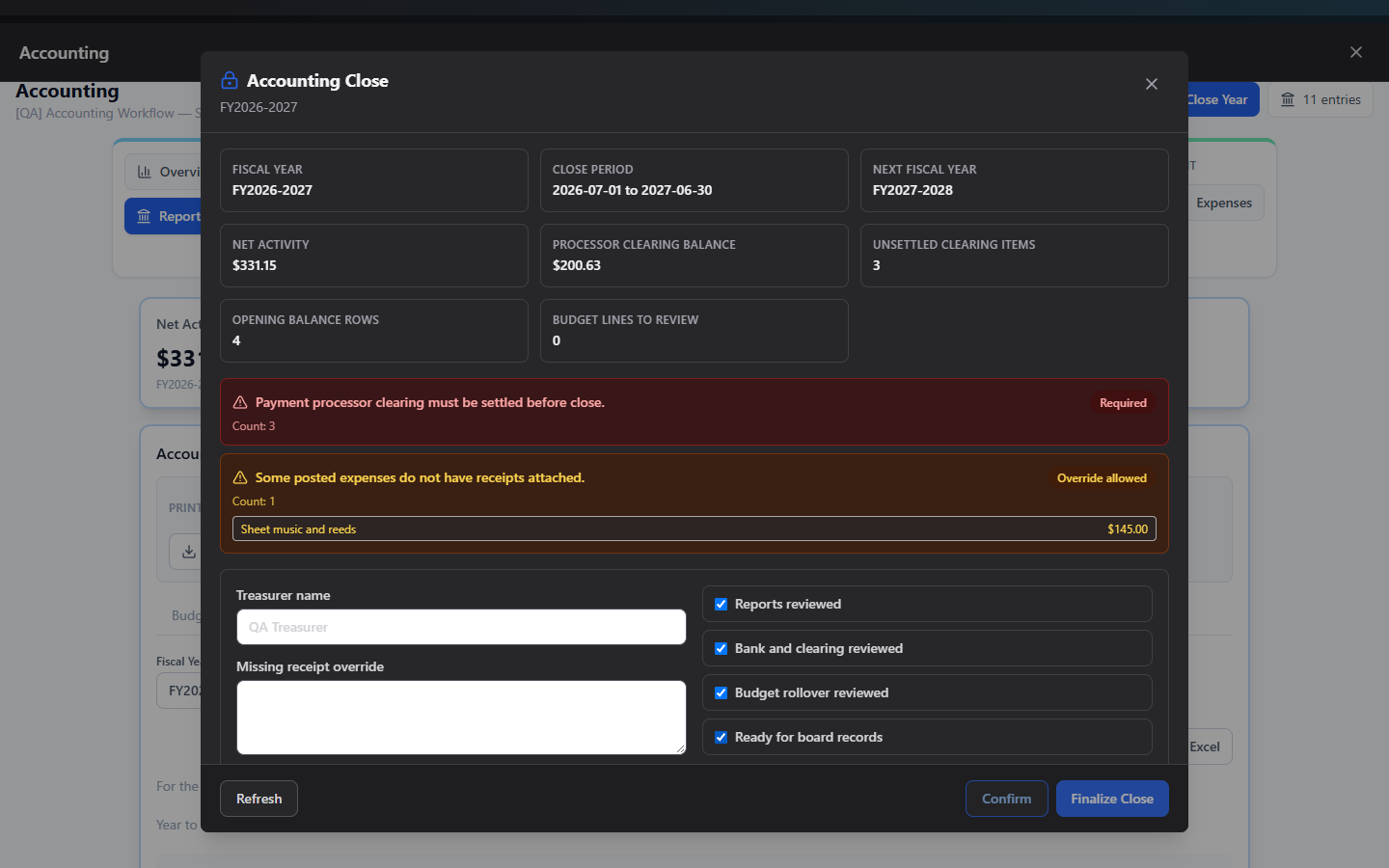
Close Year is a guided, checklist-driven process to formally close out a fiscal year: it checks for outstanding problems, records board acknowledgements, creates the closing entry, optionally rolls your budget into next year, and locks the period against further changes.
What you can do here
Close out a fiscal year
- Click Close Year in the top bar.
- Review the summary grid: fiscal year, close period, next fiscal year, net activity, processor clearing balance, unsettled clearing items, and budget lines to review.
- Check the preflight blocker list. A red "Required" blocker must be resolved elsewhere in Accounting before you can continue — the modal itself won't fix these for you. An amber "Override allowed" blocker (like a missing receipt) can be acknowledged and passed with a written justification.
- Enter the Treasurer name.
- If a missing-receipts warning appears, write a justification of at least 10 characters in the override field.
- Decide whether to Copy current budget into {next FY} (checked by default), and if next year already has budget lines, whether to Replace them or merge.
- Check all four required acknowledgements: Reports reviewed, Bank and clearing reviewed, Budget rollover reviewed, Ready for board records.
- Click Confirm.
- Click Finalize Close — this is the point of no return that actually locks the year.
Click Refresh at any time to re-run the preflight check as you resolve issues elsewhere in the app.
Reopen a closed year
Once a year is closed, the modal shows a Reopen period panel instead: enter a reason (at least 10 characters) and click Reopen.
Important: Reopening is restricted to Club Admins and Zeus platform admins only — a delegated board member (even one with Manage Accounting, or the President/Treasurer board role) will still see this form, but submitting it returns an error: "Only a Zeus Admin or club admin can reopen a closed accounting period." This is the one place in Accounting where the button isn't hidden ahead of time for someone who can't use it — if you hit that error, ask your Club Admin to reopen it for you.
Field reference
| Field | Required |
|---|---|
| Treasurer name | Yes |
| Missing receipt override reason | Yes, if that blocker exists — minimum 10 characters |
| Copy budget forward | No, checked by default |
| Replace next-year budget lines | Only shown if next year already has budget lines and Copy is checked |
| Four acknowledgement checkboxes | Yes, all required before Confirm |
| Reopen reason | Yes — minimum 10 characters |
Common questions
What's the difference between Confirm and Finalize Close? Confirm records your acknowledgements and treasurer sign-off but doesn't lock anything yet — you can still back out. Finalize Close is the actual lock; it can only be clicked after Confirm has succeeded.
Who can do the Confirm/Finalize steps? Any Club Admin, Zeus Admin, delegated Manage Accounting board member, or a board member whose board role is President or Treasurer. This is more open than Reopen, which is Club-Admin/Zeus-only.
What happens to unresolved "Required" blockers? Confirm and Finalize are both blocked until every red "Required" item is cleared elsewhere in Accounting — the wizard won't let you close around them.
Troubleshooting
| If you see... | It means... | Do this |
|---|---|---|
| "Resolve close blockers before confirming the fiscal year close." | A red Required blocker still exists | Go fix it in the relevant Accounting screen, then click Refresh here |
| "Only a Zeus Admin or club admin can reopen a closed accounting period." | You're not authorized to reopen | Ask your Club Admin to reopen it |
| "All close acknowledgements are required." | One of the four checkboxes is unchecked | Check all four before clicking Confirm |
| Confirm is disabled | A missing-receipt override reason is required but too short | Write at least 10 characters explaining the override |
Related
- Budgets — decide whether to copy this year's budget forward during close
- Reports — generate final-year reports before closing
- IRS Form 990-EZ for Booster Clubs: A Plain-English Filing Guide — what to do with these year-end numbers next