Accounting — Ledgers & Clearing
Where to find it: Finance & Events card → Accounting button → General Ledger, Bank Register, Reconciliation, and Clearing tabs (grouped under "Ledgers" and "Money Movement" in the tab bar)
This is the operational heart of your books: every transaction in one flat feed, a checkbook-style register per bank account, the tool to settle online/cash payments into actual bank deposits, and the process to match everything against your bank statement.
What you can do here
- Browse the General Ledger
- Use the Bank Register
- Settle payments into a deposit (Clearing)
- Pay out or close out held/escrowed funds
- Reconcile a bank statement
Browse the General Ledger
The General Ledger tab lists every posted journal line across every account, in one feed — Date, Payee/Vendor, Description, Source, Payment (debit), Deposit (credit), running Balance. Click Journal Adjustment to record a manual correcting entry (see Revenue, Expenses & Journal Adjustments).
Only certain entry types can be edited directly from here: manual revenue, manual
expenses, opening balances, journal adjustments, and deposit settlements — anything
else (like an automatic payment posting) shows a plain — and must be corrected
through its own originating screen instead (e.g. void the payment in
Payments, don't try to edit its ledger line).
Use the Bank Register
The Bank Register tab is the same idea, scoped to one account at a time — pick a bank account, Processor Clearing, or Undeposited Funds from the dropdown. It shows a running balance and, for real bank accounts, a Cleared column reflecting reconciliation status.
Clearing
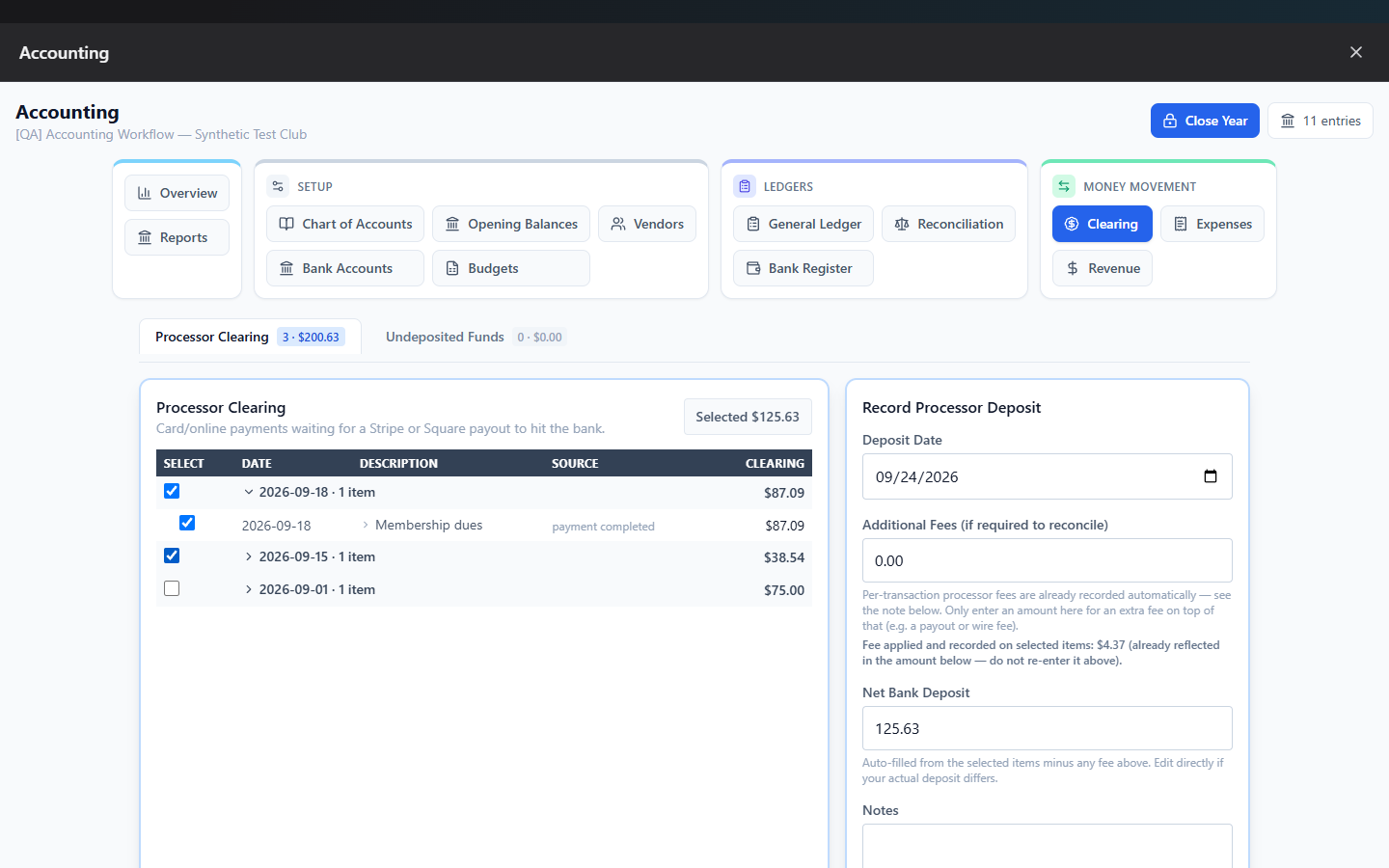
Clearing is where online/card payments (already in the ledger the moment a member pays) get matched to what actually lands in your bank as a lump-sum payout, and where cash/check payments marked "paid" get formally deposited.
There are two pools, as tabs:
- Processor Clearing — card/online payments (e.g. Stripe) waiting for a payout.
- Undeposited Funds — cash/check payments marked paid but not yet taken to the bank.
Settle a batch of payments into a deposit
- Open the relevant pool tab.
- Check off every item that landed together in one bank deposit — usually everything from a single date, or use the Event filter if the deposit is tied to a specific event plan/ticketing settlement.
- Review the Net Bank Deposit amount — it's auto-computed as your selected total minus any fee, but you can edit it directly to match your actual bank statement (click Reset to expected to undo a manual edit).
- For Processor Clearing, enter any Additional Fees beyond what's already recorded per-transaction (e.g. a payout/wire fee). For Undeposited Funds, enter a Bank Fee if one applies.
- Pick the Destination Account if you have more than one bank account.
- Click Post Processor Deposit (or Post Cash/Check Deposit).
Note: You can only settle items from the same pool in one deposit — mixing Processor Clearing and Undeposited Funds items in a single deposit isn't allowed; post them separately.
Expand any row in Deposit History to see the itemized transactions in that deposit, and click its Edit link if you need to adjust the deposit's date or notes.
Pay out or close out held funds
If an Event Plan uses a Held Funds (escrow) mode, the Funds Held for Others panel at the bottom of Clearing shows the running balance still held, with two actions:
- Record Payout — as money leaves the bank for vendors on the event's behalf, enter the amount, date, payee, which event plan it's for, and which bank account it paid from. This reduces the liability and credits the bank.
- Close Out Held Funds — once the event concludes and a balance remains, choose:
- Recognize remaining as revenue — the club keeps it; pick a revenue account.
- Refund to participants — money goes back out; pick which bank account it refunds from.
Reconciliation
Reconciliation is the classic "match your checkbook to the bank statement" process, one bank account at a time.
Reconcile a bank statement
- Pick the bank account from the dropdown.
- Enter the Statement Date and Statement Ending Balance from your paper or online statement, then click Start Reconciliation.
- Either check off each transaction as it appears on the statement, or click Import statement CSV to upload your bank's exported CSV — it auto-matches most transactions and flags the rest under Statement Rows Needing Review, where you Match or Ignore each one.
- Watch the Difference figure — it should reach $0.00. If a transaction amount is wrong, click its Edit link right from this screen to fix it without leaving Reconciliation.
- Click Finish Reconciliation. If a difference remains, you'll be asked to confirm finishing anyway (so you can investigate later without blocking your close) — this is recorded as "completed with variance."
- Optionally Generate and Download a PDF report of the completed reconciliation for board records.
Note: This is the first reconciliation for a new bank account? Every historical transaction starts unchecked and the beginning balance is $0.00 — only check off what actually cleared on this statement.
Reopen — the most recently completed reconciliation for an account can be reopened if you need to correct a checked item; just finish it again afterward. (This is different from reopening a closed fiscal year — see Close Year, which has stricter permission rules.)
Field reference
| Field | Where | Notes |
|---|---|---|
| Statement Date / Ending Balance | Reconciliation | Required to start |
| Net Bank Deposit | Clearing | Auto-computed, editable |
| Destination/Paid From Account | Clearing | Only shown with 2+ bank accounts |
Common questions
Do processor fees get recorded automatically? Yes — per-transaction processor fees are already recorded when the payment happens. The "Additional Fees" field in Clearing is only for an extra fee on top, like a wire or payout fee, not the normal per-card fee.
Why can't I settle items from both Processor Clearing and Undeposited Funds together? They represent genuinely different money paths (card payouts vs. physical cash/check deposits) and your bank statement will show them as separate deposits — keeping them separate here keeps your reconciliation accurate.
Troubleshooting
| If you see... | It means... | Do this |
|---|---|---|
| "Select at least one clearing item." | You clicked Post with nothing checked | Check at least one item |
| CSV import error about missing columns | Your bank's CSV export doesn't have a recognizable date/amount column | Check the export format, or enter transactions manually |
| "Reconciliation is already open." | A draft reconciliation exists for that account | Finish or continue the existing one before starting a new one |