Accounting — Revenue, Expenses & Journal Adjustments
Where to find it: Finance & Events card → Accounting button → Revenue and Expenses tabs (grouped under "Money Movement"); Journal Adjustment is reached via the Journal Adjustment button on the General Ledger tab
These are the manual entry points for anything not already captured automatically by online payments — cash donations, checks you write, grants, and any correction that needs a raw double-entry adjustment.
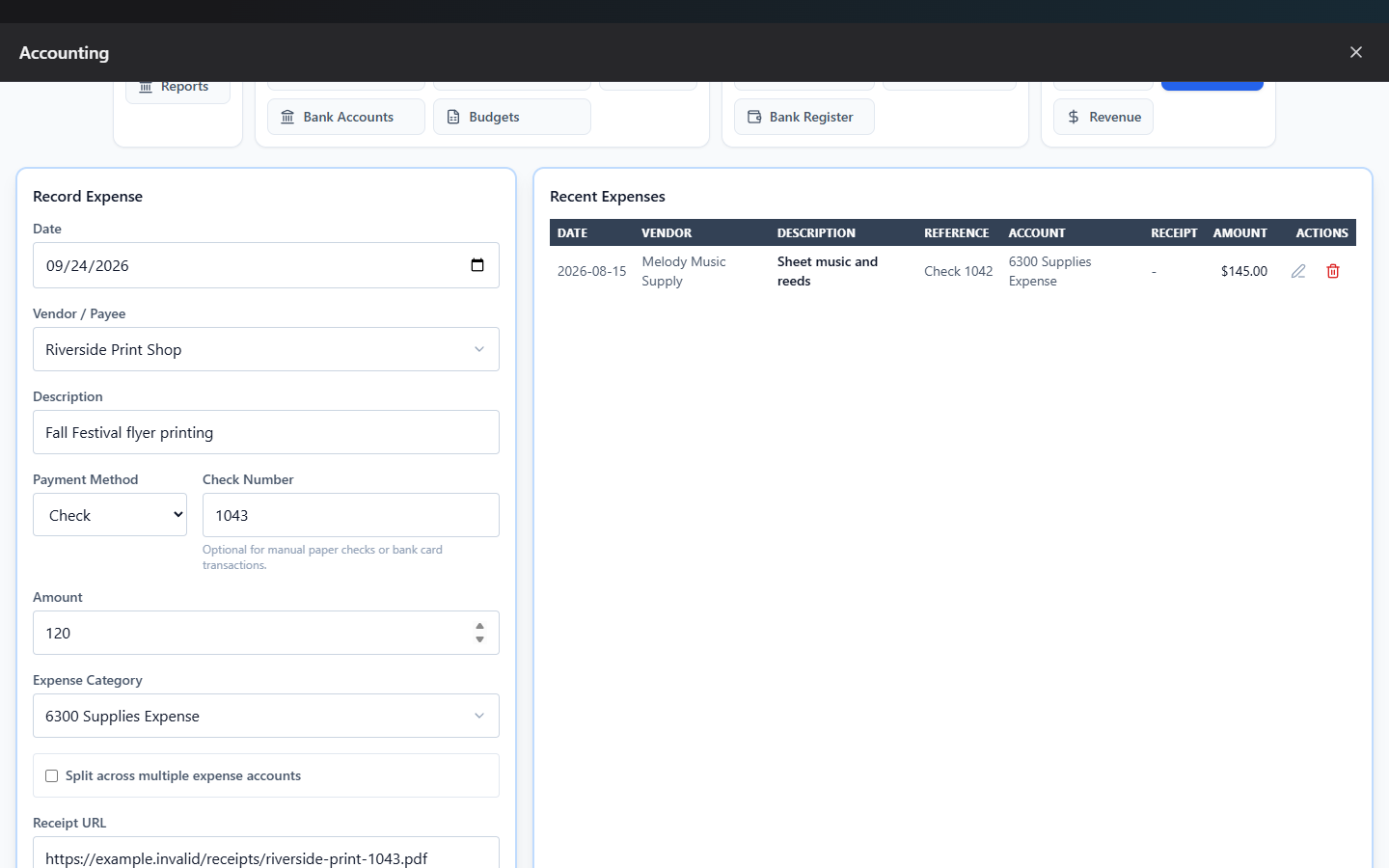
What you can do here
- Record revenue
- Split revenue across multiple accounts
- Record an expense
- Attach a receipt
- Make a journal adjustment
- Delete an entry
Record revenue
Use the Revenue tab for money received that isn't already automatically captured — a cash donation, a grant check, sponsorship money.
| Field | Required | Notes |
|---|---|---|
| Date Received | No, defaults today | |
| Received From | No | Free text |
| Description | Yes | Up to 200 characters |
| Amount | Yes | Minimum $0.01 |
| Revenue Category | Yes, unless split | Pick from Revenue-type accounts |
| Deposited To | No | Only shown with 2+ bank accounts |
Fill in the form and click Record Revenue.
Split across multiple accounts
Both Revenue and Expenses support splitting one transaction across multiple accounts — check Split across multiple revenue/expense accounts, then add a row per account with its own amount. A live "Remaining: $X" indicator turns green once your rows exactly total the header Amount (submit is blocked until they match); click Auto-balance last line to have the last row fill in the remainder automatically.
Record an expense
Use the Expenses tab for money the club spent — the primary "write a check / pay a bill" workflow.
| Field | Required | Notes |
|---|---|---|
| Date | No, defaults today | |
| Vendor / Payee | No, recommended | Search existing vendors, or type a new name and choose "+ Add new vendor" |
| Description | Yes | Up to 200 characters |
| Payment Method | No | Check / Zelle / ACH / Debit |
| Check Number / Transaction ID | No | Auto-suggests the next check number if left blank |
| Amount | Yes | Minimum $0.01 |
| Expense Category | Yes, unless split | Pick from Expense-type accounts |
| Paid From | No | Only shown with 2+ bank accounts |
| Receipt URL / Receipt File | No |
Fill in the form and click Record Expense.
Attach a receipt
Either paste a Receipt URL, or upload a Receipt File (PDF, JPG, PNG, or WebP) — it attaches to that expense and shows as an Open link in the Recent Expenses table.
Journal Adjustments
For anything the Revenue/Expense forms don't cover — reclassifying an expense from one category to another, or a non-cash correction — click Journal Adjustment from the General Ledger tab (or Edit on an existing journal entry):
| Field | Required |
|---|---|
| Date | No, defaults today |
| Description | Yes, up to 200 characters |
| Amount | Yes, minimum $0.01 |
| Debit Account | Yes — any account type |
| Credit Account | Yes — any account type, must differ from Debit Account |
Delete an entry
Click the trash icon on any Revenue, Expense, Opening Balance, or Journal Adjustment row, then confirm. This is always a soft delete (void) — the entry disappears from your active totals but is preserved permanently in the audit trail, never truly erased.
Common questions
Should I use Split, or a Journal Adjustment, to divide a payment across categories? Use Split when you're initially recording a single revenue or expense that genuinely touches multiple categories (e.g. one donation check earmarked partly for general fund, partly for a specific program). Use a Journal Adjustment when you need to move money that's already posted from one account to another after the fact.
Can I edit an expense that came from an approved reimbursement request? No — once a reimbursement request has been approved and posted, its expense entry is locked. To correct it, reverse the payment record with a reason, then submit a corrected reimbursement request.
Troubleshooting
| If you see... | It means... | Do this |
|---|---|---|
| Submit button stays disabled with a "Remaining: $X" note | Your split rows don't sum to the header amount | Adjust the rows, or click Auto-balance last line |
| "Approved reimbursement expenses cannot be edited." | The expense originated from an approved reimbursement | Reverse it with a reason and submit a corrected request instead |
| Debit/Credit account fields won't let you save | You picked the same account for both | Choose two different accounts |
Related
- Ledgers & Clearing — where these entries show up alongside everything else
- Setup — add a vendor before recording an expense against them