Distribution Email
Distribution Email is a dedicated tool for building a targeted recipient list and sending it an email — filter by club or school, role (board/staff/member), or student/custom-field criteria (grade, position, activity level), fine-tune the exact people, then write and send.
Where to find it: Finance & Events card → Distribution Email button. It also opens pre-filled from other places in the app — for example, clicking the mail icon on a posted Announcement, or Email Volunteers on a volunteer opportunity's sign-up list — with recipients and subject/body already filled in for you.
Who can use this: Club Admins, and board members granted the Send Emails permission. Club Admins are automatically locked to their own club; a delegated board member sees the general club/school picker.
What you can do here
- Choose recipients by club or school
- Narrow by role
- Narrow by student or custom-field criteria
- Manually add or remove specific people
- Compose and send
- Copy the email list instead of sending in-app
Choose recipients by club or school
Use the Filter type dropdown to choose By Club Members or By School Members:
- By Club Members — for a Club Admin, this is locked to your own club. A delegated board member gets a free-type club picker with autocomplete.
- By School Members — targets everyone tied to a school, which can span multiple clubs. Use this when you need to reach every family at a school regardless of which club they're in.
Narrow by role
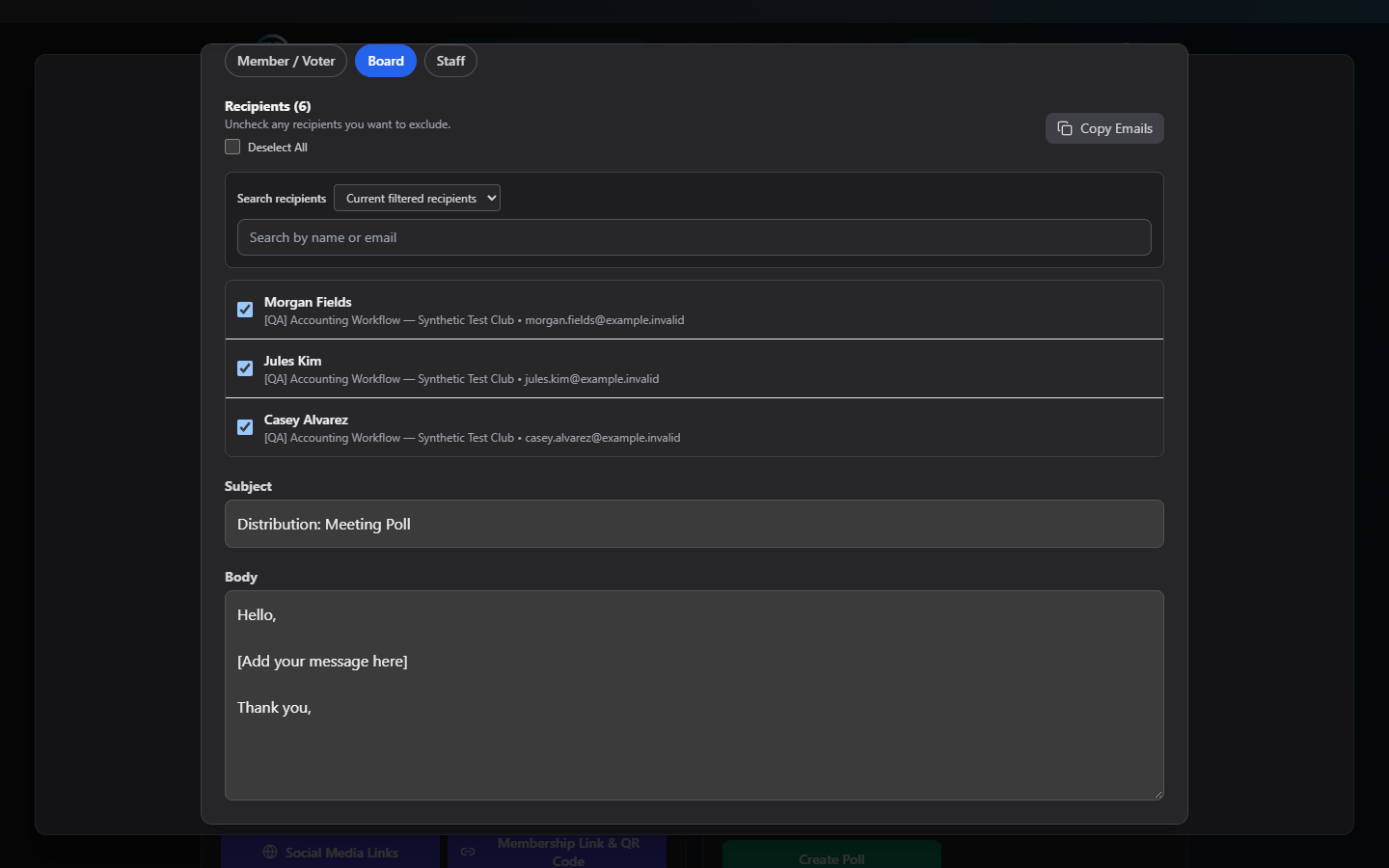
Once a club or school is selected, three toggle chips appear: Member/Voter, Board, and Staff. Check one or more to narrow the list — leave all unchecked to include everyone. The recipient list below updates live as you toggle these.
Narrow with advanced filters
Available in club mode once a club is selected. Click + Add Filter and combine any of:
- Student Grade
- Student Position
- Student Activity Level
- Any custom field your club has defined (e.g. T-shirt size, volunteer interest)
Each filter you add shows as a removable chip. All active filters combine with AND logic — a recipient must match every one you've added, not just one. Click Clear Filters to remove them all at once.
Manually add or remove people
- Uncheck any row in the recipient checklist to exclude that specific person, even if they match your filters.
- Use the Search recipients box to find someone by name or email. If you need to add someone outside your current filter, switch the search scope to All in selected club/school — this searches everyone in that club/school regardless of your role/advanced filters, then adds them to your selection when clicked.
- Deselect All clears every checkbox at once (and re-labels itself to let you select everything visible again).
Compose and send
- Write a Subject and Message (both required).
- Review the recipient count shown above the list.
- Click Send Email.
There is no confirmation step before sending — once you click Send Email with valid recipients, subject, and body, it goes out immediately. Double-check your recipient list before clicking.
Note: The server caps a single send at 500 recipients. If you need to reach more people than that, narrow your filters and send in multiple batches.
Copy emails
Click Copy Emails to copy every currently-selected recipient's address (semicolon-separated) to your clipboard — useful if you'd rather send from your own email client instead of through the app.
Field reference
| Field | Required | Notes |
|---|---|---|
| Filter type | Yes | Club or School |
| Club / School | Required to see any recipients | Club Admins are locked to their own club |
| Advanced filters | No | Grade, Position, Activity Level, or a custom field; AND logic |
| Role filter | No | Member/Voter, Board, Staff — blank means everyone |
| Recipients | At least 1 required to send | Individually overridable on top of filters |
| Subject | Required | Server caps at 200 characters |
| Message | Required | Server caps at 5,000 characters |
Common questions
Why can't I pick another club? Club Admins are always scoped to their own club when using the club filter. Switch to By School Members if you need to reach families across multiple clubs at the same school.
Is there a way to double-check before I send? Not within this tool — there's no confirmation dialog. Review the recipient count and list carefully before clicking Send Email. (Create Report's email option does have a confirmation step, if you'd rather build and email a report instead.)
Can I send to more than 500 people at once? No — that's the server's hard limit per send. Narrow your filters (e.g. by role or a custom field) and send in separate batches.
Troubleshooting
| If you see... | It means... | Do this |
|---|---|---|
| "Select at least one recipient before sending." | No recipients are checked | Check at least one row, or adjust your filters so people match |
| "Subject is required." / "Email body is required." | One of those fields is empty | Fill it in and try again |
| "Maximum 500 recipients per request." | You selected more than 500 people | Narrow your filters and send in smaller batches |
| "Sent to N recipient(s) (M failed)" | Some addresses bounced or were invalid | Check those recipients' saved email addresses |
| Recipient list is empty with no error | No club/school selected yet | Pick one from the Filter type dropdown |
Related
- Create Report — build a report first, then email it with a confirmation step and PDF attachment option
- Announcements — the mail icon on a posted announcement opens this tool pre-filled
- Volunteers — "Email link" and "Email Volunteers" open this tool pre-filled with volunteer recipients