Payments — Event Plans
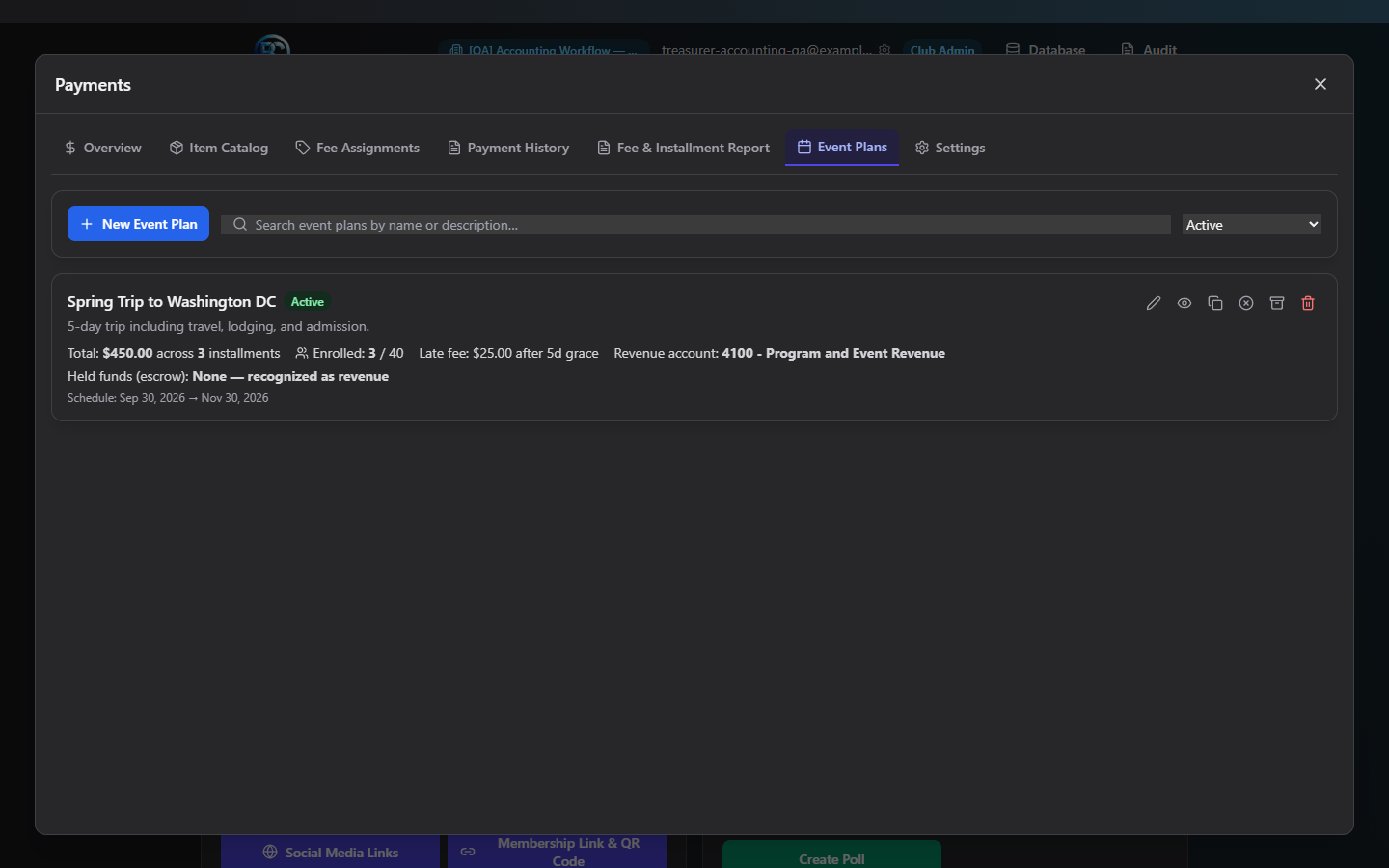
Where to find it: Finance & Events card → Payments button → Event Plans tab
Event Plans are for big-ticket items paid off over time — a band trip, a competition fee, a large fundraiser — with their own public sign-up link, an installment schedule, optional late fees, and a choice of how the collected money is tracked in your books.
What you can do here
- Create an event plan
- Choose revenue recognition vs. held funds (escrow)
- Share the signup link
- Pause, archive, or delete a plan
- Handle failed scheduled jobs
Create an event plan
- Click New Event Plan.
- Enter Name (required), Description, and Total Amount (required, up to $100,000).
- Set Number of Installments (1–60). An installment schedule table appears — click Distribute Evenly to auto-split the total across installments, or enter each amount/due date by hand. The schedule total must exactly match the plan total before you can save.
- Optionally enable Late Fees (amount + grace period in days), choose Email Reminders days (pick from 1/3/5/7/14/30 days before each due date), set a Max Capacity, and decide whether Signup Active should be on (it is, by default).
- Optionally check Require student gender on signup if you need M/F totals for planning purposes.
- Choose how the money is tracked — see the next section.
- Click Create Plan.
Choose revenue recognition vs. held funds (escrow)
Every plan uses one of these two approaches — they're mutually exclusive:
- Revenue Account (simple/default) — money is recognized as revenue as soon as an installment is paid. Pick a specific revenue account, or leave it on auto-map.
- Held Funds (Escrow) Tracking — use this when the club is holding money on
someone's behalf and the trip/event could still be cancelled or refunded. Three
options:
- None — same as picking a Revenue Account (the default).
- Held in operating bank — money still deposits into your normal bank account, but books as a liability ("Funds Held for Others") instead of revenue, until you later pay it out or close it out.
- Held in a dedicated escrow bank account — money routes through and reconciles against a completely separate bank account you select. Requires that bank account to already exist under Accounting → Bank Accounts.
Note: Held-funds money still flows through your normal clearing/deposit process — choosing a held mode doesn't change how deposits work, only how the money is categorized in your books until it's released.
Share the signup link
Every plan gets a signup link automatically when created — you don't generate it manually. Click Copy Signup Link on the plan's card to copy it (disabled if signup is currently paused).
Pause, archive, or delete a plan
- Pause Signup — stops new enrollments while keeping the plan and its existing enrollments fully intact; confirm first.
- Archive — hides the plan from the default list/report filters while preserving everything; can be unarchived later with one click, no confirmation needed.
- Delete — confirm first. If no one has enrolled, it's permanently deleted. If enrollments do exist, it's archived instead automatically (the resulting toast tells you which actually happened).
Handle failed scheduled jobs
Two things run automatically overnight: applying late fees to overdue installments, and sending reminder emails. If either fails for a specific enrollment, it appears in the amber Failed Scheduled Jobs panel with a Retry Now (late fees — reapplies immediately) or Reset & Retry (reminders — clears the marker so the next nightly run resends it, avoiding a duplicate) button.
Field reference
| Field | Required | Notes |
|---|---|---|
| Name | Yes | Up to 200 characters |
| Description | No | Up to 1,000 characters, shown to signup participants |
| Total Amount | Yes | $0.01–$100,000 |
| Number of Installments | Yes | 1–60 |
| Installment Schedule | Yes | Amount + due date per installment; must sum to Total Amount |
| Late Fees | No | Amount (min $0.01) + grace period (0–90 days) if enabled |
| Email Reminders | No, default [7, 1] | Pick from 1/3/5/7/14/30 days before due |
| Max Capacity | No | Blank = unlimited |
| Signup Active | Yes, default on | Controls whether the public link works |
| Require student gender | No | Adds M/F to the public signup form |
| Revenue Account | Mutually exclusive with Held Funds | Default auto-map |
| Held Funds Tracking | Mutually exclusive with Revenue Account | None / operating bank / dedicated escrow bank |
| Funds-Held Liability Account | Only if a Held mode is chosen | Defaults to "Funds Held for Others (2100)" |
| Dedicated Escrow Bank Account | Required if mode = dedicated escrow bank | Must already exist under Accounting |
Common questions
Which should I pick: revenue or held funds? If the money is simple program income you keep no matter what (like a straightforward fee), use Revenue. If there's a real chance you'd have to refund it (a trip that could be cancelled, money you're fiscal-agenting for another group), use a Held Funds mode instead — it's more accurate about what the club actually owes until the event happens.
Can I change a plan's mode after creating it? Yes — open Edit on an existing plan and change the selection; the same rules (mutually exclusive, bank account required for dedicated escrow) apply on save.
What happens if enrollment hits Max Capacity? The public signup page shows the event as full and blocks new signups — nothing in this admin screen itself prevents you from watching the Enrolled count approach the cap, but you'll need to raise the capacity or the signup will simply be turned away.
Troubleshooting
| If you see... | It means... | Do this |
|---|---|---|
| Red text under the installment schedule | Installment amounts don't sum to the total | Adjust amounts, or click Distribute Evenly |
| Can't save with a Held Funds mode selected | Dedicated escrow mode needs a bank account picked | Select one, or create it first under Accounting → Bank Accounts |
| Toast says "archived" instead of "deleted" | The plan has existing enrollments | Expected — financial history is preserved automatically |
Related
- Event Enrollments — the roster and payment status for a specific plan
- Accounting — Setup — set up a dedicated bank account for escrow before choosing that mode