Minutes
After a meeting is adjourned, its minutes go through their own approval lifecycle, separate from the meeting's own stage. This is where you generate, review, approve, certify, and archive them.
Where to find it: Governance & Permissions card → Committees → select a committee → open a meeting whose workspace is at the Minutes Review, Approved, or Archived stage
Who can use this: The committee's manager (typically your Secretary).
What you can do here
- Generate and review a draft
- Approve minutes
- Certify and archive
- Regenerate minutes
- What's shown in the generated minutes
Generate and review a draft
Minutes move through these statuses in order:
Draft — not approved → Secretary reviewed — not approved → Distributed for review — not approved → Awaiting approval → Approved → Certified → Archived
- Click Generate minutes from the meeting record — this builds the draft automatically from what was actually recorded during the live meeting (attendance, motions, votes, ad hoc items, action items).
- Click Mark secretary reviewed once you've checked it over.
- Click Distribute to the board to share the draft for review.
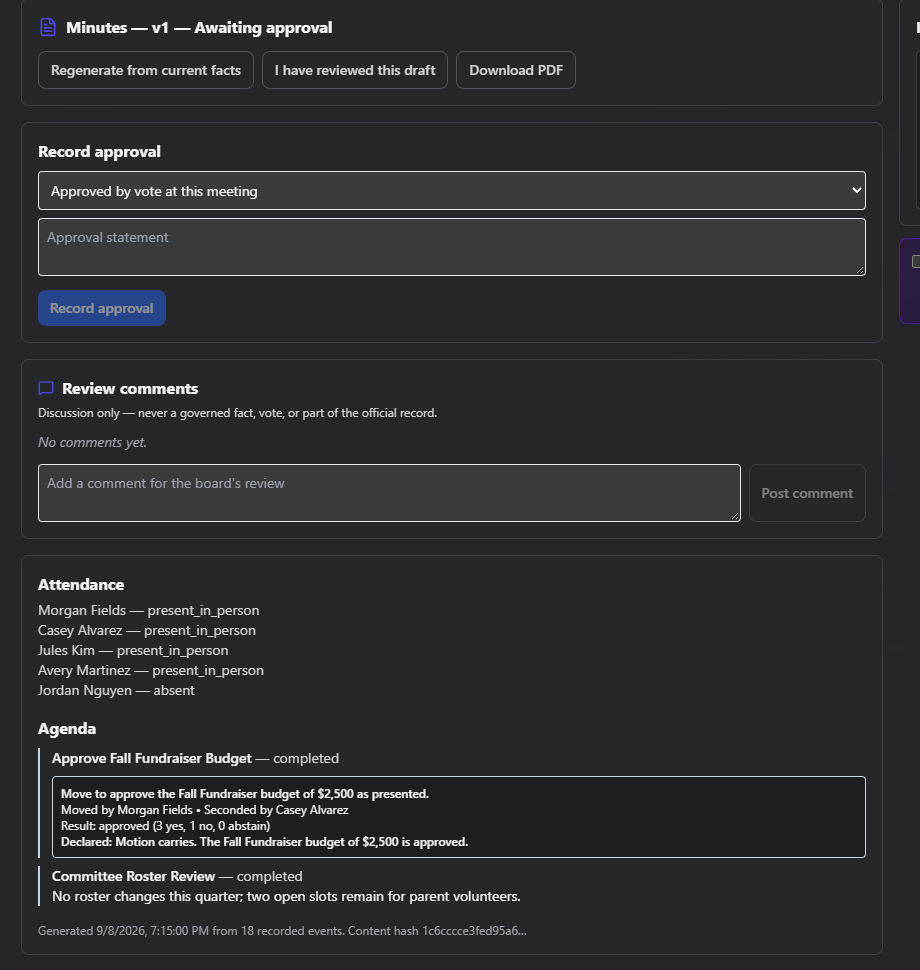
- Board members can leave feedback in the Review comments thread — this is discussion only; it's never treated as a governed fact, a vote, or part of the official record.
- Click Submit for approval when it's ready for a formal approval decision.
Approve minutes
Once minutes are Awaiting approval:
- Choose an Approval method: approved by vote at this meeting, approved by vote at a later meeting, or approved through an authorized electronic process.
- Enter an Approval statement.
- Click Record approval.
Certify and archive
- Once approved, enter a Certification statement and click Certify minutes.
- Click Archive to finalize it — archived minutes automatically become part of your club's fiscal-year Meeting Archive.
Regenerate minutes
Regenerate from current facts is always available if something in the underlying meeting record was corrected after the draft was first built. Regenerating a version that's already Approved, Certified, or Archived requires you to type a Reason for regenerating an approved/certified record first, so there's always a documented reason for revisiting a finalized set of minutes.
Anyone can click I have reviewed this draft to acknowledge they've read it, and Download PDF is available at every stage.
What's shown in the generated minutes
Every generated version includes:
- Attendance — who was present, remote, or departed, and when
- Agenda — each item, with a secretary narrative box, and for items with a motion: the exact motion text, mover, seconder, result, declaration statement, and any disclosed conflicts
- Ad hoc items that were added during the meeting
- Linked electronic actions, if any were referenced
- Action items assigned during the meeting
- Unresolved items, if anything was left open
- A content hash and a note showing when it was generated and from how many recorded events
Anything from an agenda item marked as executive session is shown redacted.
Common questions
Can board members edit the minutes directly? No — board members can only leave comments in the review thread. The Secretary (or whoever manages the committee) generates and edits the official minutes record.
Why would I need to regenerate already-certified minutes? Only if a correction to the underlying meeting record is needed after the fact (for example, a vote result correction made through "Create superseding result" during the live meeting). You'll always be asked for a reason before this is allowed.
Troubleshooting
| If you see... | It means... | Do this |
|---|---|---|
| A reason field appears when clicking Regenerate | The minutes are already Approved, Certified, or Archived | Enter the reason for the correction to proceed |
| "Submit for approval" is unavailable | Minutes haven't been distributed to the board yet | Complete the earlier steps (secretary review, distribution) first |
Related
- Running a Meeting — where the underlying record these minutes are built from comes from
- Governance Documents — Meeting Archive — where archived minutes end up