Running a Meeting
The meeting workspace is a guided, stage-by-stage way to run an official meeting — from finalizing the agenda, through publishing it, to running the live meeting itself with attendance, motions, and recorded votes. Each meeting moves through these stages in order: Prepare → Published → Live → Minutes Review → Approved → Archived (the last three are covered in Minutes).
Where to find it: Governance & Permissions card → Committees → select a committee → Schedule tab → Open Workspace on a meeting
Who can use this: The committee's manager runs most of the setup; a wider set of "eligible roster" members (defined by your club's governance policy) can check themselves in, disclose conflicts, and vote once the meeting is live.
What you can do here
- Prepare stage: policy and agenda
- Published stage
- Live stage: attendance
- Live stage: motions and voting
- Live stage: ad hoc agenda items
- Live stage: losing quorum
- Session controls
Prepare stage: policy and agenda
Before a meeting can go live, two things need to be in place:
- Governance policy — if this is your first meeting or your policy needs review, the manager sets: the quorum threshold %, decision threshold (Simple majority / Two-thirds / Unanimous), whether remote attendance counts as present, whether motions require a second, how abstentions are treated (excluded or included from the approval denominator), the tie rule (motion fails, or the chair may break a tie), whether ad hoc agenda items are permitted at all (and if so, how — by acknowledgement + procedural vote, or by unanimous consent), and whether electronic/written action authority is confirmed. Check the required acknowledgement box, then click Accept policy version.
- Agenda — build it in the agenda builder (Edit agenda button), or preview/print it first with Preview / print.
If a prior meeting lost quorum and carried items forward, you'll see them listed here with an Add to this agenda button.
Once your policy is accepted and the agenda has at least one item, click Publish agenda (or Publish corrected version if you're revising an already-published agenda — this requires a short Change summary). Publishing locks the agenda from further editing.
Published stage
Shows the published agenda's version and a content hash, and how many members have received the meeting notice ("N of M member emails sent"). Click Download published packet to get a PDF, or Call meeting to order when you're ready to go live.
Live stage: attendance
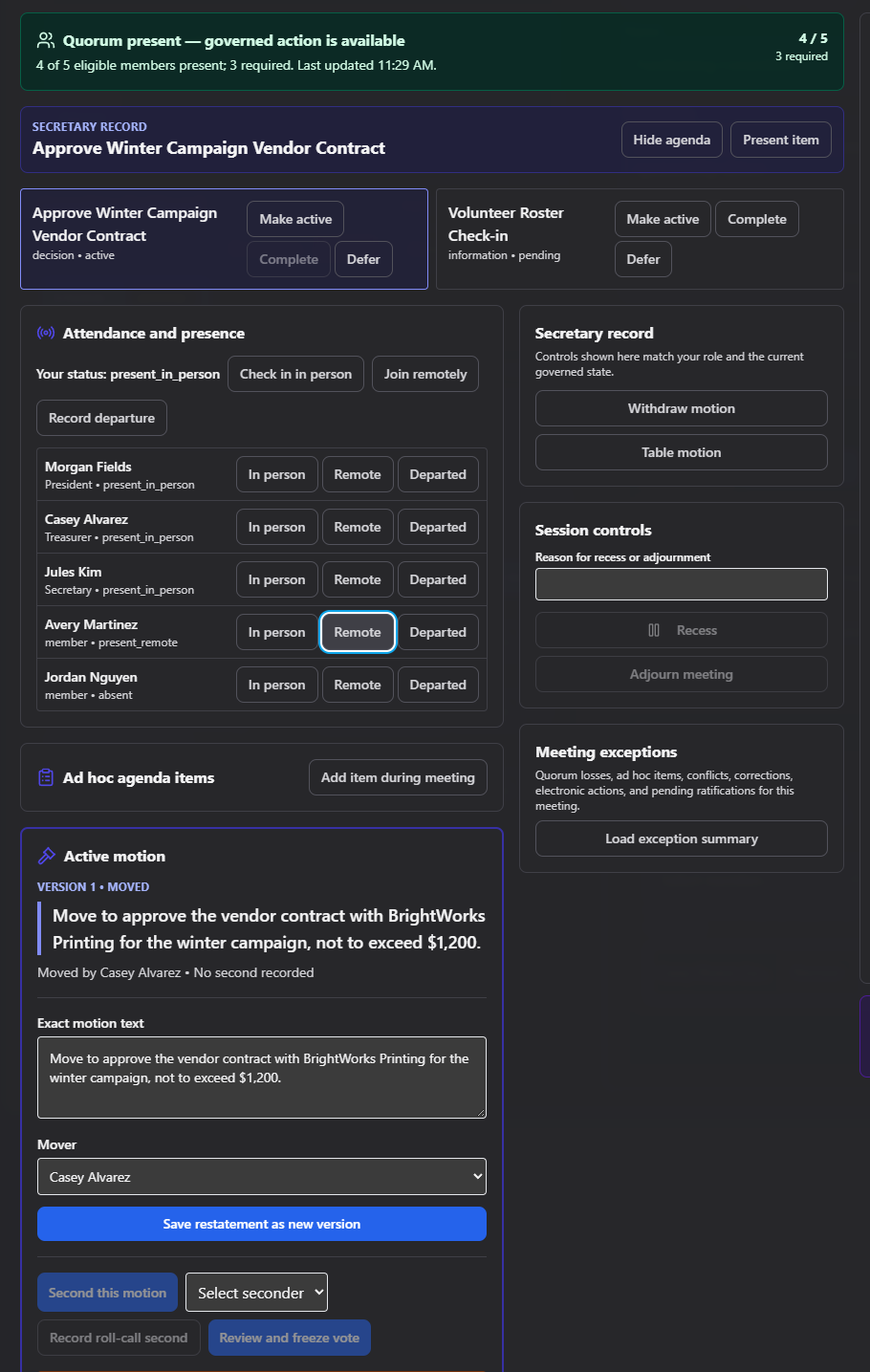
- Self check-in — attendees click Check in in person or Join remotely themselves; Record departure when they leave.
- The manager also has a roster view to check people in/out on their behalf with the same In person / Remote / Departed buttons.
- A quorum banner at the top of the screen stays visible throughout, showing the current count vs. the required count in green (quorum met) or red (quorum lost).
Live stage: motions and voting
- Navigate the agenda with Make active / Complete / Defer on each topic (manager only). Press F to toggle presentation/focus mode and A to toggle the agenda panel.
- To record a motion: enter the exact motion text and choose the mover from the eligible roster, then click Record motion.
- Someone eligible clicks Second this motion (or the manager records a roll-call second) — unless your policy says motions don't require a second.
- Click Begin discussion, then Review and freeze vote when discussion is done — this locks in the exact motion text and who's eligible to vote on it.
- Anyone with a conflict of interest can disclose it and self-recuse before voting.
- The manager clicks Open ballot; eligible members cast Yes / No / Abstain.
- The manager clicks Close and compute — you'll see the computed yes/no/abstain counts, the denominator used, the required number of Yes votes, and the reason for the result.
- The manager clicks Declare result and enters a declaration statement to make it official.
Before a vote is opened, the manager can Withdraw motion or Table motion instead. After a result is declared, if a correction is needed, the manager can Create superseding result — this never edits the original record, it creates a new, corrected version alongside it, with a required reason.
You can also ratify a previously rejected motion, a carried-forward no-quorum item, or an expired electronic action by picking it from the Ratify a prior record… list — it comes back as a fresh motion rather than reopening the old one.
Live stage: ad hoc agenda items
If your club's governance policy allows it, anyone can propose adding something to the agenda that wasn't published in advance:
- Fill in the Title, Purpose, Proposed by, Why this can't wait for the next published agenda, and Expected board action.
- Depending on policy, it's approved either by unanimous consent or by a quorum acknowledgement + procedural vote.
- Once approved, it's finalized and joins the live agenda.
If your policy doesn't permit ad hoc items, this option is disabled.
Live stage: losing quorum
If attendance drops below the required threshold mid-meeting, a No-quorum options panel appears for any item still pending:
- Carry forward — the item becomes a recommendation for a future meeting (you'll see it offered again in that meeting's Prepare stage).
- Convert to electronic/written action — only available if your club's policy has a confirmed authority for this; otherwise it's disabled with "Not configured for this club."
A Meeting exceptions panel keeps a running summary of every quorum loss, ad hoc item, disclosed conflict, result correction, linked electronic action, and pending ratification for the meeting.
Session controls
- Recess and Reconvene (recalculates quorum on reconvening)
- Adjourn meeting — ends the live session and moves the meeting into minutes processing; see Minutes
Each of these may ask for a typed reason depending on the situation.
Common questions
Can I edit the agenda once the meeting has started? No — an agenda is locked once published. If something needs to change mid-meeting, use the ad hoc agenda item process (if your policy allows it) rather than editing the original agenda.
What's the difference between "Table motion" and "Withdraw motion"? Both stop a motion before a vote happens, but they're recorded differently in the meeting record — use whichever your bylaws/parliamentary procedure calls for in that situation.
A vote result was recorded wrong — can I just fix it? No — use Create superseding result, which requires a correction reason and creates a new record rather than silently changing history.
Troubleshooting
| If you see... | It means... | Do this |
|---|---|---|
| "Not configured for this club." next to Convert to electronic/written action | Your club hasn't confirmed an authorizing mechanism for electronic actions | Set this up under Committee Settings/policy, or use "Carry forward" instead |
| Ad hoc item option is disabled | Your club's governance policy doesn't permit ad hoc agenda items | Add the item to the next meeting's published agenda instead |
| Publish agenda button is disabled | Policy hasn't been accepted yet, or the agenda has no items | Accept the policy and add at least one agenda item |
Related
- Building a Meeting Agenda
- Minutes — what happens after you click Adjourn