Building a Meeting Agenda
The agenda builder is where you draft what will be discussed and voted on at a meeting, before the meeting starts. Saving your work here never opens anything for a vote — publishing the agenda is a separate, deliberate step you take from the meeting workspace itself once you're ready.
Where to find it: Governance & Permissions card → Committees → select a committee → Schedule tab → Agenda (or Edit Agenda from the Dashboard or meeting workspace)
Who can use this: The committee's manager, or the meeting's chair.
What you can do here
- Start from a template
- Clone a prior meeting's agenda
- Add sections and items
- Link a document to an item
- Mark an item as executive session
- Save, print, and close
Note: Attendance, ballots, decisions, action items, and any private notes from a past meeting are never copied into a new agenda — only the structure and any linked documents are.
Start from a template
- Choose a template from the Agenda template dropdown: Standard board agenda, Short special meeting, or Financial review.
- Click Use template. This overwrites your current draft with that template's sections (e.g. "1. Call to Order", "2. Roll Call / Attendance", "3. Approval of Previous Minutes", numbered automatically) — the standard board template also adjusts itself depending on whether you checked Include Treasurer's Financial Report when scheduling this meeting.
Clone a prior meeting's agenda
- Choose a past meeting from the Clone from a prior meeting… dropdown.
- Click Clone agenda. Only the section/item structure and any linked documents come across — nothing about what actually happened at that prior meeting is copied.
If you've already saved a draft for this meeting, a Load Saved button lets you discard unsaved edits and revert to the last version you saved.
Add sections and items
- Click Add Section to add a top-level heading. Use the drag handle or the up/down arrows to reorder sections; the trash icon removes one.
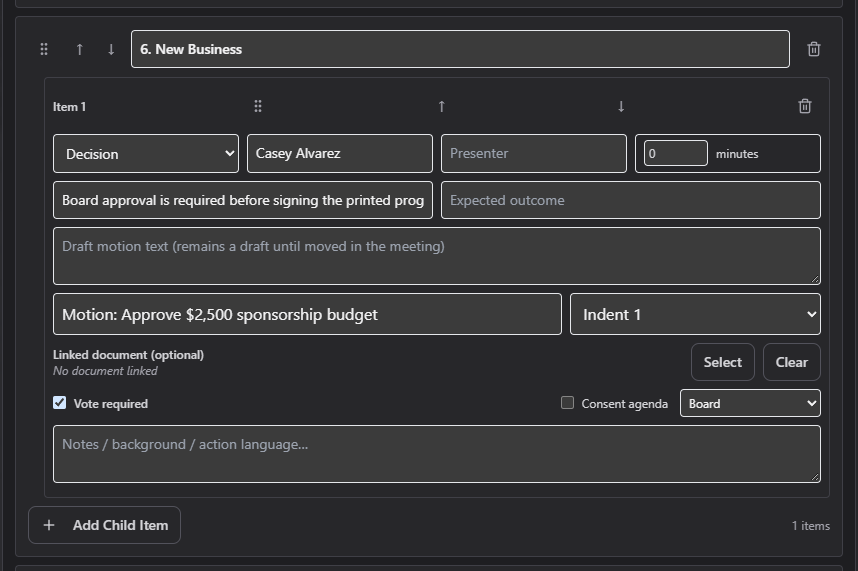
- Within a section, click Add Child Item to add a discussion/action item. Each item
has:
- Agenda item purpose type — Procedural / Information / Discussion / Report / Consent / Decision / Executive session
- Owner and Presenter
- Minutes — estimated duration (0–1440)
- Purpose / why this is on the agenda and Expected outcome
- Draft motion text — stays a draft until it's actually moved during the meeting
- Child item title and Indent level (1 or 2, for sub-items)
- Vote required and Consent agenda checkboxes
- Agenda item access — Public / Board / Executive / Restricted
- A free-text Notes / background / action language box
Your changes autosave about a second after you stop typing — watch the status line ("Saving…" / "Saved" / "Unsaved changes — autosave pending" / "Save failed — review the message above"). You can also click Save now at any time.
Link a document to an item
Click Select next to an item's Linked document field to pick from that committee's already-uploaded documents (upload it on the Documents tab first if it isn't there yet). Click Clear to remove the link.
Note: In any section whose title mentions both "approval" and "minutes," a Link Latest Minutes PDF button appears — it automatically attaches the most recently generated minutes document for you.
Mark an item as executive session
Choosing Executive session as an item's purpose type clears its Purpose, Expected Outcome, Draft Motion Text, and any linked document, and locks the Notes field. You'll see a banner explaining that executive-session items are markers only — confidential substance is never typed into the agenda itself.
Save, print, and close
- Print/PDF opens a formatted, printable view of the whole agenda, including estimated total time and target end time calculated from each item's duration.
- Close exits the builder (your work is already autosaved).
Field reference
| Field | Required? | Notes |
|---|---|---|
| Agenda item purpose type | Yes | Choosing Executive session clears several other fields |
| Owner / Presenter | No | Free text |
| Minutes | No | 0–1440 |
| Purpose / Expected outcome / Draft motion text | No | Hidden for Executive session items |
| Child item title | No | — |
| Indent level | No | 1 or 2 |
| Vote required / Consent agenda | No | Checkboxes |
| Agenda item access | No | Public / Board / Executive / Restricted |
| Linked document | No | Must already be uploaded to the committee's Documents tab |
Common questions
I published an agenda and now need to fix a typo — can I still edit it? Once published, an agenda becomes immutable from this builder. From the meeting workspace's Prepare stage, you can Publish a corrected version, which requires entering a short change summary.
Does cloning a prior agenda copy the votes/decisions from that meeting too? No — only the section and item structure and any linked documents come across.
Troubleshooting
| If you see... | It means... | Do this |
|---|---|---|
| "Save failed — review the message above" | The autosave couldn't complete | Check the error text shown, fix the issue, and it will retry |
| A document you expect isn't in the picker | It hasn't been uploaded to this committee yet | Upload it on the Documents tab first |
| Purpose/Expected Outcome/Draft Motion fields disappeared on an item | You set its purpose type to Executive session | Change the purpose type back if that wasn't intended |
Related
- Committee Workspace — where documents get uploaded before they can be linked here
- Running a Meeting — where a drafted agenda gets published and actually used