Committee Workspace
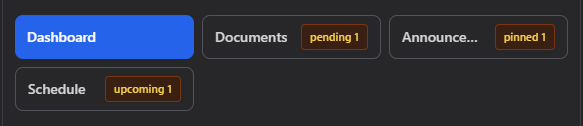
Once you select a committee from the picker, its workspace opens with a row of tabs. This is where day-to-day committee activity happens — outside of an actual meeting.
Where to find it: Governance & Permissions card → Committees button → select a committee
Who can use this: Anyone who can see the committee can view these tabs. Posting, uploading, and adding meetings are limited to the committee's manager (a Club Admin, or a board member with Manage Committees).
What you can do here
- Read the Dashboard tab
- Manage Documents
- Post Announcements
- Schedule meetings
- Governance Hub, Electronic Actions & Registers (board committee only)
Note: The Documents, Announcements, and Schedule tab labels show small badges — a blue "new N" badge for items posted since you last opened that tab, and an amber "pending N", "pinned N", or "upcoming N" badge depending on the tab. Opening a tab clears its "new" badge for you.
Dashboard tab
The default view when you open a committee. It shows four cards:
- Meetings — your next upcoming meeting, with Open Workspace, Edit Agenda, and Open Schedule buttons, or "No upcoming meetings scheduled." with just an Open Schedule button.
- Pinned Announcements — the top 3 pinned announcements, with an Open Announcements button.
- Documents — a count of pending/active documents and how many need approval, with an Open Documents button.
- Polls — a View Committee Polls button, and (for non-board committees) a Create Meeting Poll button.
There's also a Reimbursement Requests section right on the Dashboard — any committee member, board member, or admin can submit a reimbursement request from here without leaving the committee.
Documents tab
- Click Choose File (or drag a file in) to upload a PDF, Word, or Excel document — you'll see "Only PDF, Word, and Excel files are allowed." if you try anything else.
- Uploaded documents appear under Pending / Active. Once a document is approved (or its linked poll is finalized), it moves to Finalized approvals.
- Per document, you may see:
- Create Approval Poll — starts a Yes/No poll for the board to approve this document. (Not shown for meeting minutes PDFs, which are approved through the meeting's own agenda vote instead.)
- Open Poll — jumps to that document's approval poll.
- Finalize (Archive) — archives the linked poll once approval is done. You'll be asked to confirm: "Finalize approvals by archiving the linked poll?"
- Delete — permanently removes the file. Confirmed with "This permanently deletes the file and cannot be undone."
Announcements tab
- Enter an Announcement title and body.
- Check Pin to top if you want it to stay at the top of the list.
- Click Post Announcement.
- To remove one later, click its trash icon and confirm "Delete this announcement?"
Pinned announcements show a [PINNED] tag and always sort above regular ones.
Schedule tab
- Enter a Meeting title (defaults to "Meeting" if left blank).
- Choose a Start date/time — required. You'll see "Please enter a meeting date and time before adding a meeting." if it's empty.
- Optionally add a Location / call link and Notes.
- For your board committee only, a Include Treasurer's Financial Report checkbox is checked by default — leave it checked to have the treasurer's report built into the meeting's agenda template.
- Click Add Meeting.
Each scheduled meeting shows its agenda status ("Agenda: not created" or "template • N topics") and three actions:
- Open Workspace — starts or continues running the meeting; see Running a Meeting.
- Agenda — opens the agenda builder for that meeting (manager or chair only); see Building a Meeting Agenda.
- Delete (trash icon, manager only) — archives the meeting after confirming "Archive this meeting? Its governance record will remain available." This doesn't erase the meeting's history, it just removes it from the active schedule.
Note: A meeting marked restricted hides its location and notes from anyone outside the meeting's voting roster and club administrators, and disables most row actions for everyone else.
Governance Hub, Electronic Actions & Registers (board committee only)
If the committee you have open is your club's official board committee, three additional tabs appear:
- Governance Hub — the exact same screen as the standalone Governance Documents button: the fiscal-year meeting archive, organizational documents, and the compliance checklist, scoped to your club. You can reach this identical content either way.
- Electronic Actions — records a board action taken without holding a live meeting (only usable once your club's governance policy confirms an authorizing mechanism — either your bylaws or applicable law). Fill in the exact action text, the authorizing citation, a response deadline, and whether approval requires your configured voting threshold or unanimous consent, then click Create draft. An action then moves through Open for responses → Closed — computing → Computed — awaiting certification → Certified (or Withdrawn/Expired).
- Registers — read-only, on-demand summaries reconciled from your meetings' minutes: Decisions, Action items, Conflicts, and Exceptions, each with date-range filters and a Load button. The Decisions register also has a Download PDF button. Anything from an agenda item marked as executive session shows here as redacted.
Common questions
Why don't I see the Governance Hub / Electronic Actions / Registers tabs? They only appear on your club's official board committee — regular committees (like a fundraising or trip committee) don't have them.
Can a document I delete on the Documents tab be recovered? No — deleting a document is permanent. If it has an active approval poll, consider Finalize (Archive) instead if you just want to close out the approval.
Troubleshooting
| If you see... | It means... | Do this |
|---|---|---|
| "Only PDF, Word, and Excel files are allowed." | You tried to upload an unsupported file type | Convert the file or pick a different one |
| "Please enter a meeting date and time before adding a meeting." | Start date/time was left blank | Fill it in and click Add Meeting again |
| Location/Notes fields are missing on a meeting | The meeting is marked restricted | This is expected — only the voting roster and admins see those fields |