Compliance Checklist
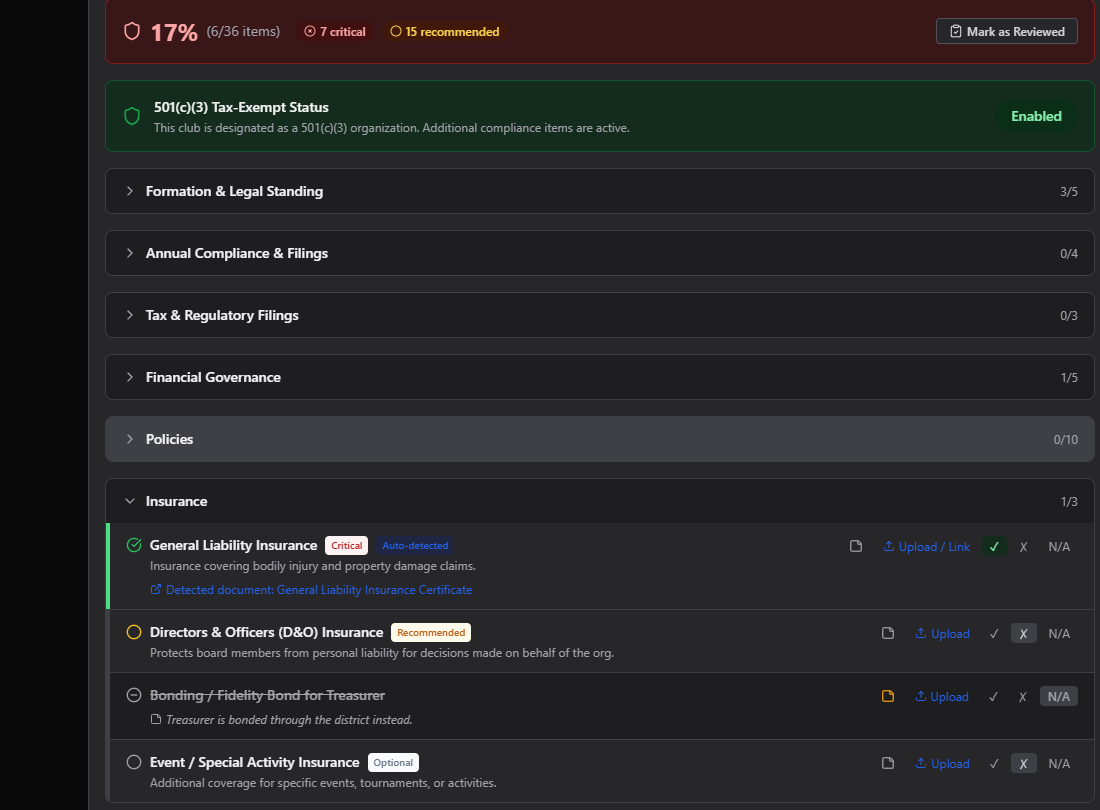
The Compliance Checklist tracks the paperwork and processes every club should keep current — grouped into Formation & Legal Standing, Annual Compliance & Filings, Tax & Regulatory Filings, Financial Governance, Policies, Insurance, Board & Officers, and School/District Compliance.
Where to find it: Governance & Permissions card → Governance Documents → Compliance tab
Who can use this: Club Admins, and board members granted Manage Documents.
What you can do here
- Read your compliance score
- Turn on 501(c)(3) tracking
- Mark an item complete, incomplete, or not applicable
- Get board approval on an item
- Check upcoming deadlines
Read your compliance score
At the top of the tab you'll see:
- Your overall score as a percentage plus a count like "(24/35 items)" — green at 80%+, amber at 50–79%, red below 50%.
- Stat pills for critical, recommended, expiring, and expired items (only shown when there's at least one).
- When it was last reviewed and by whom, plus a Mark as Reviewed button.
Many items don't need to be checked off by hand — they're marked Auto-detected automatically once a matching document is uploaded (for example, uploading anything in the Bylaws & Rules category completes "Bylaws Adopted"), a board seat is filled, or a club field like your EIN is filled in.
Turn on 501(c)(3) tracking
If your club has 501(c)(3) status:
- Click the Enabled / Not Enabled toggle on the 501(c)(3) Status card.
- Confirm — you'll be told this activates additional requirements (IRS Determination Letter, Form 990, state tax-exempt status, and others), and marks some of them as critical.
Turning it off marks those tax-exempt items as not applicable instead of incomplete.
Mark an item complete, incomplete, or not applicable
Each item has three quick buttons:
- ✓ — Mark complete
- ✗ — Mark incomplete
- N/A — Not applicable to your club
Changes save automatically about half a second after you click. You can also click the note icon on any item to add a free-text note (also autosaves).
If an item supports document upload, click its Upload button to jump straight to Organizational Documents with the upload form pre-filled for that item.
Get board approval on an item
Some items require formal board sign-off before they count as complete:
- Record board approval — for approvals already handled the traditional way: enter the meeting date and a minute reference (e.g. "Motion #3 — May 5, 2026 board meeting"), then confirm whether it was approved or rejected.
- Submit for board approval — creates a live Yes/No poll on your board committee so members can actually vote on it; see Polls.
An item shows an Attest button instead if it just needs an officer's personal attestation rather than a board vote.
Check upcoming deadlines
Scroll to the bottom of the Compliance tab for the Compliance Calendar, which calculates:
- Your IRS Form 990 due date (501(c)(3) clubs only)
- A target date for Annual Budget Approval
- A target date for a Financial Audit/Review
- A State Annual Report reminder (informational — the exact date varies by state)
- A renewal reminder for every checklist item that has a linked document with an expiration date
Common questions
Why is an item already checked off without me doing anything? It was auto-detected — the system found a matching document, club field, or board assignment that satisfies it. You can still override it manually if needed.
I turned off 501(c)(3) tracking by accident — did it delete anything? No — it only changes which items are tracked as applicable. Toggle it back on and your uploaded documents and item statuses are still there.
Troubleshooting
| If you see... | It means... | Do this |
|---|---|---|
| An item won't let you click "Submit for board approval" | The poll-creation link for compliance items isn't wired up on this screen, or the item doesn't require a board vote | Use "Record board approval" instead if you already have a documented vote |
| Score doesn't change after uploading a document | The document's category/name didn't match the item's auto-detect rule | Manually mark the item complete, or link it explicitly in the upload's "Linked Compliance Items" |
Related
- Organizational Documents — where supporting documents for these items are uploaded
- Polls — where "Submit for board approval" polls are voted on
- 501(c)(3) & Nonprofit Compliance Resources — official IRS and state links for the items on this checklist