Organizational Documents
Organizational Documents holds your club's permanent records — bylaws, tax and legal filings, certificates, insurance, policies, board resolutions, and vendor W-9s — as opposed to year-by-year meeting records (which live in the Meeting Archive).
Where to find it: Governance & Permissions card → Governance Documents → Organizational Documents tab
Who can use this: Club Admins, and board members granted Manage Documents.
What you can do here
- Upload a document
- Edit details, replace, or version a document
- Move a miscategorized document to the Meeting Archive
- Delete a document
Upload a document
- Click Upload Document.
- Choose a file — PDF, Word, or Excel, up to 50 MB. Its filename automatically fills in the Display Name field (you can change it, up to 200 characters).
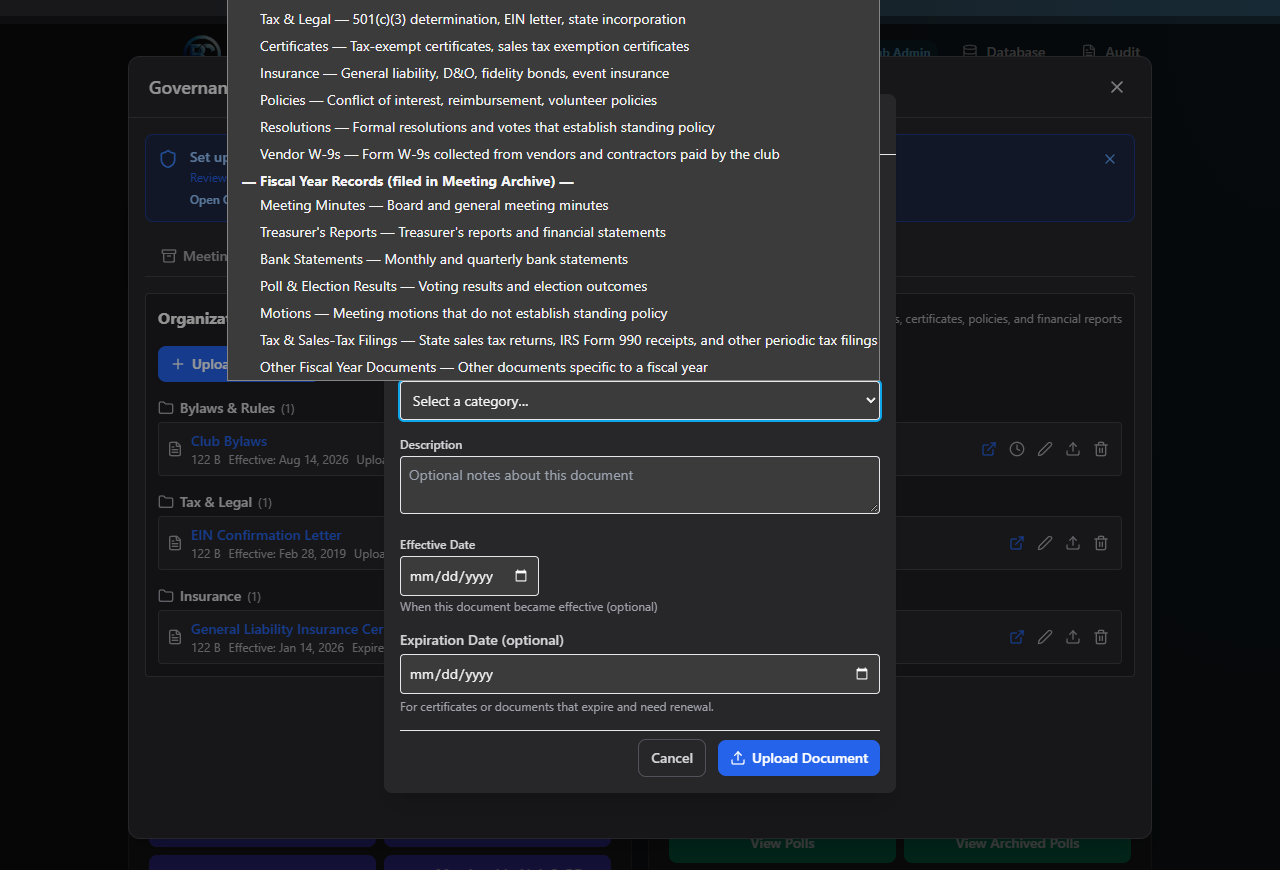
- Choose a Category:
- Permanent records: Bylaws & Rules, Tax & Legal, Certificates, Insurance, Policies, Resolutions, Vendor W-9s
- Fiscal year records (filed straight into the Meeting Archive instead): Meeting Minutes, Treasurer's Reports, Bank Statements, Poll & Election Results, Motions, Tax & Sales-Tax Filings, Other Fiscal Year Documents
- If you chose a fiscal year category, also pick the Fiscal Year — the form shows you which archive subfolder it will be filed under, and hides the fields below that don't apply to archive filings (Effective/Expiration dates, compliance links).
- If you chose Motions and this motion actually enacts a standing resolution, check This motion enacts a standing resolution — it will be filed as a permanent Resolution instead of a fiscal-year Motion.
- For permanent records, optionally fill in:
- Description (up to 500 characters)
- Linked Compliance Items — check any relevant items so they auto-complete on your Compliance Checklist
- Effective Date and Expiration Date (useful for anything that needs renewal, like insurance certificates)
- For Vendor W-9s, also enter the Vendor / Contractor Name (required), and optionally the last 4 digits of the Tax ID and Last Payment Date. Only the last 4 digits of a Tax ID are ever stored, and W-9s are flagged to auto-archive 4 years after the last payment date.
- Click Upload Document.
Edit details, replace, or version a document
- Edit details (pencil icon) — change the display name, description, dates, or compliance links without touching the file itself. Category can't be changed to a fiscal-year category from here — use Move to Meeting Archive instead (see below).
- Replace file (new version) (upload icon) — swap in a new file while keeping the same metadata; the document's version number increases and its history is kept.
- Version history (clock icon, shown once a document has more than one version) — view and open earlier versions.
Move a miscategorized document to the Meeting Archive
If a document was accidentally filed as a permanent record but should really be a fiscal-year record, you'll see an amber "Fiscal year document — should be in Meeting Archive" badge on it.
- Click Move to Meeting Archive (archive icon).
- Choose the Fiscal Year and Archive Section it belongs in.
- Click Move to Archive.
Delete a document
Deleting a permanent document requires board approval:
- Click the trash icon — Request deletion.
- Confirm "Deleting '{name}' requires approval from at least 2 board members. Create a board approval poll now?"
- Click Create Approval Poll. You'll see "Deletion approval poll created. The document will be removed once at least 2 board members vote Yes."
While the poll is pending, the document shows an amber "Pending board approval to delete — needs 2 Yes votes" badge, and you can click Cancel deletion request to call it off.
Once the poll passes, the document shows "Board-approved — delete now" — click it and confirm "This permanently deletes the file and all previous versions. This cannot be undone." to finish the deletion. If the poll is rejected, you'll see a red "Board rejected the deletion request" badge instead.
Field reference
| Field | Required? | Notes |
|---|---|---|
| File | Yes (new upload) | PDF/Word/Excel, ≤50 MB |
| Display Name | Yes | ≤200 characters |
| Category | Yes | Determines whether it's a permanent record or a fiscal-year archive filing |
| Fiscal Year | Yes, if a fiscal-year category | — |
| "Enacts a standing resolution" | No | Only for Motions category |
| Description | No | ≤500 characters, permanent records only |
| Linked Compliance Items | No | Permanent records only |
| Effective Date / Expiration Date | No | Permanent records only |
| Vendor / Contractor Name | Yes, for Vendor W-9s | — |
| Tax ID (last 4) | No | Digits only, masked to last 4 |
| Last Payment Date | No | Vendor W-9s only |
Common questions
Why does deleting a bylaws document need two board votes but uploading a new version doesn't? Deletion is permanent and can't be undone, so it requires board sign-off. Replacing a file with a new version keeps the old versions in history, so it's lower-risk.
I uploaded a bank statement to the wrong category — how do I fix it? Use Move to Meeting Archive to refile it into the correct fiscal year and archive section, rather than deleting and re-uploading.
Troubleshooting
| If you see... | It means... | Do this |
|---|---|---|
| "Only PDF, Word, and Excel files are allowed." | The file type isn't supported | Convert or choose a different file |
| "File must be under 50 MB." | The file is too large | Compress it or split it |
| "Display name is required." | You cleared the auto-filled name field | Enter a display name |
| "Approved for deletion, but automatic removal failed — retry below." | The approved deletion didn't complete | Click the delete action again |
Related
- Meeting Archive — where fiscal-year category uploads and refiled documents end up
- Compliance Checklist — where linked compliance items get marked complete
- Polls — where deletion-approval polls are actually voted on