Edit Member and Account Details
Manage Users gives you two different editors for a person, depending on which button you click: Edit opens their full member profile; Account opens just their login's role and club assignment. The toolbar's + Add Member button opens the same member-profile editor to create someone new — including a family who pays by cash or check and may never create a login at all.
Where to find it: Membership & User Setup card → Manage Users → a row's Edit button, its Account button, or the toolbar's + Add Member button
Two different "Add Member" buttons: a row's own Add Member button (next to an existing login with no member record yet) attaches a member profile to that specific login. The toolbar's + Add Member button at the top of the list creates a brand new member with no login involved at all — see Add a member with no login below.
Who can use this: Anyone who can open Manage Users can use Edit. Account additionally requires Manage Members.
Edit — the member profile
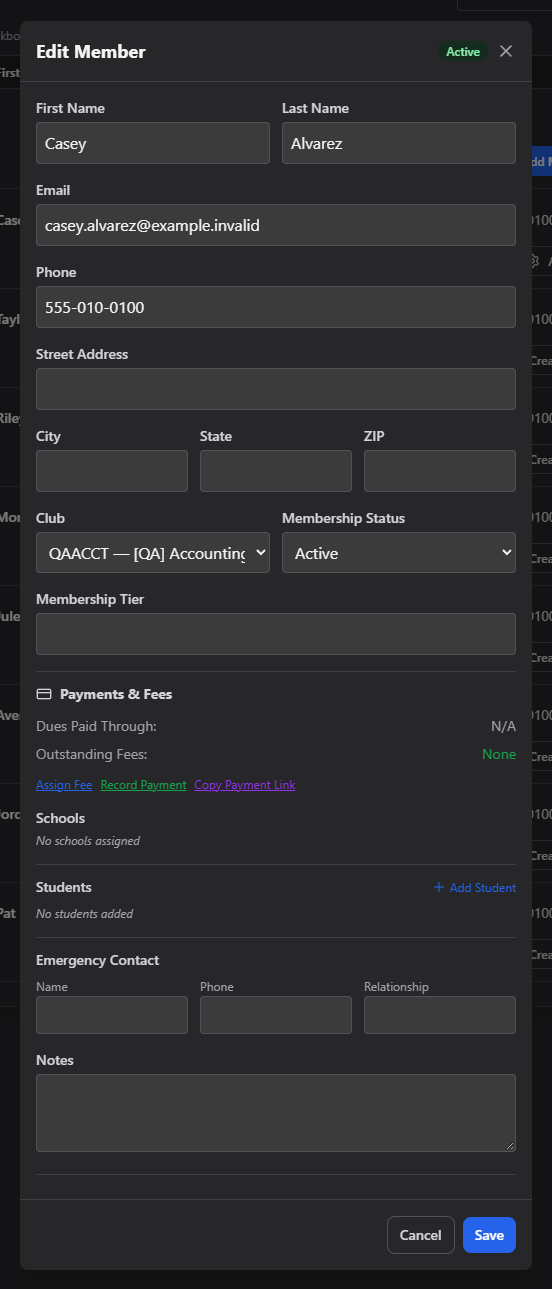
This is the full member record editor:
- First Name / Last Name / Email / Phone
- Street Address / City / State / ZIP
- Club and Membership Status (e.g. Active)
- Membership Tier
- Payments & Fees — read-only summary (Dues Paid Through, Outstanding Fees), plus Assign Fee, Record Payment, and Copy Payment Link actions
- Schools — which school(s) this member is associated with
- Students — add or manage the member's student(s)
- Emergency Contact — Name, Phone, Relationship
- Notes
Click Save when you're done.
Account — role and club assignment
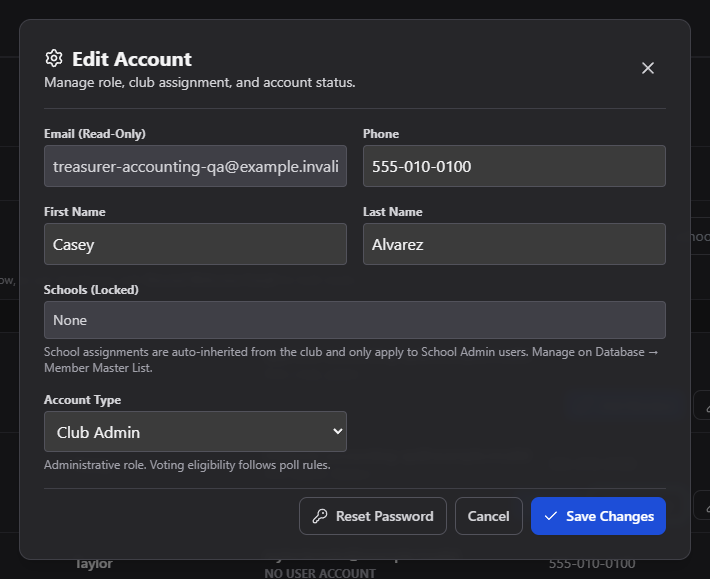
This is a smaller editor focused on the login, not the member profile:
- Email — read-only; email changes go through a separate verification flow, not this form.
- Phone, First Name, Last Name.
- Schools — shown locked/read-only, inherited from the club.
- Account Type — User (non-paid) / Member (paid) / Club Admin.
You can also trigger Reset Password directly from this modal.
Add a member with no login (cash or check payments)
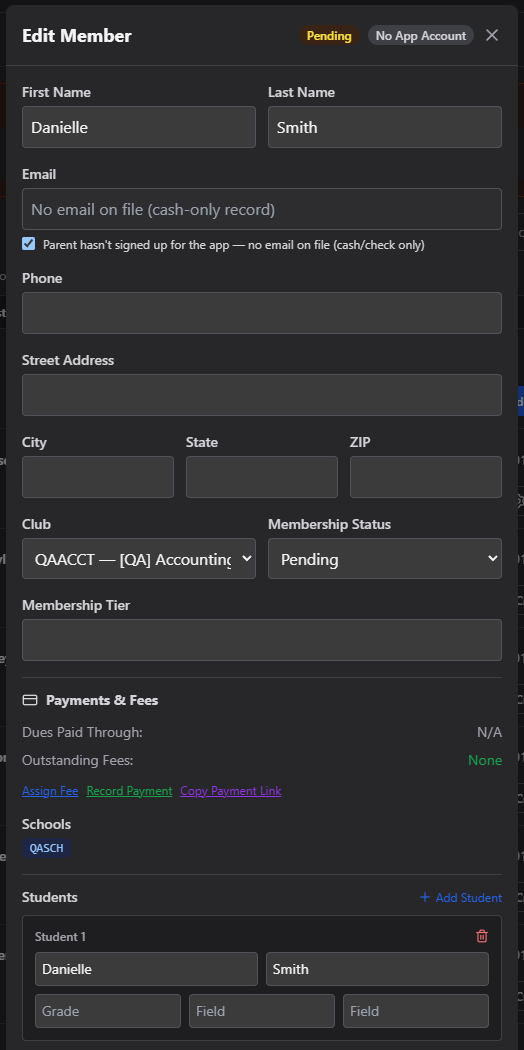
Some families pay dues in cash or by check and never create an app login — a student handing you cash at a table, for example, where you may not even know a parent's name yet. Click the toolbar's + Add Member button (next to Manage Users' search box) to add them directly, with no login involved:
- Fill in First Name / Last Name as usual — if you only know the student's name (not a parent's), that's fine, put it here for now.
- Check "Parent hasn't signed up for the app — no email on file (cash/check only)". This disables the Email field and saves the record with an internal placeholder address instead of a real one — no email is ever sent to it.
- Always add the student in the Students section, even if you already typed their name above as the member's name. If you leave Students empty, a checkbox-guard blocks Save with a reminder — click "Use '[name]' as the student name" to copy it over in one click instead of retyping it. This matters: it's the student's name in Students, not the top First/Last Name fields, that lets the app recognize this family automatically if a parent signs up later — see Family Access and Multiple Guardians.
- A member added this way shows a "No Email On File" badge in the list and a "No App Account" badge in this editor, so it's easy to tell apart from families who signed up themselves.
Once saved, assign fees and record their cash/check payments exactly like any other member — see Payments.
Common questions
Why is there both an Edit and an Account button? Edit covers the member's own information (contact, dues, students). Account covers their login's role and club — useful when you need to change what someone can do in the app, not just update their contact details.
Why can't I change someone's email? Email changes require verification, so they go through a separate request flow rather than a direct edit on either form.
Can I add a real email later if the placeholder family gets one? Yes — uncheck the no-email box and type it in. But if the parent is going to sign up for their own login anyway, you don't need to do this yourself — let them sign up and claim the family, which sets their real name and email automatically (see Family Access and Multiple Guardians).
Related
- Manage Users — back to the full list
- Reset Password — issue a new password for this person
- Family Access and Multiple Guardians — what happens when a cash-only family's parent signs up later