Creating a Poll
Clicking Create Poll doesn't show you a form first — it immediately creates a new poll and drops you into its editor, already live. You fill in everything (title, type, options, participants) directly in that editor, and it's usable as soon as you've added at least one participant.
Where to find it: Governance & Permissions card → Create Poll
Who can use this: Club Admins, and board members granted Create Polls.
What you can do here
- Tab 1: Setup — title, deadline, reference documents, and the options for whichever poll type you pick
- Tab 2: Participants — build the voter list
- Tab 3: Collect Votes — email voting links and track who's responded
- Tab 4: Results — see the winner and close the poll
Note: There's no "Submit poll" step — every field saves automatically as you edit it. The poll is live in the dashboard from the moment it's created.
Tab 1: Setup
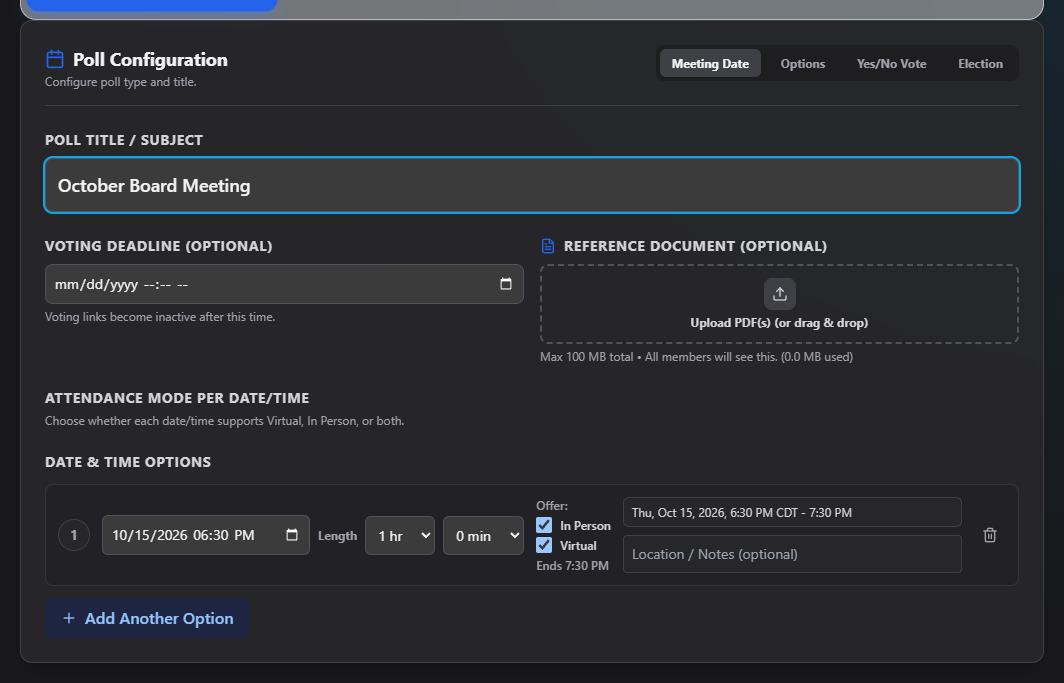
At the top, pick a Poll Type — switching types resets the options below to sensible defaults for that type:
- Meeting Date — find a date/time that works
- Options — pick from a general list of choices
- Yes/No Vote — a simple approve/reject vote
- Election — vote for candidates across one or more offices
Also on this tab:
- Poll Title / Subject — this is the poll's label everywhere it appears.
- Voting Deadline (Optional) — after this date/time, voting links stop working.
- Reference Document (Optional) — attach one or more PDFs (100 MB total across the poll) for voters to review before they vote.
Meeting Date options
For each date/time choice, set:
- The date and time
- Length — hours and minutes
- Offer: checkboxes for In Person and Virtual (leaving both unchecked is treated as offering both)
- An optional Location / Notes field
Click Add Another Option for more choices.
Options-poll choices
Add free-text options (e.g. "Proposal A", "Vendor X"). At least one option is required; add or remove as needed.
Yes/No settings
The two choices are locked to Yes and No. Set the % Yes votes required for approval (0–100, default 50 — a simple majority).
Election setup
- Choose a Vote Method: Single Pick (one candidate per office) or Ranked (rank every candidate per office).
- Choose a Ballot Type: Secret Ballot (only totals are shown) or Open Ballot (individual votes are visible in results).
- Choose Eligibility: Members Only, Paid Members Only (non-active members can be added to the roster but can't vote), or Members & Users.
- Add one or more Offices (e.g. "President"), and under each, add its Candidates. Every office needs at least one candidate.
Tab 2: Participants
Build your voter list here before sending anything out.
- Send Voting Emails (top right) jumps you to the Collect Votes tab — it's disabled until at least one member has been added.
- Quick Load by School/Site — type a school code and click Load Participants to bulk-import every club and member linked to that school.
- Quick Load by Committee — search for and pick a committee, then click Load Members to import its roster.
- Quick Load {Org} Team — pick a whole club from the dropdown and click Import Team to add its entire member roster at once.
- Use + Add Single {Org}… or + Add Single Member from DB… to add one club or member at a time.
- In the members table, check Req? next to anyone who's a required attendee — for Meeting Date polls, any date they can't make is automatically disqualified as a possible winner.
- Edit a member's ID#, name, email, or reassign their club directly in the table, or remove them with the trash icon.
Note: For a Paid-Members-Only election, members who aren't currently active are shown with an eligibility badge — they can be added to the roster, but they won't be able to vote.
Tab 3: Collect Votes
- Optionally check Customize Email Message and write your own note — the greeting and closing/voting-link boilerplate are always added automatically. The email subject is always "Poll: {poll title} - Vote Required".
- Send voting links:
- Send Email to Selected (N) — send to whichever people you've checked
- Nudge Non-Voters — resend only to people who haven't voted yet
- Copy All Links — copy every participant's personal voting link to your clipboard
- Each participant's card also has its own Email button (opens your mail app with their link pre-filled) and Copy Link button, plus a live status: Vote Received (showing what they chose) or Waiting for vote….
Tab 4: Results
- A Member Response tile shows how many of your participants have voted.
- A Current Winner tile shows the leading result for the poll's type — or "No clear winner yet" / "Top options disqualified" if every leading choice has been ruled out (for example, by a required attendee's conflict on a Meeting Date poll).
- From here you can Close Poll, click Record Meeting (Meeting Date polls tied to a committee, once there's a winner), or Print / Save Results — see Poll Dashboard for details on each.
- A results table below shows the full breakdown, with expandable rows for how each person voted (subject to the poll's Ballot Type for elections).
Field reference
| Field | Required? | Notes |
|---|---|---|
| Poll Title | No, but always shown | Free text |
| Voting Deadline | No | Voting links stop working after this time |
| Reference Document | No | PDF only, 100 MB total per poll |
| Meeting Date option | At least 1 | Date/time, length, In Person/Virtual, location |
| Options-poll choice | At least 1 | Free text |
| Yes/No approval % | No, default 50 | 0–100 |
| Election offices/candidates | At least 1 office, 1 candidate each | — |
| Required attendee (Req?) | No | Disqualifies dates that attendee can't make |
Common questions
Can I change the poll type after adding participants? Yes — changing the poll type resets the Setup tab's options to that type's defaults, but your Participants list is untouched.
How does a participant actually vote? They click the personal voting link you email or copy to them from the Collect Votes tab — no login is required.
Troubleshooting
| If you see... | It means... | Do this |
|---|---|---|
| "Your account is missing an assigned club." | A Club Admin account has no club linked | Contact an admin to fix the account's club assignment |
| Send Voting Emails is disabled | No participants have been added yet | Add at least one person on the Participants tab |
| "All members have voted!" on Nudge Non-Voters | Everyone has already responded | Nothing to do — check the Results tab |
| "Top options disqualified by criteria or required attendees" | A required attendee can't make any remaining leading option | Add another date option, or reconsider who's marked as required |
Related
- Poll Dashboard — closing, archiving, and reopening polls you've created
- Committees — tie a Meeting Date poll to a committee to record its winner as a scheduled meeting